
How to put stroke on only two sides
Hi all,
As I have previously posted, I am self-taught on Photoshop and am perplexed as to how to do something. I think the answer is probably easier than it seems, once someone explains the proper steps.
I design my own baseball cards, as a hobby, and would like to put a stroke on only two sides of an image. How would I go about doing this?
Here are examples of an actual card from 1987, which I am trying to duplicate in style, and what I have so far:
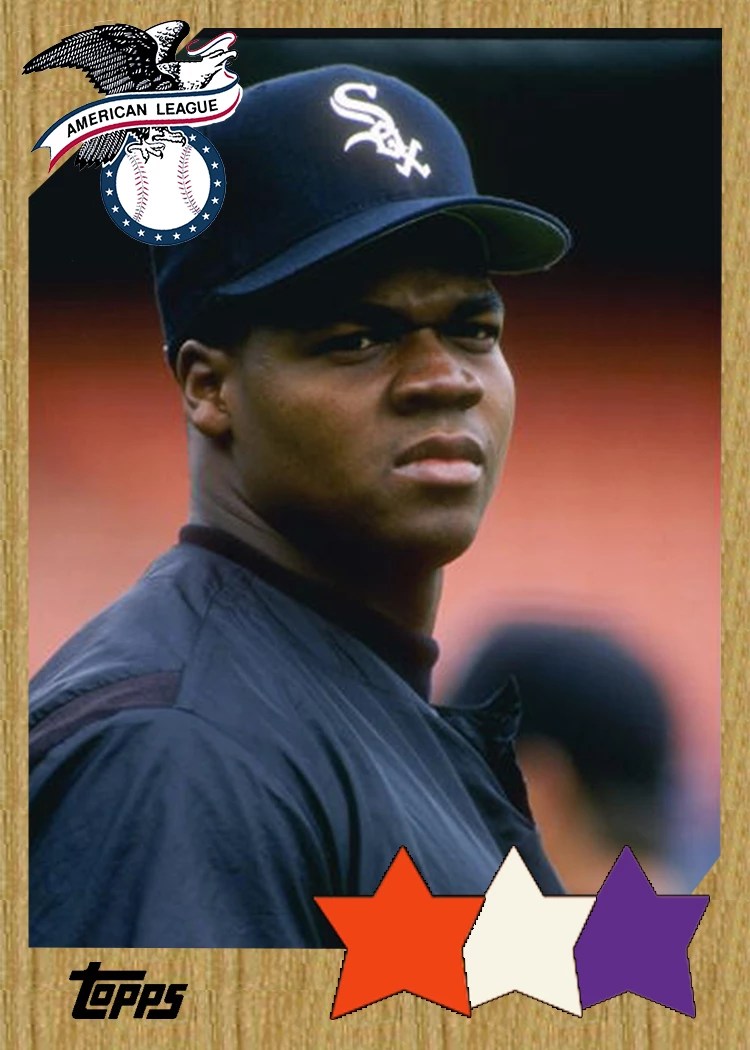
Please note that the Cal Ripken picture has a white border on the right and top sides - that is what I am trying to "duplicate" (please ignore the black bar at the top of the Frank Thomas photo on the right that could be mistaken for a border . . . it is due to the size of the image, which has not yet been corrected).
I am thinking it somehow involves duplicating layers, etc. to do what I hope to achieve, but I need someone to tell me exactly what to do step-by-step.
Thanks in advance for any help!
 AdChoices