December 2, 2025
Answered

How to Resize Images in Photoshop

  • December 2, 2025
  • 3 replies
  • 606 views
 

ЗHello! Please help me solve this problem. I need to stretch an image strictly horizontally from the center to the edges (as in Figure 2), but Adobe Photoshop resizes the image from the "left" side to the "right" (as in Figure 1). Perhaps the problem is in the advanced settings; where can I find them?


[formating fixed by mod]

Correct answer Trevor.Dennis

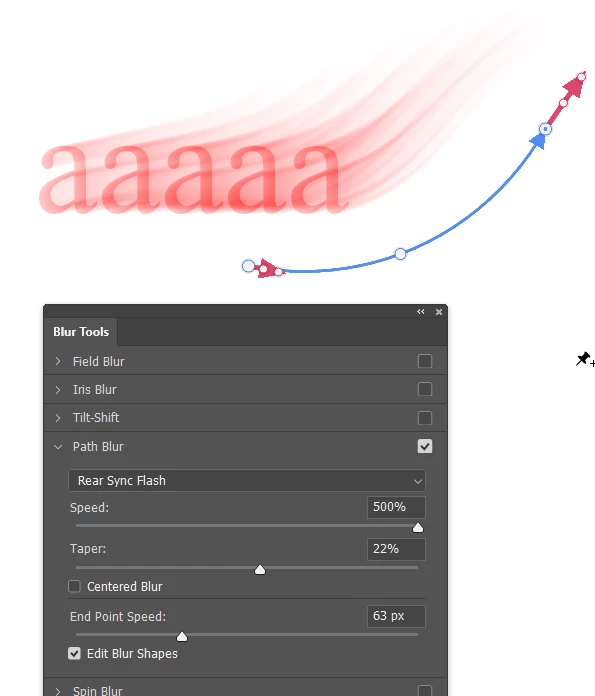
I wonder if Path Blur might be useful. If working with a text layer, make it a Smart Object before applying the blur.

Use the end points (red arrows) to extend and shape the effect.

image.png

3 replies

Trevor.Dennis
Community Expert
Trevor.DennisCommunity ExpertCorrect answer
Community Expert
December 3, 2025

I wonder if Path Blur might be useful. If working with a text layer, make it a Smart Object before applying the blur.

Use the end points (red arrows) to extend and shape the effect.

image.png

Conrad_C
Community Expert
Community Expert
December 2, 2025

This looks like something you could do quickly using copies of the layer stretched and each set to different Opacity or color tints. Steps used in the demo below: 


1. In the Layers panel, drag the layer to the New Layer icon to make a copy. Repeat for as many copies as you need. 

2. Select the next layer down from the top. 

3. Stretch it using any non-proportional method you like. The demo uses two different methods:

  • Dragging: With Show Transform Controls on, I drag a side handle of the layer while holding down Alt/Option to transform from center and Shift to disable proportional scaling. 
  • With numbers: With a Transform command active (such as Edit > Free Transform or Edit > Transform > Scale), in the options bar I click to disable the proportional scaling icon, then enter a larger W (width) value. This can also be done in the Transform section of the Properties panel. If you need precise or consistent scaling of each copy, this method is probably better than dragging to resize. 

4. Change the appearance of that layer. I lowered Opacity, but depending on your composition you might apply a lighter tint or less saturated same hue instead. 

5. Repeat step 2 down through the other layer copies until you’re done. 


If you do this a lot, you might be able to record these steps as an action (macro) or write a script for it.


Photoshop stretched copies nikolay_8081.gif

Legend
December 2, 2025

Resizing is done proportionally to the entire image. You example looks like you want the sides stretched but the center to remain unchanged, is that correct?

jane-e
Community Expert
Community Expert
December 2, 2025

@nikolay_8081 


Try Content Aware Scale from the Edit menu. Here are three links to get you started.


Jane