
Known Participant
August 9, 2019
Answered

How to Resize Text Box without Resizing the Texts Inside It?

  • August 9, 2019
  • 6 replies
  • 96387 views

Hi,

How can I resize the text box without resizing the texts inside it? I search on Google and find the following article:

https://graphicdesign.stackexchange.com/questions/42095/photoshop-how-to-resize-a-text-box-without-distorting-the-actual…

However, I check the text layer in my PSD file, and there is only a "Type" -> "Convert to Point Text" menu item for it, which means it is already a "Paragraph text". But when I try to resize it, the resize will still cause the texts inside it distorted again. Why?

My file can be downloaded from: Dropbox - Problem2.psd - Simplify your life
Correct answer

Hi

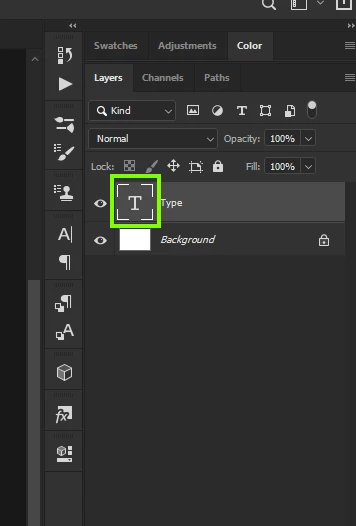
Double clicking the type layers thumbnail works for me with Photoshop 20.0.5

Also tested your PSD and it works fine

6 replies

Erin28986525pjac
Participant
March 1, 2026

Why in the world did Adobe make something that should be so simple and make it so stupidly complex? Thank you so much for this answer. 🙏

Conrad_C
Community Expert
Community Expert
March 1, 2026

It’s not complex. There is only one thing that needs to be different: Is the type layer in text editing mode, or not?

If it is in text edit mode (dashed lines), resizing rewraps the text.

If it isn’t (solid lines), resizing scales the text without rewrapping.


What makes it difficult is that this is not obvious. But once you get it, you get it. Here is a link to a demo I made in another thread that shows you exactly how it works. 


Erin28986525pjac
Participant
March 1, 2026

It is “complex” because it’s not intuitive. It needs to be learned.

I say this because people can’t easily guess where they need to double-click to make it work.

My assumption about how it would work (based on other interactions within photoshop—as well as similar visual editing software) is that the bounding box would be resizable by default. Then, if you hold shift or something it would scale up (or down) proportionally. 
 

Double-clicking on the layers usually opens a dialog box with a lot more controllers, which is why it never occurred to me that it would change the state of how the text box is manipulated.
 

Good, simple design leans on people’s existing mental models. I’m sure I’m not the only person who’s struggled with this. 

Participant
October 14, 2025

It still does not work for me.

jane-e
Community Expert
Community Expert
October 14, 2025
quote

It still does not work for me.

By @Yasu35048866ouxd


You jumped in on a thread from 2019 and some things have been updated in Photoshop since then.


You didn't say if you are using Point text or paragraph text,. You need to be using Paragraph text to resize the frame without resizing the text itself.


Jane


Participant
June 8, 2024

show mw how to goto > convert to paragraph please.

jane-e
Community Expert
Community Expert
June 8, 2024

@with32400847onwm 


Type menu > Convert To Paragraph Text


Details here:

https://helpx.adobe.com/photoshop/using/add-edit-text.html 


Jane


Participating Frequently
December 17, 2024

There is nothing in the Menu tab that says "Convert to Paragraph text" in Photoshop 26.1.0

Participant
January 5, 2021

This also works in Photoshop Elements 2021!

Bojan Živković11378569
Community Expert
Community Expert
August 9, 2019

Everything works just fine as expected. The question is: do we understand what is your problem or you are trying wrong way to resize text box? Have you tried above suggestion or try with Type Tool active, click inside text box to activate it then resize text box.

Participant
March 16, 2021

I'm having the same issue as the original person. However, there is no way I can get the box to be dashed lines. It's always solid no matter where I click or which tool I select or if I hold down "control", "option" or "command. What am I missing?

Participant
March 17, 2021

Your text within the layer is being rendered as 'point text'. You need to make the text 'paragraph text'.

Select and activate the layer that contains your text from the layers palette.

With the layer active, goto Type > Convert to Paragraph text. You should now be able to click into the text and see a bounding box that can be resized without resizing or rescaling the text inside.

Correct answer
August 9, 2019

Hi

Double clicking the type layers thumbnail works for me with Photoshop 20.0.5

Also tested your PSD and it works fine

ccw123Author
Known Participant
August 9, 2019

Hi, Ged,

Thank you very much. I find the trick. That is, one must double-click the "T", after that, the box border will become dashed lines. In such a mode, when resizing the box, the texts will not be resized.

Originally I just click the "T", in such a case, the box border is solid lines. In such a mode, when resizing the box, the texts will be resized.

August 9, 2019

You're welcome