
Participant
May 31, 2022
Answered

How to use puppet pin tool for a broken line

  • May 31, 2022
  • 1 reply
  • 573 views

As you may see that the line was divided into segments when I'm using the puppet pin tool. I'd like to treat it as either one line or one image. How can you solve this issue? I already tried expanding the the mesh, but it doesn't fix the issue. I know there are other tools can do this trick such as the warp tool in free transformation, but I prefer puppet pin tool if possible becaue it is easier to bend an image and makes much less distort than the warp tool. So, your help would be greatly appreciated.
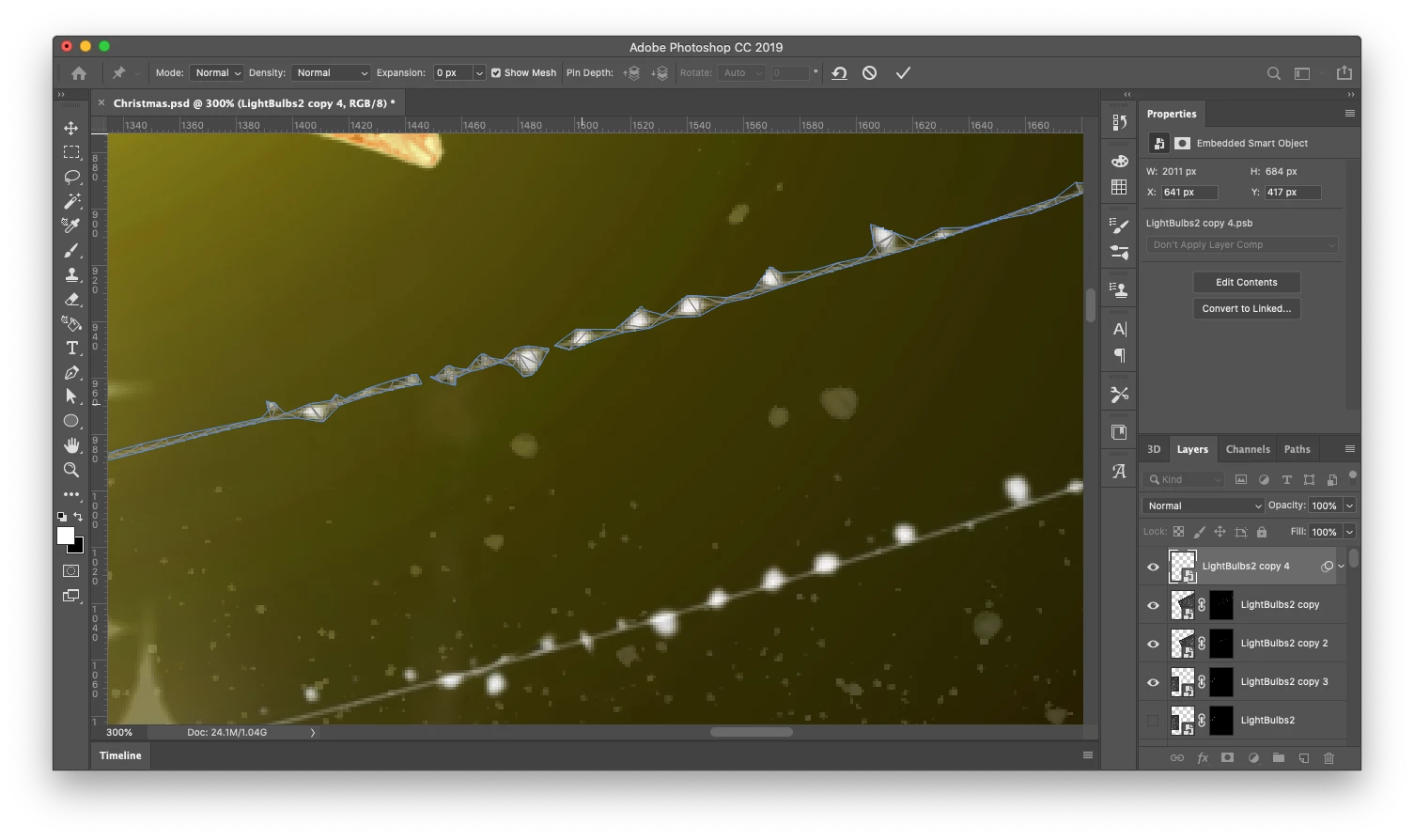
This topic has been closed for replies.
Correct answer Gideon24675424zhme

Okay. I have figured that out. First, rasterize the layer and then disable the layer mask. The puppet pin tool does work on the layer mask. Only one con is that the layer would not save the puppet pin set like the smart layer would do under the smart filter, but I recommend that you should duplicate the layer before you use and apply puppet pins to it. That's the way to keep your original layer as a backup and reduce a pain in the neck.


I forgot to note one thing. After you applied to the puppet pin, enable the layer mask.

1 reply

Myra Ferguson
Community Expert
Community Expert
June 1, 2022

Prior to apply Puppet Warp, try making the content on that layer an unbroken string of lights. You can apply a layer mask to hide portions of the lights that make it look like a broken line, but disable the layer mask when you apply Puppet Warp so that you're applying Puppet Warp to a contiguous line.

Participant
June 1, 2022

I'm almost getting there. I'm finally able to adjust the whole image. However, when I enable the mask layer, the light seems to turn into a black line, but I figured out that the puppet pin tool did not apply to the layer mask, only to the image. Here are the screenshots below.

Do you have any ideas of how to apply it to both the image and layer mask? Thanks in advance!

melissapiccone
Community Expert
Community Expert
June 1, 2022

The layer mask should be part of your smart object - you have it on the smart object... is should be IN the smart object.

Melissa Piccone | Adobe Trainer | Online Courses Author | Fine Artist