Actually think I may have solved it. Apparently the keyboard shortcut Quick Export as JPG does not save the image full size, but only at 7 instead of 12?
Yes, that is what davescm meant when he asked whether you were saving or exporting.
In Photoshop, “save” refers to Save As or Save a Copy. Those commands always embed the ppi metadata.
“Export” means Quick Export or Export As. Those commands never embed the ppi metadata, because they’re intended for web/screen delivery where ppi has no meaning. So that is why the ppi metadata wasn’t coming through.
(Save for Web (Legacy) is sort of an odd one. It doesn’t embed ppi metadata unless All is selected in the Metadata menu.)
Apparently the keyboard shortcut Quick Export as JPG does not save the image full size, but only at 7 instead of 12?
By @f5pt6
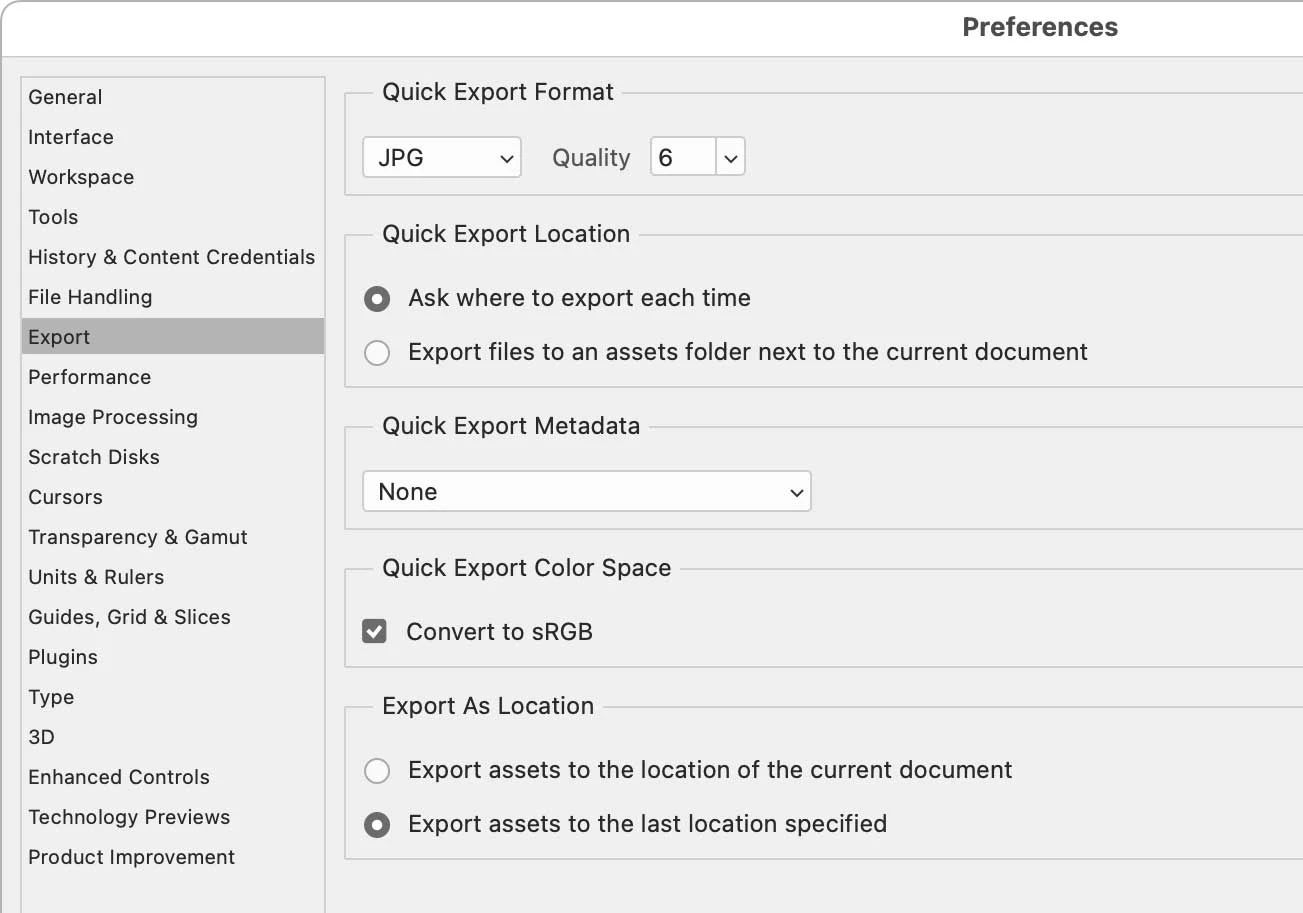
Quick Export is sort of an “express” feature that lets you export in one quick step, and it always does it the same way. Fortunately, you control what it does. If you open Preferences and select the Export panel, the top section is Quick Export Format. Whatever you enter there is what the Quick Export shortcut will do.
One problem here is that you are not going to get a JPEG Quality level of 12, because it maxes out at 7. So if you want to max it out it’s 7. (One of life’s great mysteries is why there are multiple JPEG Quality scales, such as 1–7, 1-12, and 0-100, among different commands just within Photoshop, and also compared to Lightroom and Camera Raw.)
What you probably can’t solve in Quick Export is the ppi. You see a Quick Export Metadata section in those preferences, but including ppi is not an option (such as in the All option in Save for Web). Again, because Photoshop tends to export ppi metadata with the print-oriented Save As and Save a Copy commands, but not for any of the web/display oriented commands that have Export in the name.


 AdChoices