
TennantGilbert
Inspiring
April 8, 2024
Answered

I have 22 .RAF (Fuji RAW files) that I would like to bring into Photoshop to make a movie. But...

  • April 8, 2024
  • 1 reply
  • 476 views

With the 22 .RAF files, they do not align perfectly with the Sun in the centre. The Sun bounces around a very small amount as the Lunar images progress to a 40% lunar coverage, then fade out of view off the edge of the Sun.

I would like to get all the Sun images to align to centre for the  Photoshop video creation, but can't seem to find a way to do so.

Help?

(I have enclosed four JPG files as a sample)

Would anyone be able to assist? I also wouldn't mind reducing the area around the Sun, in each image, to retain common dimensions in each.

Thank you.

Gil
This topic has been closed for replies.
Correct answer Trevor.Dennis

Colin Smith put up a video on this a couple of days ago.


Regards aligning the layers, I did try Edit > Auto Align, but got an Not enough overlap message, so it's going to have to be manual.


Open all the layers into a stack, and create a new layer at the top of the stack.

Select the Elliptical marquee tool. Hold down Shift, and drag a selection around the top most sun.

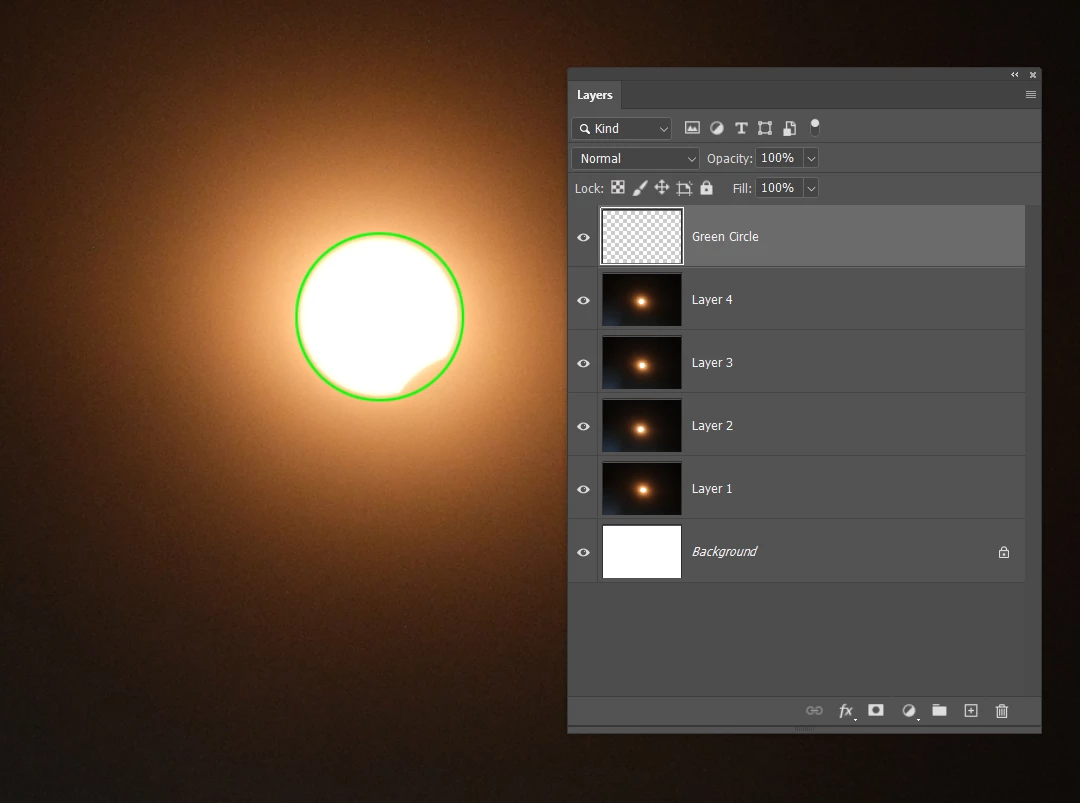
Use Edit > Stroke, to create a circle that just encompasses the sun orb as below.  Obvciously use a contrasting colour.

Now turn off the top sun image, and nudge the next lower layer to align with your circle.

Repeat for the other layers


I amm going to assume that you will creeate a frame animation, because if you are creating a video, you won't have enough frames.  


OK, I was going to suggest using a Frame Animation, but it is a bit complicated fading between your layers, so go with a video timeline.  


1 reply

Trevor.Dennis
Community Expert
Trevor.DennisCommunity ExpertCorrect answer
Community Expert
April 9, 2024

Colin Smith put up a video on this a couple of days ago.


Regards aligning the layers, I did try Edit > Auto Align, but got an Not enough overlap message, so it's going to have to be manual.


Open all the layers into a stack, and create a new layer at the top of the stack.

Select the Elliptical marquee tool. Hold down Shift, and drag a selection around the top most sun.

Use Edit > Stroke, to create a circle that just encompasses the sun orb as below.  Obvciously use a contrasting colour.

Now turn off the top sun image, and nudge the next lower layer to align with your circle.

Repeat for the other layers


I amm going to assume that you will creeate a frame animation, because if you are creating a video, you won't have enough frames.  


OK, I was going to suggest using a Frame Animation, but it is a bit complicated fading between your layers, so go with a video timeline.  


TennantGilbert
Inspiring
April 9, 2024

THANK YOU TREVOR!!
I did as instructed and now I just have to get rid of the orange ghosting around each image.

Off I go to look for Colour Replacement... Thanks again!