Participant
September 21, 2026
Answered

I have just noticed that I can no longer use the rectangular marquee to select a portion of a layer in photoshop and hit clear to remove the selcted portion of they layer. Is this a bug or is there an update to the way I need to do this now?

  • September 21, 2026
  • 3 replies
  • 30 views

If I try to clear it, it either simply does nothing or gives me an error message saying “could not clear because the content of the layer is not directly editable”. I am doing the same steps I have done for years to try to do this and have never had this issue before.

    Correct answer Trevor.Dennis

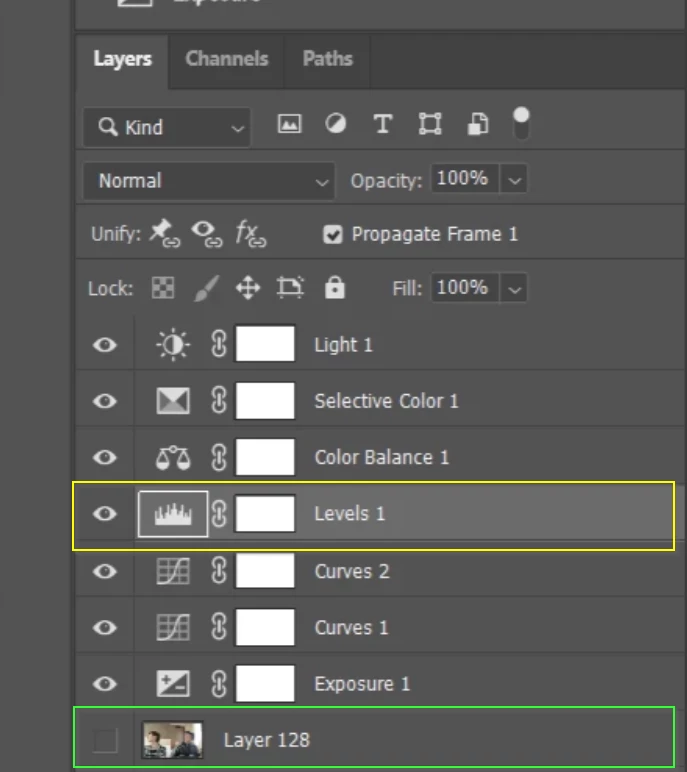
    You have an Adjustment Layer selected (Yellow highlight)

    Your Layer 128 is a raster layer (green highlight).  If it was turned on and selected, then you could delete (clear) a selected area from that layer. 


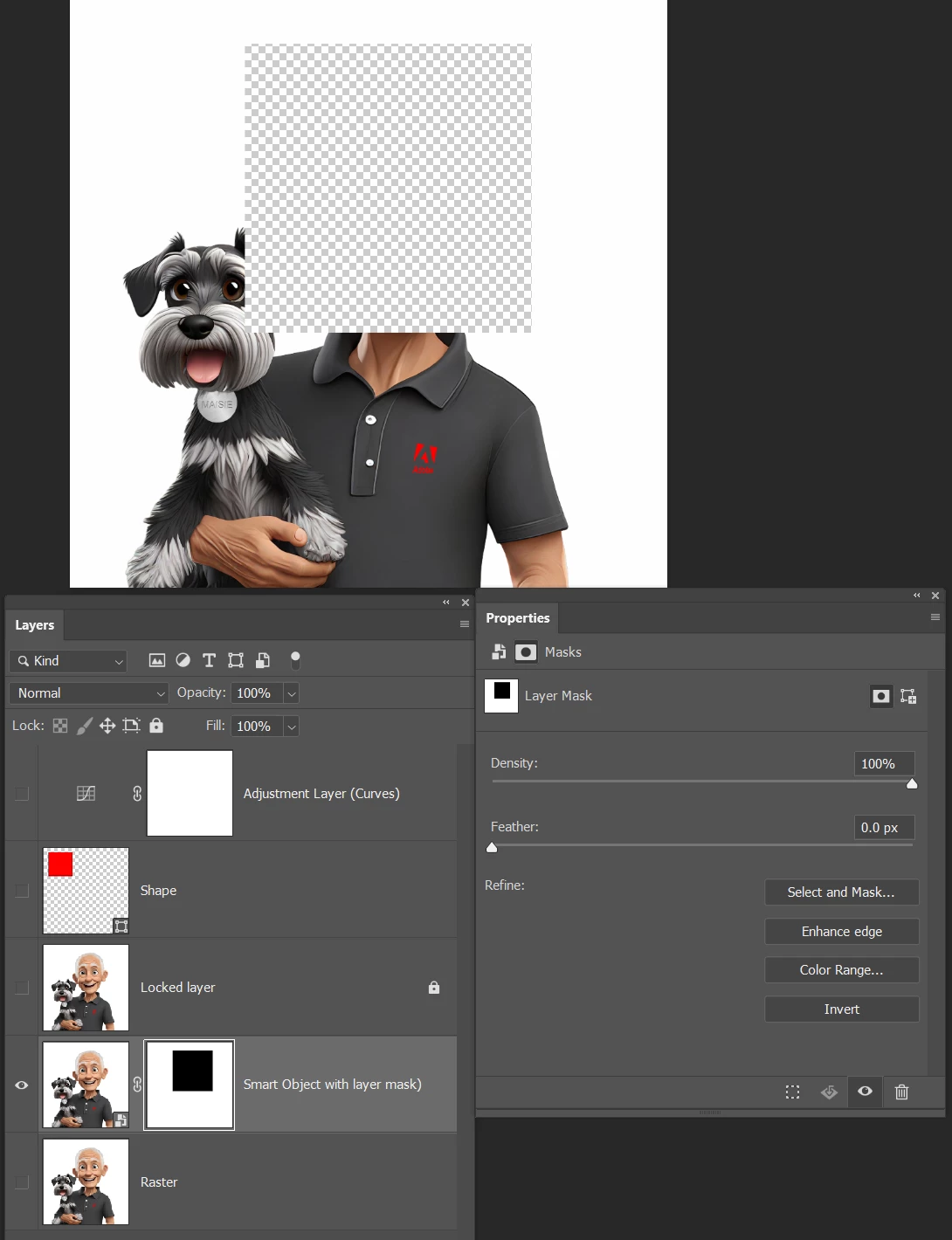
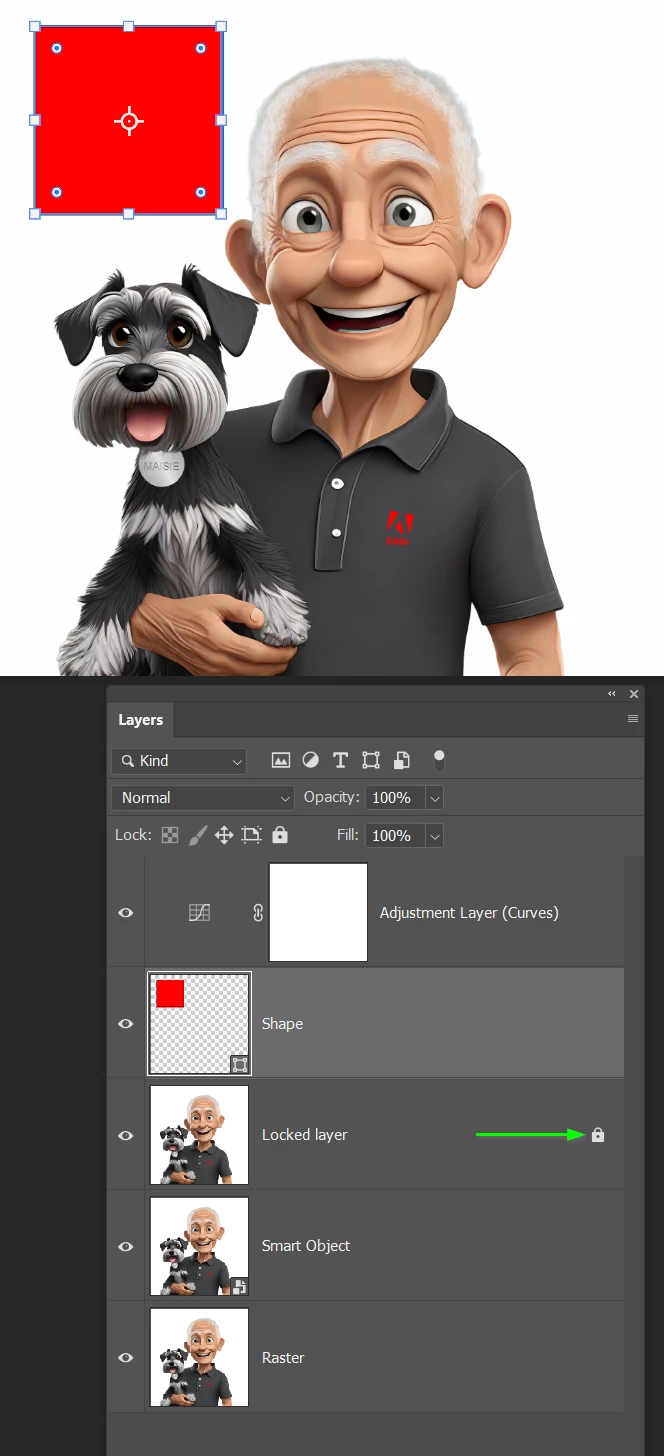
    Of the layers below, only the bottom layer would allow you to ‘clear’ a selected area.

    The layer I have labelled ‘Locked Layer’ has a wee padlock icon, and has been locked via the icons at the top of the layers panel.

    Smart Objects can be made from multiple layers of any type.  You can double click to open A Smart Object in a new window and edit there, or you can mask out an area using a layer mask.

    A layer mask is usually the best way to ‘hide’ part of a layer because it is non destructive.  You can ‘un-hide’ the area by making the hidden area white in the layer mask.

    Does this help?  You can ask as many questions as you like.  It makes us feel clever when we can answer them, so it’s win win all round. :-) 

    3 replies

    Trevor.Dennis
    Community Expert
    Community Expert
    September 21, 2026

    When you say Clear are you referring to the Backspace and Delete keys?

    They only work with ‘raster’ layers.  It would not work with Smart Object, or Shape layers.  Does that make sense?

    Show us a screen shot of your entire workspace if you are not sure.

    Participant
    September 21, 2026
    here is an example. i used to be able to have, as shown here, a layer such as the levels layer (or any other adjustment layers shown) and select a part of the frame with the rectangular marquee as shown and then hit delete and it would erase the part of the layer selected. i am also unable to use the actual eraser which i used to be able to do until very recently.


    Trevor.Dennis
    Community Expert
    Trevor.DennisCommunity ExpertCorrect answer
    Community Expert
    September 21, 2026

    You have an Adjustment Layer selected (Yellow highlight)

    Your Layer 128 is a raster layer (green highlight).  If it was turned on and selected, then you could delete (clear) a selected area from that layer. 


    Of the layers below, only the bottom layer would allow you to ‘clear’ a selected area.

    The layer I have labelled ‘Locked Layer’ has a wee padlock icon, and has been locked via the icons at the top of the layers panel.

    Smart Objects can be made from multiple layers of any type.  You can double click to open A Smart Object in a new window and edit there, or you can mask out an area using a layer mask.

    A layer mask is usually the best way to ‘hide’ part of a layer because it is non destructive.  You can ‘un-hide’ the area by making the hidden area white in the layer mask.

    Does this help?  You can ask as many questions as you like.  It makes us feel clever when we can answer them, so it’s win win all round. :-)