I'm using Photoshop on my iPad and want to print images to a photo printer. I want to be able to specify height, width, dpi, and place where on the media the image will print. Is it possible and how can I do it?
I'm using Photoshop on my iPad and want to print images to a photo printer. I want to be able to specify height, width, dpi, and place where on the media the image will print. Is it possible and how can I do it?
I'm using Photoshop on my iPad and want to print images to a photo printer. I want to be able to specify height, width, dpi, and place where on the media the image will print. Is it possible and how can I do it?
Correct answer Conrad_C
There’s no built-in Print command in most (maybe not any?) Adobe mobile apps.
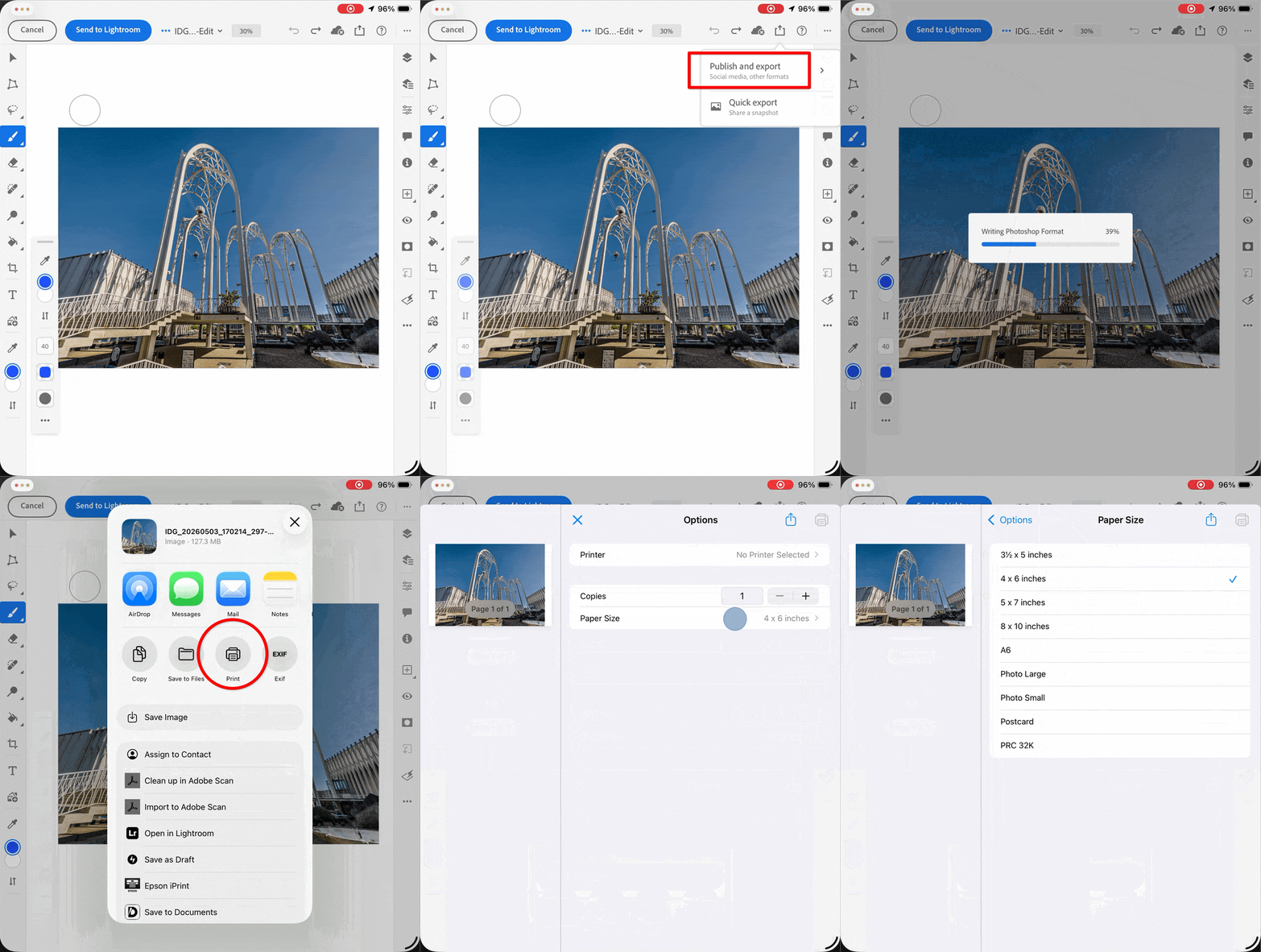
As shown in the demo below, you can hack your way around that by using the iPad OS standard Print command that you usually find in the iOS Share sheet. But you won’t find as many print options as in macOS/Windows. Here’s how you would do that in Photoshop:
In Photoshop, tap the Share icon.
Tap Publish & Export, tap a format, and tap Export.
In the iOS Share Sheet that appears, tap Print.
In the Print dialog box that appears, tap Printer and select your printer. Important: Your printer will appear in the iOS Print dialog box only if it’s AirPrint-compatible! For example, my pro photo printer is too old to support AirPrint (I have to send the photo to my computer and print it from there), and my newer printer that does support AirPrint is not a good photo printer.
Tap Paper Size and select a paper size. Important: The list of sizes is completely determined by which Printer is selected.
Any other options are provided by the iPad OS printer driver for the selected Printer. If you don’t see an option you want, that printer might not provide it on iPad OS.
Again, because Photoshop does not have its own Print command in iPad OS, steps 3 and later all depend on what the specific printer model supports on iPad OS…this is all outside Photoshop, out in iPad OS itself.
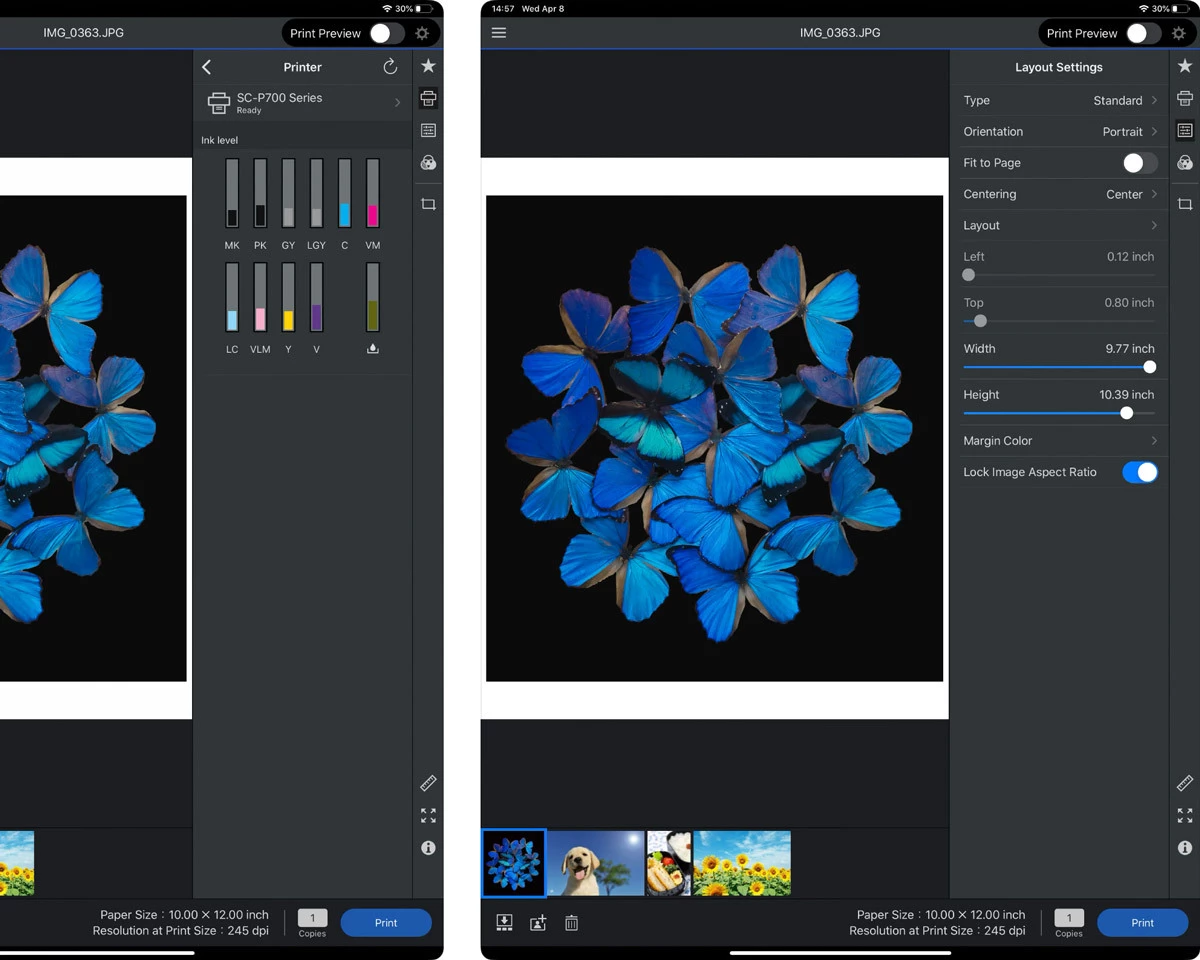
Another workaround may be possible if your printer model has a dedicated iPad app. For example, if you have an Epson photo printer model that works with the Epson Print Layout app for iPad OS, it can provide more of the features that you get on your computer, such as positioning on the page.
To print through that, you’d export from Photoshop to a file, open that file in the printer’s app, and print from there.
In the picture below, the screen shots from the iPad App Store show that Epson Print Layout on iPad lets you size and position the image on the page, and shows a readout of the effective resolution at the print size you set.
Thank you both for your comments; very helpful. Seems like apps which use Airprint don’t have access to the controls I want. I found an app called Print to Size to be promising as it does not use the Airprint layer. Thanks again.
There’s no built-in Print command in most (maybe not any?) Adobe mobile apps.
As shown in the demo below, you can hack your way around that by using the iPad OS standard Print command that you usually find in the iOS Share sheet. But you won’t find as many print options as in macOS/Windows. Here’s how you would do that in Photoshop:
In Photoshop, tap the Share icon.
Tap Publish & Export, tap a format, and tap Export.
In the iOS Share Sheet that appears, tap Print.
In the Print dialog box that appears, tap Printer and select your printer. Important: Your printer will appear in the iOS Print dialog box only if it’s AirPrint-compatible! For example, my pro photo printer is too old to support AirPrint (I have to send the photo to my computer and print it from there), and my newer printer that does support AirPrint is not a good photo printer.
Tap Paper Size and select a paper size. Important: The list of sizes is completely determined by which Printer is selected.
Any other options are provided by the iPad OS printer driver for the selected Printer. If you don’t see an option you want, that printer might not provide it on iPad OS.
Again, because Photoshop does not have its own Print command in iPad OS, steps 3 and later all depend on what the specific printer model supports on iPad OS…this is all outside Photoshop, out in iPad OS itself.
Another workaround may be possible if your printer model has a dedicated iPad app. For example, if you have an Epson photo printer model that works with the Epson Print Layout app for iPad OS, it can provide more of the features that you get on your computer, such as positioning on the page.
To print through that, you’d export from Photoshop to a file, open that file in the printer’s app, and print from there.
In the picture below, the screen shots from the iPad App Store show that Epson Print Layout on iPad lets you size and position the image on the page, and shows a readout of the effective resolution at the print size you set.




 AdChoices