Participant
July 23, 2026
Question

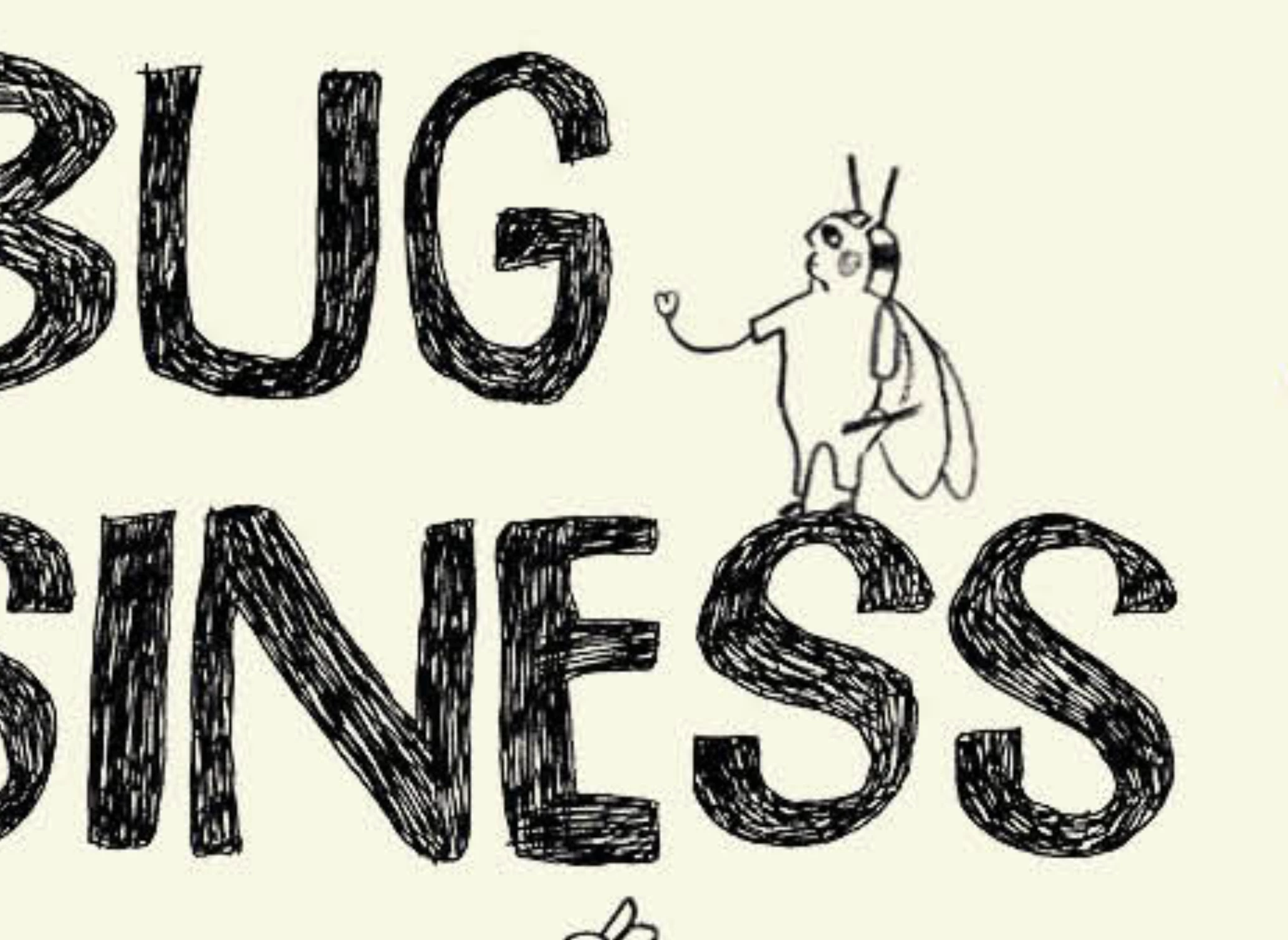
I scanned art and used channels to remove the paper background but there is a weird halo that appears around the art when I export it that I can't seem to figure out how to fix. Does anyone know what to do?

  • July 23, 2026
  • 9 replies
  • 74 views
The weird halo appears around anything I have scanned and separated from background using channels.


    9 replies

    D Fosse
    Community Expert
    Community Expert
    July 29, 2026

    Maybe you don’t need to make any selections at all.


    Assuming the original is evenly lit and doesn’t have a very obvious texture, it is actually much easier and faster to set a new bakground color with a simple Levels adjustment. Using the input and/or output sliders per channel, you can set any color and brightness you want.


    The line drawing itself will not be noticeably affected by this.


    For some reason most people immediately reach for selections and masking in cases like this. A simple global adjustment may be all it takes - and will preserve fine detail in the drawing much better.

    bellevue scott
    Inspiring
    July 23, 2026

    I do this kind of thing on a daily basis. The best thing you can use is select color range. 

    • Select Color range.
    • Once you have the background selected, use command +j to put in on its own layer
    • lock the transparency on that layer. 
    • fill that layer with white

    If you need to remove the paper and only keep the text

    • select color range, select the color you want to keep (black) until you have it all
    • select ->modify ->contract (contract by 1 or 2 pixels to reduce the halo effect)
    • command +J to put it on its own layer
    • delete the background layer


    c.pfaffenbichler
    Community Expert
    Community Expert
    July 23, 2026

    If worst comes to worst the Neural Filter »JPEG Artifacts Removal« might be useful (with some manual correction maybe) to salvage a damaged image. 


    Per Berntsen
    Community Expert
    Community Expert
    July 23, 2026

    What is the original format of the scan?
    If you scanned as jpg, and did all your edits on a jpg, the artifacts are most likely caused by saving the file multiple times.
    Jpg is a final format, and is not meant to be edited. Every time you save a jpg, the quality is reduced, because of the lossy (destructive) compression used by the jpg format.

    For best results, scan as 16-bit Tiff, and do all the editing on the 16-bit file.
    Then export a jpg or PNG.

    davescm
    Community Expert
    Community Expert
    July 23, 2026

    The best way is to start with a PNG. If that is impossible, try the following:
     

    1. Duplicate the image layer (Ctrl+J)
    2. Use Select > Color Range to select the background
    3. Used Edit-Fill to fill the slection with the background colour (select it from a ‘clean’ area
    4. Deselect (Ctrl+D)
    5. . Check carefully that any unwanted areas have not been removed and if so use a mask on the corrected layer to bring back the original. I did not have to do this on the sample you gave


    Per Berntsen
    Community Expert
    Community Expert
    July 23, 2026

    Are you exporting as jpg? This looks like jpg compression artefacts caused by using a too low quality setting. Try using a higher quality setting, or export as PNG, which is probably a better format for this kind of image.

    SubhadraAuthor
    Participant
    July 23, 2026

    I’ve exported in all kinds of formats. These pixels even showed up in print, from a high quality print pdf with only TIFFs.

    davescm
    Community Expert
    Community Expert
    July 23, 2026

    What was the scanned image - if that was a jpeg then the artifacts start there
    Dave