Hi @MahaB82A,
That’s a very good question, and you’re thinking about it in the right direction. Let me explain it in a simple way.
What “entire image” means in Photoshop
• The entire image is the document itself, not the individual layers inside it.
• Think of it as the canvas boundary that contains all layers.
When you go to Image > Image Size, Photoshop looks at:
• The total pixel area of the document
• From the topmost pixel to the bottommost pixel
• And from the leftmost pixel to the rightmost pixel
• Across all visible and hidden layers
It does not care which layer is selected.
About your observation (you are almost correct)
Yes, when multiple layers exist:
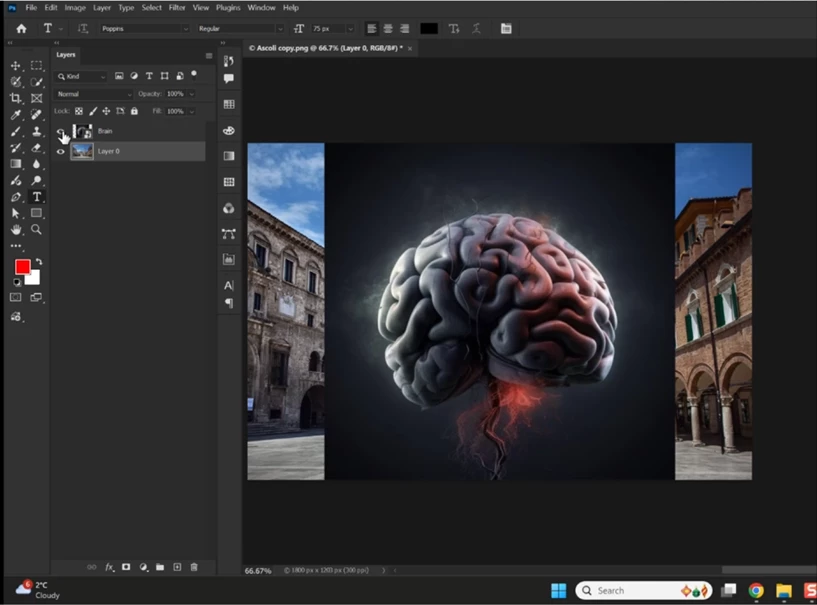
• Photoshop calculates the image size based on the largest outer boundary formed by all layers together
• If one layer is bigger and another is smaller, the image size reflects the bigger layer’s extent
But it’s not just “the biggest layer” by itself, it’s the combined outer edges of everything in the document.
Why individual layer size looks different
• Individual layer size is not shown in Image Size
• To check a layer’s size, use:
• Select the layer
• Edit > Free Transform (Ctrl/Cmd + T)
• Or Window > Properties > Transform (Width & Height)
Quick summary
• Image Size = size of the whole document (canvas + all layers together)
• Canvas Size = size of the workspace without scaling layers
• Layer size = size of one object only (checked via Transform or Properties)
You’re correct in noticing that the biggest layer usually defines the image size, but technically it’s the overall document boundary, not the layer itself.
Hope this clears it up 🙂
Best regards,
Anshul





 AdChoices