
Ade Diana R.
Participant
Nov 18, 2026 3:08 AM UTC
Question

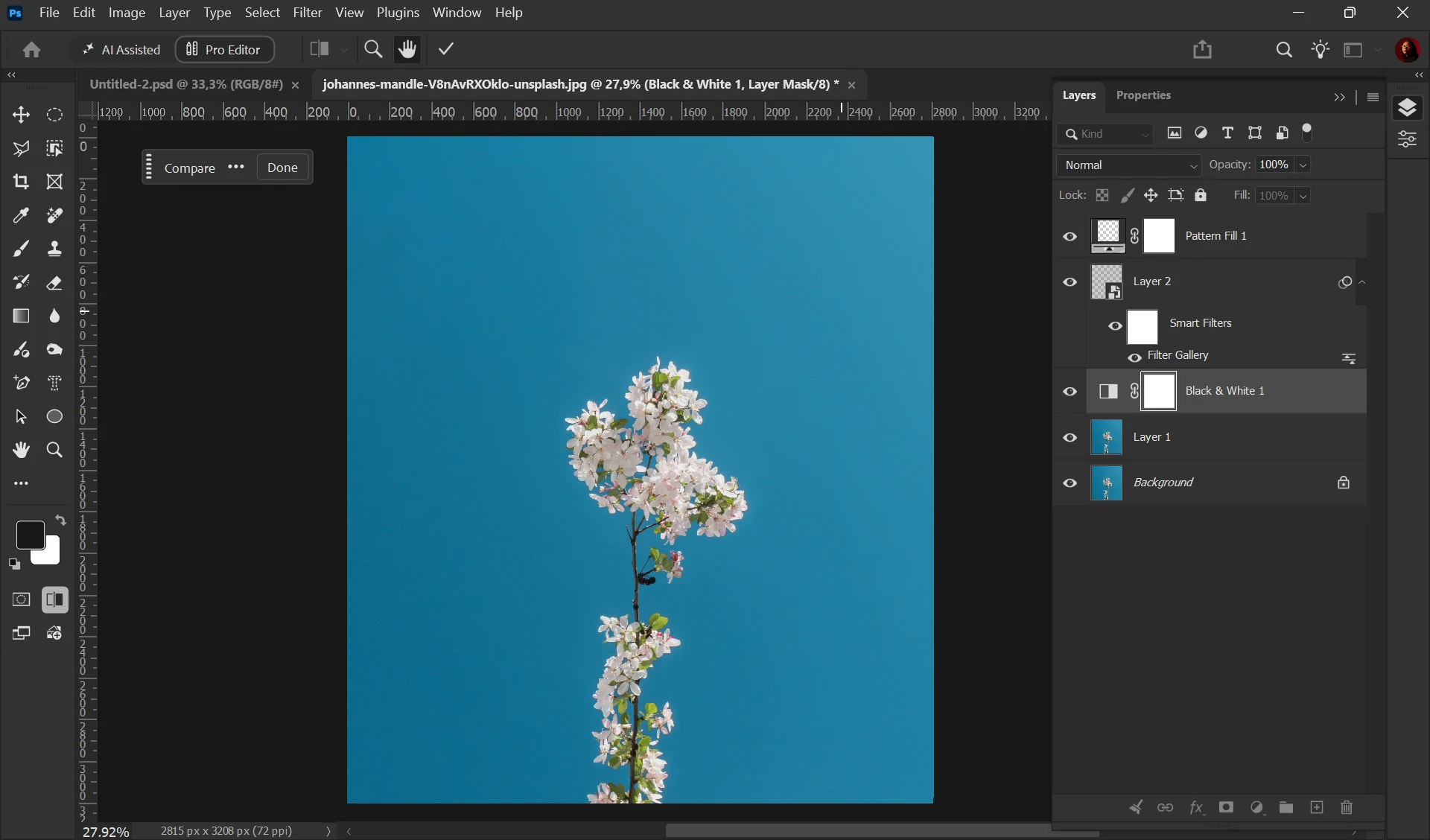
In Photoshop's Quick Compare feature, the split view option does not appear, and the comparison line is also missing. How can I fix this?

 

    7 replies

    Participant
    Nov 20, 2026 6:06 AM UTC

    I have the same problem and have tried the suggestions I’ve found online but nothing has fixed it.  Clicking the “Quick Compare” icon in the tool bar toggles between original and updated image, but the options for split screen are missing, just as shown in the screenshots already uploaded. 

    Translate
    Legend
    Nov 18, 2026 4:46 PM UTC

    I’m out of suggestions. I do notice that I have Ai Assisted and Pro Editor turned off. For my setup, that means the Contextual Task Bar is visible in the space Ai Assisted and Pro Editor are.

    Time to bring in the specialists.

    Questions they might ask -- are you running PS Beta and Ps 2027 simultaneously? Which platform and OS are you running? Have you tried toggling the setting Enable Modern User Interface? I see that the B&W treatment layer is selected -- try selecting one of the two layers (Background, Layer 1) to see if that unlocks the Compare panel.

    Translate
    Larry
    Legend
    Nov 18, 2026 4:08 AM UTC

    Your contextual task bar seems to be missing the choice of splitview in the dropdown.


    Translate
    Larry
    Ade Diana R.
    Participant
    Nov 18, 2026 5:48 AM UTC

    Yes, that’s the problem.

    Translate
    Legend
    Nov 18, 2026 7:04 AM UTC

    What happens if you click on the ellipsis (...) between Compare and Done? It should expand to three choices -- Left/Right Split View, Top/Bottom Split View, and Single View.

    Single View lacks the Compare divider. My bet is that you’re in Single View mode.

    Translate
    Larry