
Known Participant
November 28, 2022
Question

Inconsistent color between LR and Photoshop

  • November 28, 2022
  • 5 replies
  • 1460 views
Hi There.
I am not sure what happened, but I noticed that unprocessed images look different between LR and Photoshop. In the image below the left one in LR and the right one in Photoshop. The correct color is in LR image. LR profile set to Adobe Color. No LUTs or presets are being used. Adobe color space set to Adobe RGB 1998. I recently reinstalled both applications. Any ideas what setting I am missing, to make sure that photoshop display the same color?
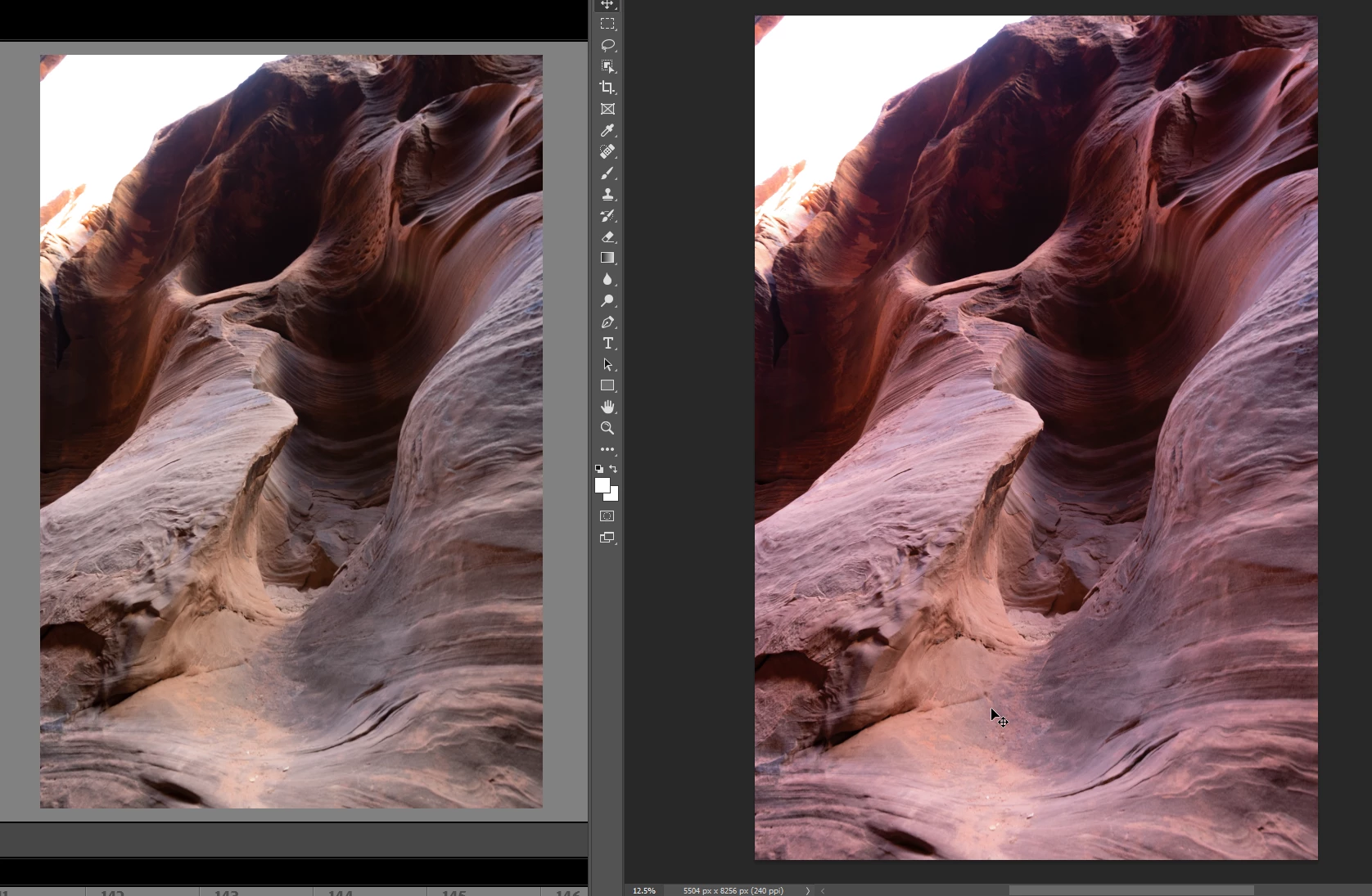
 
This topic has been closed for replies.

5 replies

Known Participant
November 29, 2022
D Fosse
Community Expert
Community Expert
November 29, 2022

There was a recent bug where the color profile from Lightroom wasn't always correctly embedded in the Photoshop file. But that wouldn't look like this, not with a ProPhoto file.


This is really odd, it doesn't tick any of the normal boxes. You seem to have a whole bunch of third-party extensions/plugins in Photoshop. Is the image going through any of these? What's Raya Pro 6.0?


Just so we're clear, Lightroom and Photoshop color settings do not need to match. These are color managed applications that should treat any profile correctly. The profile coming out of Lightroom should always override the working space in Photoshop.


So the next link in the chain is the monitor profile. A bad or marginal profile can affect applications differently, one may use the profile correctly and the other choke on it. Are you using a calibrator to make your monitor profile? Which one? If not, can you look through Windows update log and see if maybe you got a manufacturer profile?


Screenshots showing the embedded document profile and your monitor profile would be useful:

Known Participant
November 29, 2022

Ryan Pro is just an luminance selection mask application. It does not apply any color correction to the image in photoshop. Also the issue exist when Raya Pro is not installed. I did calibrate the monitors using Datacolor SpyderX Elite.


Here is the screenshot with color profiles between LR and Photoshop


Here is the color profile used by Windows. It is the profile for my calibrated monitor

D Fosse
Community Expert
Community Expert
November 29, 2022

Are you sure that's the Spyder profile? Did you name the profile when you ran the Spyder? It looks like a monitor profile from LG, and LG is among those manufacturers who frequently ship bad profiles through Windows Update.


But even if that is the Spyder profile, it could still be bad. Spyder has a somewhat poor reputation in some circles (I don't have much experience with it myself).


Try to change your monitor profile to sRGB IEC61966-2.1 in Windows color management. If the difference disappears, you know it's a bad monitor profile. Relaunch Photoshop when done, it loads the profile at application startup.


Other than that, I can see the ProPhoto profile is correctly embedded in the PS file, and that means there's no general problem in the color management chain. If there was, it certainly wouldn't look like this. In that case it would be very drab, desaturated and slightly greenish.

Known Participant
November 29, 2022

Here is another example of export from LR to Photoshop and to Luminar. Photoshop image is in the middle.

Known Participant
November 29, 2022

Just add to the issues. It only happens for .NEF file imported to Photoshop from LR. I have LR and photoshop set to the same color profiles.

It only happens when exporting to Photoshop from LR. If I open the same file directly in photoshop the color looks correct. Also when I export from LR to another application (Luminar), the colors look correct. I am using the latest photoshop version Version: 24.0.1 20221111.r.112 a12a934 x64.

Bojan Živković11378569
Community Expert
Community Expert
November 29, 2022

This is for @D Fosse