


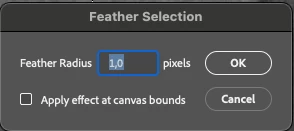
Inconsistent Keyboard Arrow Behavior in Feather Selection Radius Field — Photoshop 26.6
App Version: Adobe Photoshop 26.6.1
Platform/OS: macOS Sequoia 15.3.2 (MacBook Pro M2 Max)
Description:
In previous versions of Photoshop, it was possible to fine-tune the Feather Selection radius using keyboard arrows in a logical way. For example, I could type 1, then press the down arrow to reduce it to 0.9, 0.8, etc. — this allowed precise control using the keyboard.
However, in the latest version (26.6), this behavior has changed:
If I type 1 and press the down arrow, it jumps to 0.1 instead of decreasing gradually.
If I type 0.1 and press the up arrow, it jumps to 1.0 instead of increasing to 0.2.
This makes it impossible to adjust the value smoothly or logically using the arrow keys, and breaks a workflow habit that was efficient and predictable.
Expected Result:
Arrow keys should increment or decrement the value in small steps (0.1) regardless of how the initial number was entered, and should behave consistently.
Actual Result:
Arrow keys cause unexpected jumps between 0.1 and 1.0, preventing precise keyboard-based control of the Feather radius.
Why this matters:
This disrupts precise selection refinement, especially for users who work with subtle feathering (e.g. 0.8, 1.2, etc.). It breaks long-established interaction patterns and slows down professional workflows.
Of course, you can enter 0.8 directly from the keyboard, but I was comfortable with the old way.
 AdChoices