
Participant
July 30, 2024
Question

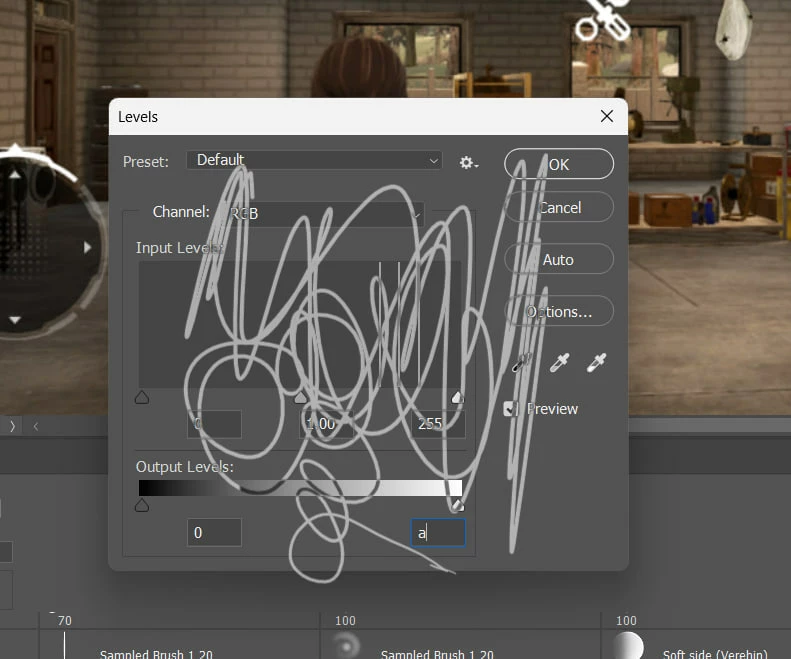
Incorrect wacom work: drawing on top of the interface Photoshop menu

  • July 30, 2024
  • 4 replies
  • 401 views

Incorrect wacom work: drawing on top of the interface Photoshop menu

I don’t understand how this happened, but for several weeks I’ve been drawing on top of the interface menu (see attachment) of Photoshop instead of changing the values ​​in them. It's infuriating, I have to switch to the mouse every time. I don't know how to fix it. Can you help me?

Wacom Intuos Pro PTH-600, driver - WacomTablet_6.4.4-3
Photoshop 25.9.1
Windows 11
This topic has been closed for replies.

4 replies

Community Expert
August 11, 2024

I've no problems with Photoshop (25.11), Wacom on a Windows 11 machine. So I don't believe that's a bug. It seems to be a problem on your installation.


In a first step you should try to reset the preferences of Photoshop using the steps described here:

https://helpx.adobe.com/photoshop/using/preferences.html#reset-preferences

It's recommended to backup the settings before resetting the preferences. Please see here:

https://helpx.adobe.com/photoshop/using/preferences.html#backup-photoshop-preferences


Try also to disable the option to "Use Graphics Procesor" from Photoshop by going to Preferences, then Performance. Once done, quit & relaunch Photoshop to check if that helps.

If it helps, you can check out the steps suggested here:   https://helpx.adobe.com/photoshop/kb/troubleshoot-gpu-graphics-card.html

Take a look especially point 7 in the "Troubleshoot GPU and Graphics driver" section.


Try to update your Photoshop to the recent version 25.11.


If this doesn't help check your system if it's up-to-date. Do you have installed all recent updates and patches for the operating system and the device drivers, especially the graphic driver. If you have a NVidia graphic card installed, make sure that you are using the recent Studio version of the driver, not the Game Ready version.

Please also provide a copy of your 'System Info'. This can be get from the Photoshop menu item Help > System Info. There's a copy button in the System Info dialog. Press this button and paste the info into your next forum post.


My System: Intel i7-8700K - 64GB RAM - NVidia Geforce RTX 3060 - Windows 11 Pro 25H2 -- LR-Classic 15 - Photoshop 27 - Nik Collection 9 - PureRAW 6 - Topaz Photo AI
Participant
August 11, 2024

I don’t know if it made him feel better reseting preferences or unchecking "Graphic Processor", but now everything works! Thank you so much!!!!

Community Expert
August 12, 2024

I think the resetting of the preferences does the trick.

You can check this by reactivating GPU support again and check if it's work.


My System: Intel i7-8700K - 64GB RAM - NVidia Geforce RTX 3060 - Windows 11 Pro 25H2 -- LR-Classic 15 - Photoshop 27 - Nik Collection 9 - PureRAW 6 - Topaz Photo AI
Participant
August 10, 2024

No, guys, Wacom support wrote me the same - clean uninstall prev.wacom driver and download 6.4.6 - 2. But it didn't help me (see attached pic). Maybe this is an adobe bug? Cz wacom works as usual with other soft

Community Expert
August 9, 2024

There'S a new uptdate for the Wacom driver to version 6.4.6-2 available.

Download and install the driver and check again.


My System: Intel i7-8700K - 64GB RAM - NVidia Geforce RTX 3060 - Windows 11 Pro 25H2 -- LR-Classic 15 - Photoshop 27 - Nik Collection 9 - PureRAW 6 - Topaz Photo AI
Kevin Stohlmeyer
Community Expert
Community Expert
August 9, 2024

@Kindhearted_Gleam98A6 that appears to be a driver issue. Check for updates or uninstall/reinstall the Wacom driver.