Forrrest Grump
Participant
June 18, 2021
Answered

Increasing size of thumbnails for Mac?

  • June 18, 2021
  • 7 replies
  • 18276 views

I'm new to Mac and cannot really see the tiny thumbnail icons which PS seems to give as standard- is there a way to enlarge them. They look especially tiny on my 27 inch screen!


In Win 10 there was a choice of several sizes and I always used the largest when secection an image to work on.


Any suggestions?


Thanks, Pete.

Correct answer gener7

I'm pretty sure I understand what you want because I successfully did this myself. The open/save Finder window has the icon size fixed at 80 pixels. You can however adjust this in your home Finder plist file:

~/Library/Preferences/com.apple.finder.plist   is where this particular plist is located in your home directory.


First you will need a Plist Editor. This is my favorite: "Plist Editor" in the MacOS App Store.

Navigate to and open:  com.apple.finder.plist  

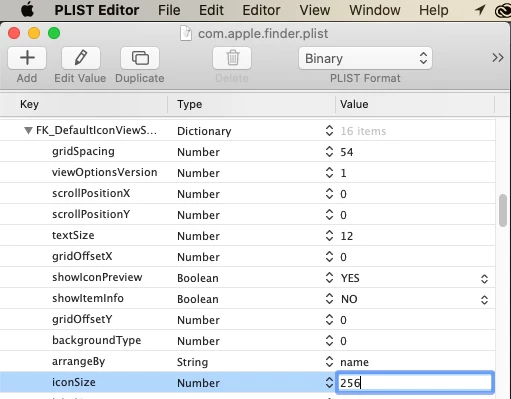
Go to the "FKDefaulticonviewsettings" and click on the triangle to expand to the settings.

Enter 256 in "iconsize" as shown. Then press Enter to confirm, File > Save to keep the changes.

Next Relaunch the Finder by pressing and holding Option/Control on your keyboard and pressing the Finder icon in the dock. You should see "Relaunch" as a menu option.

Open Photoshop and see what the icons in the open window look like.

If they are too large, experiment with different iconsizes.
 

7 replies

richknecht
Participant
August 4, 2023

I bought the plist editor ap and I can't find the path that is mentioned above in the answer.


gener7
Community Expert
Community Expert
August 5, 2023

MacOS hides certain files and folder by default. Here's how to unhide them:

https://www.techradar.com/how-to/how-to-show-hidden-files-in-macos

I prefer to keep them unhidden at all times, so I use the Terminal command shown in the instructions.

Forrrest Grump
Participant
June 1, 2023

Hi, poster of the original question here! I'm glad that some folks have learned how to adjust the thumbnail size in the Mac Finder window but that wasn't really what I was asking about; perhaps my questions were badly put and my knowledge of Mac at that time was not vast! 

The issue I still have is the tiny size of the thumbnails in Photoshop CC; when I used Windows 10 on a PC it was possible to change the size of the thumbnails very easily but using PS CC on the Mac there does not appear to be a facility to change the size, or if there is I can't find it.

What I resorted to doing was to look at the much larger thumbnail in Finder then go into PS CC and find the tiny thumbnail to open up the file for editing. If anyone could tell me how to skip this step I would be very pleased.

I have never used Bridge, didn't need it before and can't see that I really want to now, it just introduces even more steps to get where I'm going.

Thanks everybody for your interest. Pete.

gener7
Community Expert
Community Expert
June 1, 2023
quote

What I resorted to doing was to look at the much larger thumbnail in Finder then go into PS CC and find the tiny thumbnail to open up the file for editing. If anyone could tell me how to skip this step I would be very pleased.


Thanks everybody for your interest. Pete.


By @Forrrest Grump


Sure. Start with the "Correct Answer" post and go over it until you understand it before attempting it. Once set up, it will remove that extra step like it has done for others by increasing the size of that tiny thumbnail.


Gene

gener7
Community Expert
Community Expert
June 1, 2023

If for any reason you do not want to attempt the fix, try the Columns view in the Open Dialog:

gener7
Community Expert
Community Expert
May 21, 2022

To summarize, this is a fix for Icon size display in the abbreviated Open/Save/Export/Import Finder dialogs MacOS serves to third party software. Those dialogs keep the thumbnails at a fixed size, usually 80 pixels and that cannot be adjusted like the normal Finder. This advice can help those who need the large thumbnails, but review this procedure first and don't attempt it if you are unsure.


It's been a stable and reliable fix for me. Feel free to let others know, but note:

It's been tested on MacOS 10.15.7, I can't vouch for later versions. Back up the old plist just in case.

It's worked with "Plist Editor" from the App store. It hasn't been tested using other editors.
"iconsize" is the only setting I've touched. Do not adjust any other setting unless you absolutely know what you are doing.

Known Participant
May 22, 2022

Interestingly my Retina 5K 27 inch screen is happy with 160 pixels instead of 256 and this is now working much faster. I did the 256 change using PList Editor from the App store, but found the thumbs were not building quickly. At 160, they have always appeared immediately and never been replaced by generic icons.

gener7
Community Expert
Community Expert
May 22, 2022

I'm glad that is settled for you and I would ask you to pass this method around the ID and other forums as needed. I only picked 256 because it worked best for my old non-retina MBP. I do encourage others to find what iconsize works best for their situation.

gener7
Community Expert
Community Expert
June 21, 2021

So basically here is what I see in the File > Open window.

gener7
Community Expert
gener7Community ExpertCorrect answer
Community Expert
June 21, 2021

I'm pretty sure I understand what you want because I successfully did this myself. The open/save Finder window has the icon size fixed at 80 pixels. You can however adjust this in your home Finder plist file:

~/Library/Preferences/com.apple.finder.plist   is where this particular plist is located in your home directory.


First you will need a Plist Editor. This is my favorite: "Plist Editor" in the MacOS App Store.

Navigate to and open:  com.apple.finder.plist  

Go to the "FKDefaulticonviewsettings" and click on the triangle to expand to the settings.

Enter 256 in "iconsize" as shown. Then press Enter to confirm, File > Save to keep the changes.

Next Relaunch the Finder by pressing and holding Option/Control on your keyboard and pressing the Finder icon in the dock. You should see "Relaunch" as a menu option.

Open Photoshop and see what the icons in the open window look like.

If they are too large, experiment with different iconsizes.

 

Known Participant
May 20, 2022

Important to note that this Plist fix is hard to find - I did it on a previous OSX installation, and lost it. My reason was to have larger 'Place' thumbnails when using InDesign and I see there are other Adobe Support threads about this which fail to provide the solution or point to irrelevant YouTubes about general Finder prefs settings. Just to confirm - this solution works with InDesign 'Place' dialogue box when set to Icons, trransforms the user experience especially on Retina res screens.

Nancy OShea
Community Expert
Community Expert
June 18, 2021

It's unclear if you're asking about Mac Finder previews or thumbnails inside Photoshop's Layers panel.


If the latter, right-click or Ctrl+click on thumbnail to bring up the context menu. See screenshot.


If the former, Apple has online documentation on how to use Mac Finder.


Nancy O'Shea— Product User & Community Expert
Forrrest Grump
Participant
June 21, 2021

Hi, sorry for the delay in replying and thanks for your responses. I'm not trying to increase the thumbnail sizes in Mac Finder, I've already done that successfully. Also, I'm not trying to increase the size in PS Layers (which is useful but not what I'm after)!

My method of working is to Import the images from memory card to Lightroom, into a filing system of Folders and Sub-folders; normally I don't use Lightroom for any further processing, I do that in Photoshop CC. This is where my problem arises: when I click on the Folder, PS shows all the images as thumbnails. In Windows there was a facilty to choose the size of these; on the Mac I can't find that option and unfortunately the display size on the screen is approximately 13mm x 10mm, i.e tiny! I've increased the size of the window to max but that doesn't increase the thumbnail size, it just shows more tiny thumbnails.

I took several hundred photos at a motor racing event the other day so trying to see which images are worth further processing is impossible with these tiny versions.


So, if anyone has an ideas about how to fix this in the Mac version of Photoshop I would be obliged (it is, for sure,  not a Mac problem, it is the way PS handles Mac).


Is there a tech dept at Adobe which deals with Customers issues such as this?


Thanks for your advice.


Pete.

Nancy OShea
Community Expert
Community Expert
June 21, 2021

Adjust screen resolution, etc... from your Mac OS display settings.


Nancy O'Shea— Product User & Community Expert
nikunj.m
Community Manager
Community Manager
June 18, 2021

Hi Pete, 


If you are looking to change the thumbnail size for images/files in finder, you can check out the steps suggested here: https://bigtechquestion.com/2020/01/09/software/mac/make-photo-thumbnails-bigger-mac/


Hope this helps! If it doesn't please elaborate what you are looking for so that we can try & help out with that. 

Regards,

Nikunj