


Participant
September 30, 2026
Question

Is it essential to convert RGB to CMYK for commercial printing?

  • September 30, 2026
  • 4 replies
  • 45 views

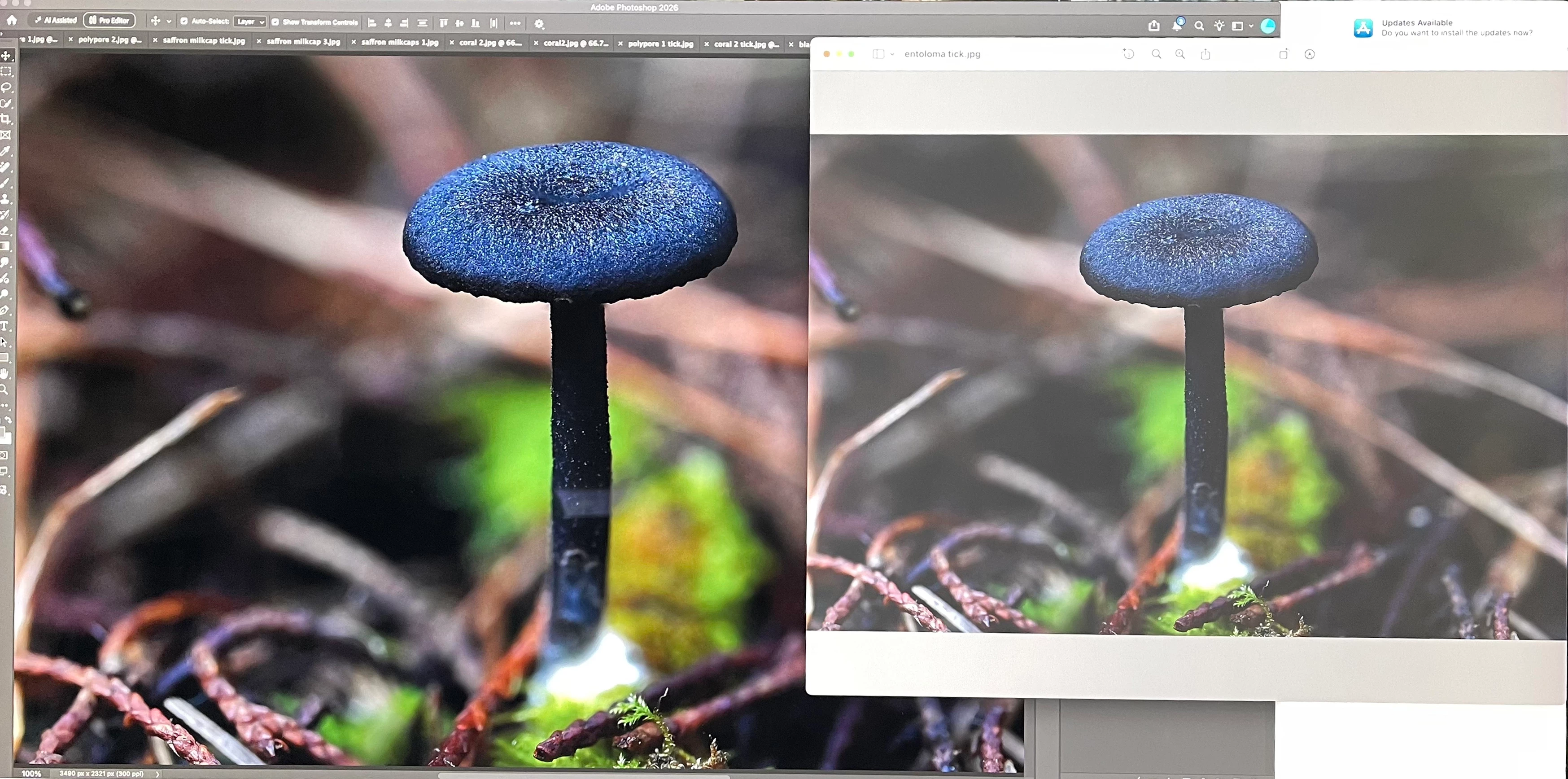
Converting RGB to CMYK using Image - Mode - CMYK Color makes the image look cloudy in Preview (on a Mac), yet it still looks fine when viewed in Photoshop. Is there another way to convert an image for printing, or if I leave it as RGB, will it print OK when sent to be printed commercially?
 

    4 replies

    Conrad_C
    Community Expert
    Community Expert
    September 30, 2026

    About this part…

    Is there another way to convert an image for printing, or if I leave it as RGB, will it print OK when sent to be printed commercially?


    For printing, an RGB image has to be converted at some point. When and where that happens depends on how you’re printing and which print shop you’re working with, how they do things. And increasingly, you are not the one to do the conversion. In short, “It depends.” Because…

    Until a few years ago, everybody always converted images to CMYK early, either while editing or when done, before sending the images to the print shop. The print shop wanted images that were ready to go. But this created many limitations. Once an image is converted to CMYK, it’s more or less locked into that specific flavor of CMYK so it might not print quite right at other printing plants with different CMYK inks or press settings. Also, if an image is converted from RGB to CMYK it loses some contrast and potential saturation, and loses editing features that don’t work in CMYK.

    For all of those reasons, in the last few years print workflows have moved towards keeping images in RGB for as long as possible, to maintain maximum image quality and editing flexibiilty. An up-to-date print shop may ask you to not convert to CMYK, to send them all your documents in their original full range RGB but with embedded profiles. At print time, their prepress equipment can then do a precise conversion from RGB to the exact CMYK profile used on the specific press they are using. This is also how it works when you print to an inkjet printer at home: You send the printer an RGB image, and its printer driver software converts those RGB values to the values for whatever number of inks the printer uses. (My inkjet photo printer uses 8 inks including two shades of black, magenta, and cyan each, some inkjet printers have green and orange inks…so you can’t always assume a printer is just four CMYK inks.)

    However, a print shop using an older workflow may require that you convert to their specific CMYK profile before sending the images.

    So again, “it depends…”

    The best thing to do is always to talk to your printing company and confirm how they want your files to be delivered. RGB with embedded color profiles? CMYK? And if CMYK, convert to which CMYK profile exactly?

    Some background articles:

    https://creativepro.com/import-rgb-images-indesign-convert-cmyk-export/

    https://creativepro.com/whats-difference-between-rgb-cmyk-printing/

    Conrad_C
    Community Expert
    Community Expert
    September 30, 2026

    This question can get complicated because there’s a lot of “it depends…”

    Converting RGB to CMYK using Image - Mode - CMYK Color makes the image look cloudy in Preview (on a Mac), yet it still looks fine when viewed in Photoshop. 

    An image should look the same in Photoshop and Preview (or any other color-managed application)…if the image file contains an ICC profile that accurately represents the document color space, and if both applications’ preview/soft proofing settings are set the same way.

    If the CMYK image was saved without an embedded profile, then how it looks in any application depends on the CMYK profile that application assumes. If an image is missing an ICC profile and an application assumes a CMYK color space that is not actually what the image is, the image won’t look as expected. So the first question here is, when you viewed the CMYK version in Preview, did it have an embedded CMYK profile? If not, then Tools > Assign Profile should be used in Preview to tell Preview what color space the image uses.

    Another variable: If soft-proofing preview (output conditions simulation) is enabled in one application but not the other, the one with soft-proofing on will appear to show less contrast and saturation…but this “cloudier” view may more accurately preview the fact that it is not possible for print to reproduce as much contrast or color as a screen.

    • In Adobe Photoshop, set up soft-proofing by choosing View > Proof Setup and toggled with View > Proof Colors.
    • In Apple Preview, enable/disable soft-proofing by choosing View > Soft Proof with Profile (to disable choose View > Soft Proof with Profile > None).


    In both cases, for an accurate print simulation, the output profile and other printing condition options you select must fully match the specific printing conditions you anticipate, for all of the reasons D Fosse said.

    D Fosse
    Community Expert
    Community Expert
    September 30, 2026

    Here’s the big picture:

    CMYK isn’t a synthetic ideal model like RGB. CMYK represents a physical print process - actual physical inks on a certain paper stock, using an offset press calibrated to a certain standard that can vary around the world. In short, CMYK is where the tires meet the tarmac.

    In other words, there is no such thing as one generic CMYK. You have a long list of CMYK profiles, each representing a specific print process. You need to know which one applies in each case, and you need to get that information from the printer. Until you know which profile to convert to, you can’t convert at all.

    Every CMYK profile is limited to the physical and optical properties of that specific corresponding print process. That’s a hard limit built into every profile. All you can do is compensate within those absolute limitations. CMYK uses only four inks. Compare that to a good inkjet printer, which can have eight to twelve ink cartridges. For inkjet printing, CMYK doesn’t apply. Inkjet printers are designed to receive RGB data and convert internally to the actual inks used.

    In Photoshop, the default CMYK profile is US Web Coated SWOP. That’s just because there has to be some default. But in most cases, especially if you’re outside the Americas, that will not be the correct profile to use, because that particular print process isn’t the one used. 

    In short, if going to commercial offset print, get the profile from the printer. Until you have that information, stay in RGB.

    mglush
    Community Expert
    Community Expert
    September 30, 2026

    The short answer is yes. Because printers print using Cyan, Magenta, Yellow, and Black. RGB is meant to be viewed on a monitor, because it is made up of Red, Green and Blue light. With that said, there are several things that you want to look at to get the best color for your printing.

    How do you send your files to print? You want to use the output info to determine how you set it up for print. Are you taking it into a page layout program like InDesign?

    Each of these will have different steps to prepare for. Also, what is your document Color Profile? You can find out what it is and change it from the bottom of the Image menu.

    My workflow is to leave my images as .psd files in RGB when I import them into InDesign. Then I set up my color printing preferences in Adobe Acrobat and output to a pdf directly from InDesign. There are those who would disagree with my process, but it has given me beautiful color and consistency results every time.

    You also have to remember two things: first, the color on the printed page is Reflective color—it is reflecting the color printed on the page and will not have the vibrance of the color on your monitor—which is transmitted color. What you are seeing in the preview is the simulation of what the print will look like. The second thing is that the color space for CMYK is just thousands of colors in comparison with transmitted RGB which is in the millions.

    There is so much more to say on color, and I hope some of the color and printing experts will give you more information too!

    But please let us know how you are preparing your files to send to print and we can possibly give more specific info on how to get the best color out of your file.

    Please let us know!

    Michelle