
Riwang_
Participant
October 2, 2026
Question

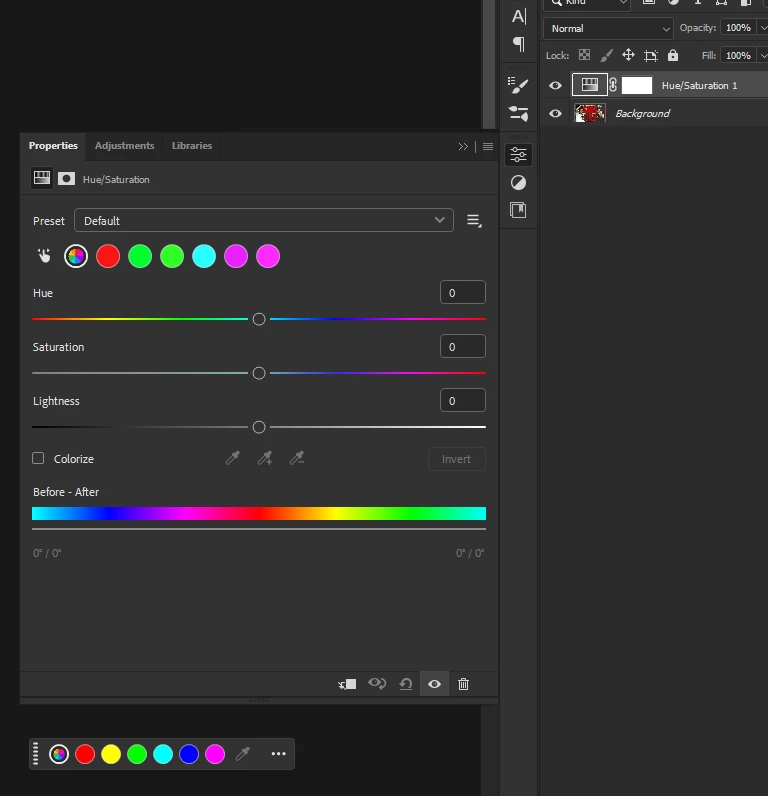
Is this the correct color order for the Hue/Saturation Properties panel?

  • October 2, 2026
  • 2 replies
  • 24 views

I noticed that there are two shades of green and two shades of pink, while yellow and blue are missing. The color order also differs from the color icons shown in the toolbar directly below the panel.  
I haven't changed any settings, this is the default state when I open the panel.
Is this supposed to look like this, or could this be a UI issue?
It doesn’t seem to affect functionality, but the inconsistent color layout is a little confusing. i use latest photoshop beta
 

    2 replies

    Trevor.Dennis
    Community Expert
    Community Expert
    October 3, 2026

    This one’s a proper mystery to me.  I wondered if it do this if set to Prominent Colors and returned to Default, but it showed the correct colors when I tested that.  I usually hate resorting to the nuclear option of resetting Preferences, as you might be missing the cause, but I think you might have to this time.  If you have not done that yet, I’d be interested in if anyone else can work out what is going on here.


    OK, I’ve managed to break it.  I set the document to Index colours and selected Dominant Colors. Then returned it to RGB and set the Hue/Sat layer to Default and got this.  I can’t get it to return to the deault colors, but adding a new hue/sat layer has it all working again.

    I’d be interested to see the image you are working on (so long as it is SFW)

    CORCTON34033231
    Community Expert
    Community Expert
    October 2, 2026

    That's not the correct order — the Hue/Saturation color dots should follow the standard hue spectrum in rainbow order: red, yellow, green, cyan, blue, magenta, back to red, with each hue appearing once (exactly like the Before/After gradient strip at the bottom of your own panel shows).


    Since you're seeing doubled greens and pinks with yellow and blue missing — and you're on the Beta build — this looks like a UI bug in the Beta rather than a setting you changed.


    Two things worth doing:


    1. Go to Edit > Preferences > General, check "Reset Preferences On Quit", and restart Photoshop. If the dots come back in the normal rainbow order, it was just a glitch in your local UI.


    2. If they still look wrong after a reset, report it on the Photoshop Beta / Bug Reports board with your OS and GPU details — that's the fastest way to get it in front of the product team.


    Either way, as you noted, it doesn't affect functionality — the Hue slider itself works off the correct hue order.