Participant
December 12, 2025
Answered

Isolating handwriting

  • December 12, 2025
  • 4 replies
  • 279 views

I'm new to this so please bare with me!

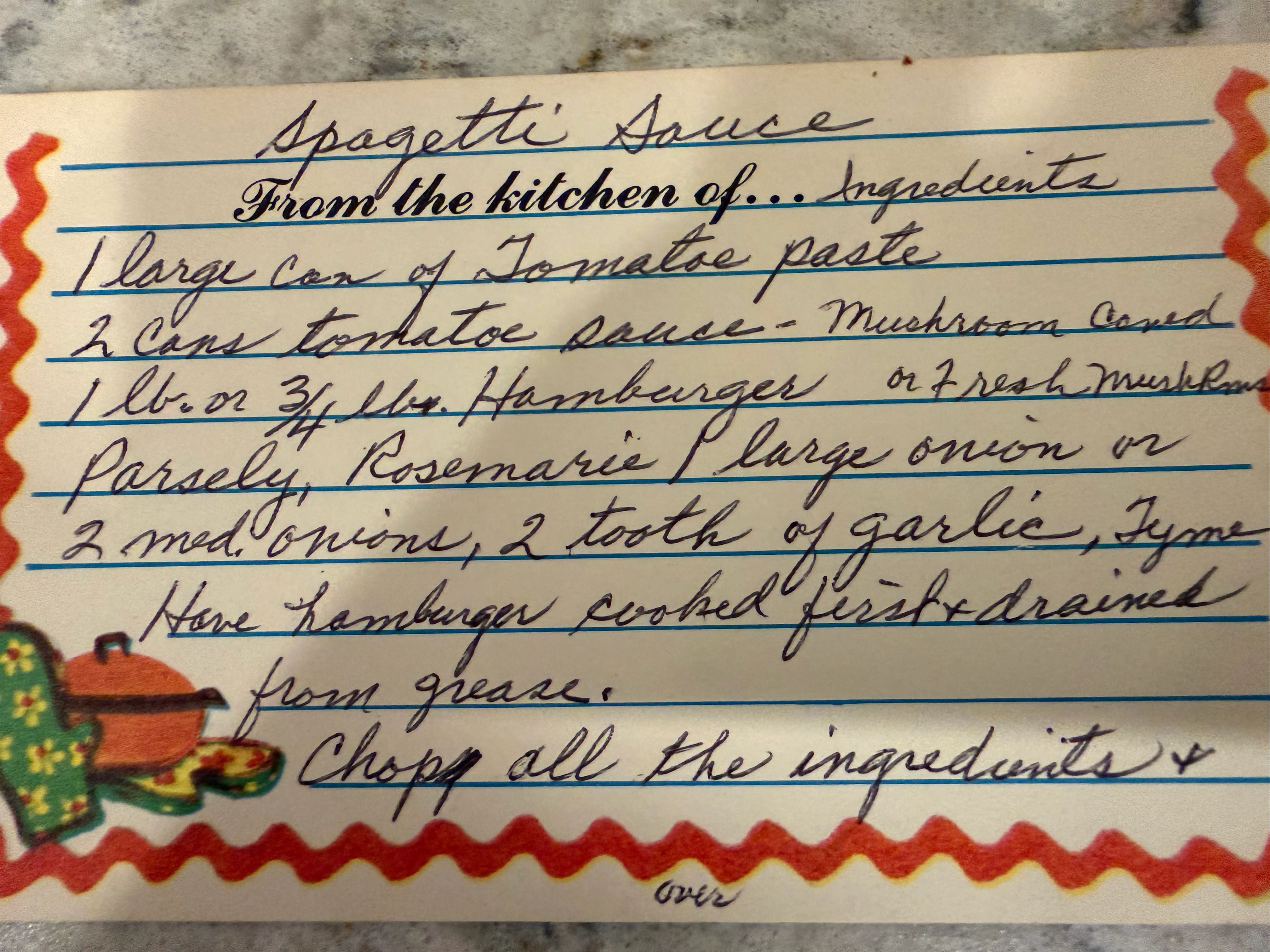
I have a photo of an index card that has a handwritten recipe on it. On the card there is extra art/lines on it that I want to remove from the photo. Ultimately I would like to have nothing in the photo except the hand writing. Are there any easy or not easy ways to achieve this. I have come close to removing everything but was unable to remove the lines the handwritting is on. Any help would be great!


Thank you!!
 

Correct answer Trevor.Dennis

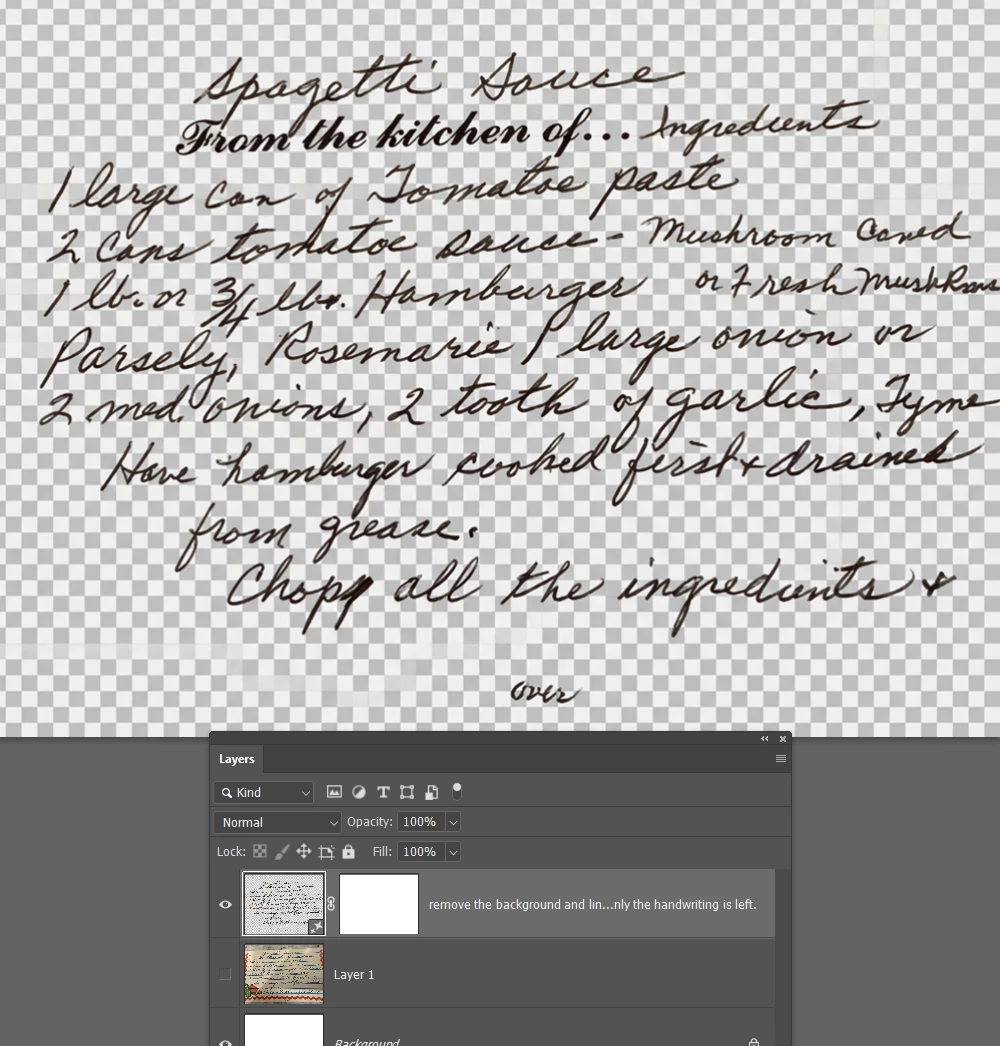
I rather thought that Gemini 3 would do a decent job of this.  You can see that it has, but the checker board is part of the layer and not indicating transparent pixels.

image.png

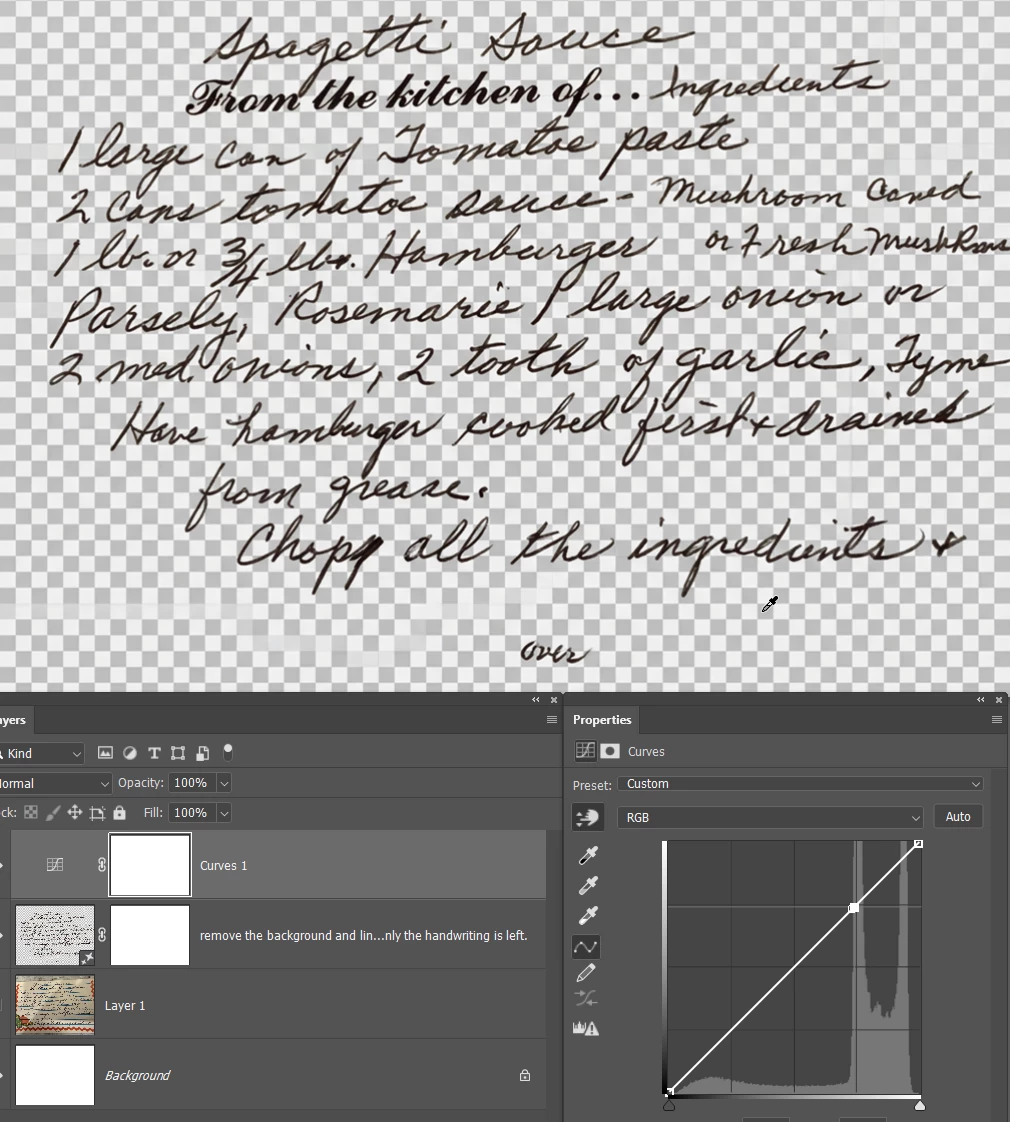
However, the grey squares are all identical, so if I add a curves layer and Ctrl click one of those squares, it shows the spikeindicating that tone.

image.png


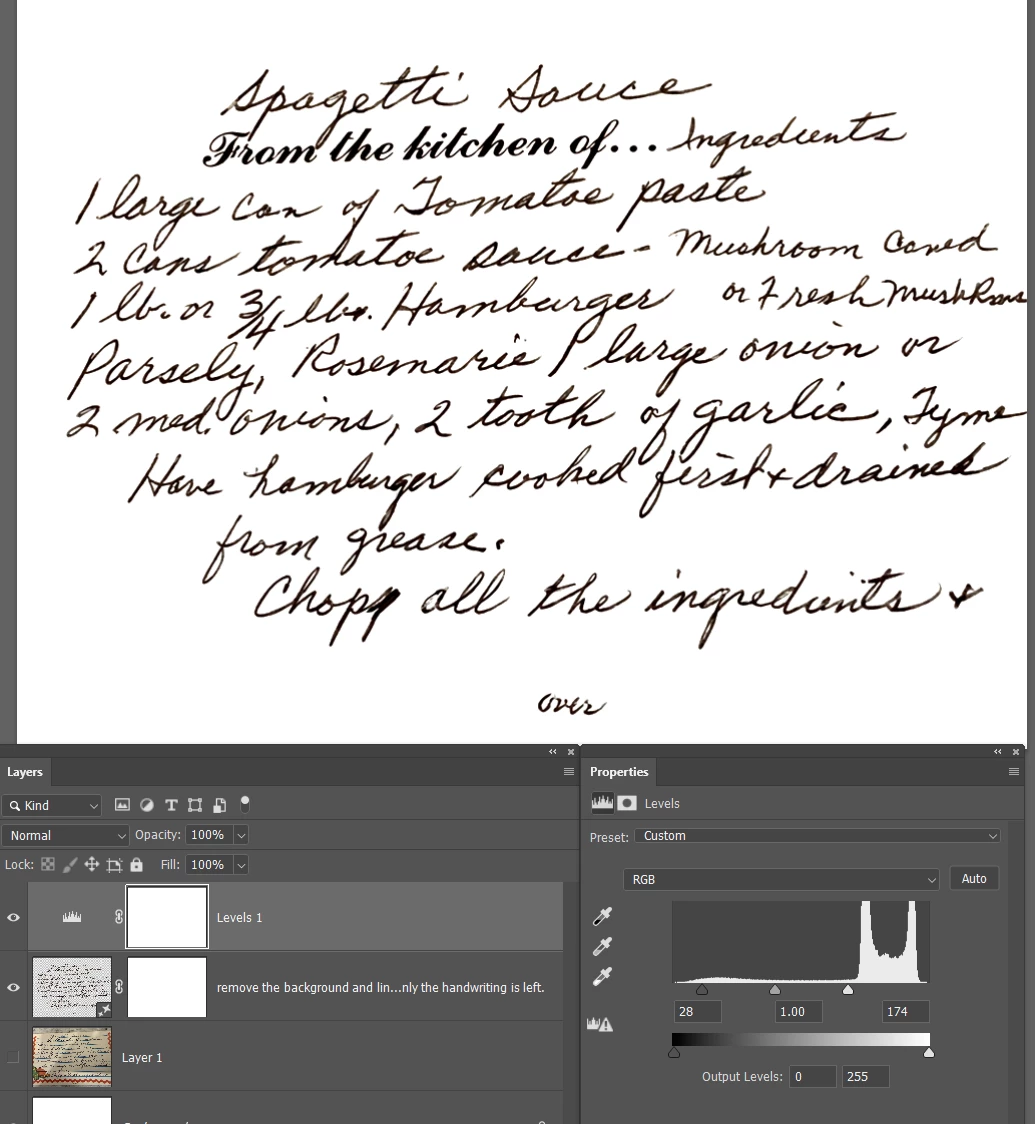
Curves was good at demonstrating, but Levels is better for removing

image.png


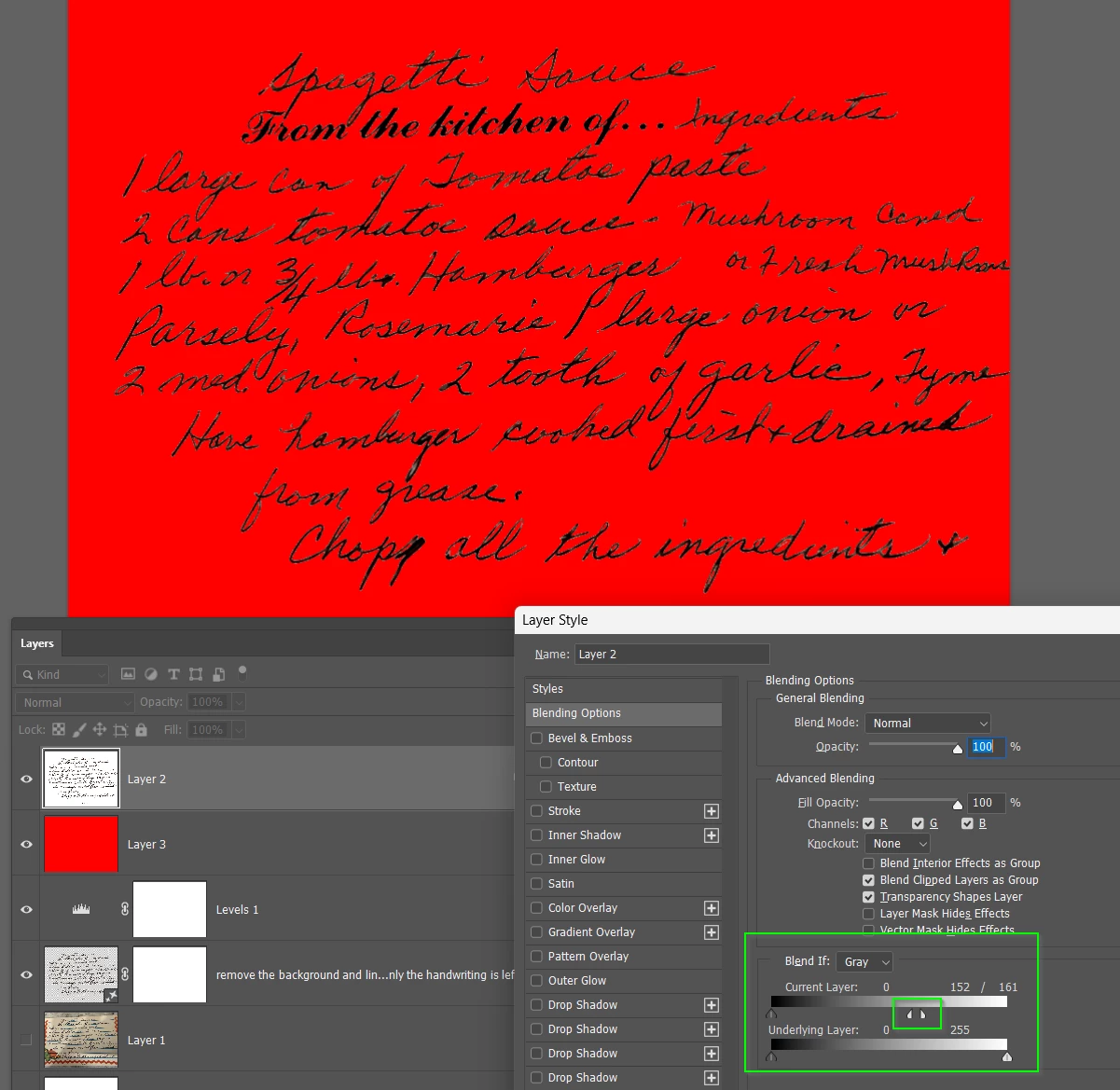
I have placed a copy merged layer at the top of the stack (Shift Ctrl Alt E) and a red layer below it (to demonstrate) and used Blend If to remove the white

image.png


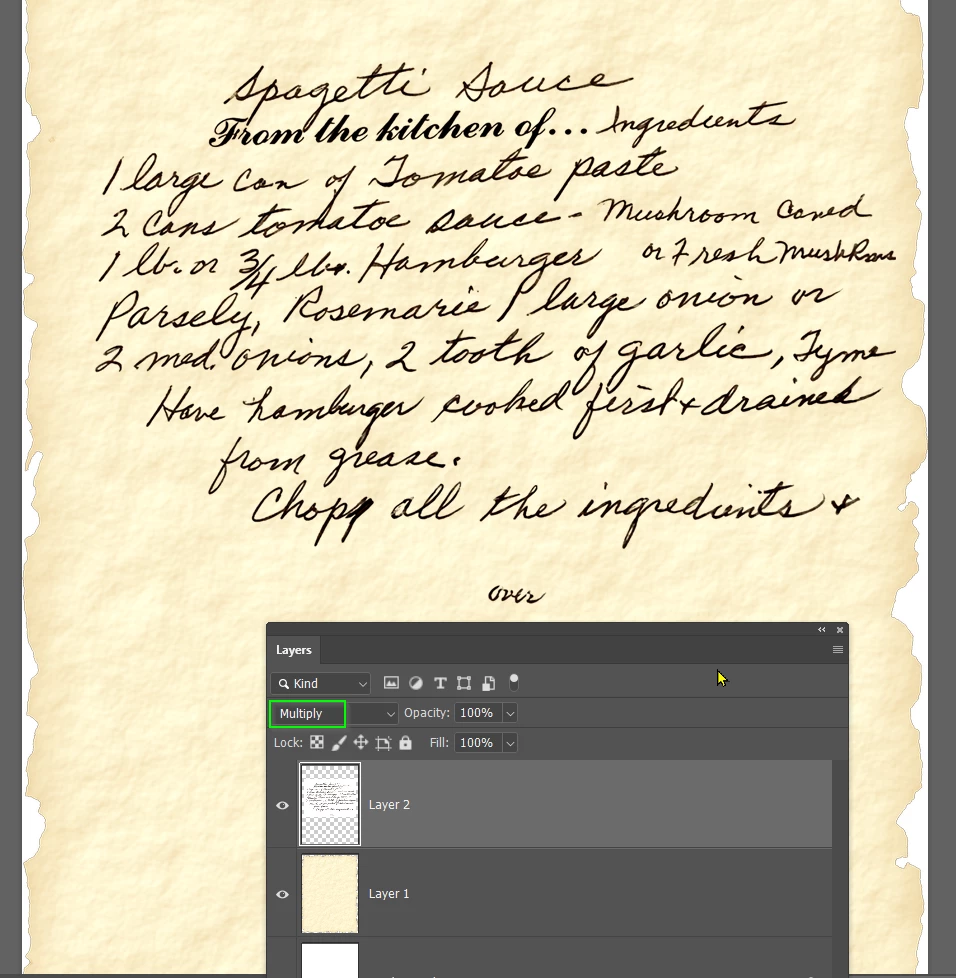
Depending on how you need to use the transparent handwriting, just setting the blend mode to Multiply might be the way to go

image.png


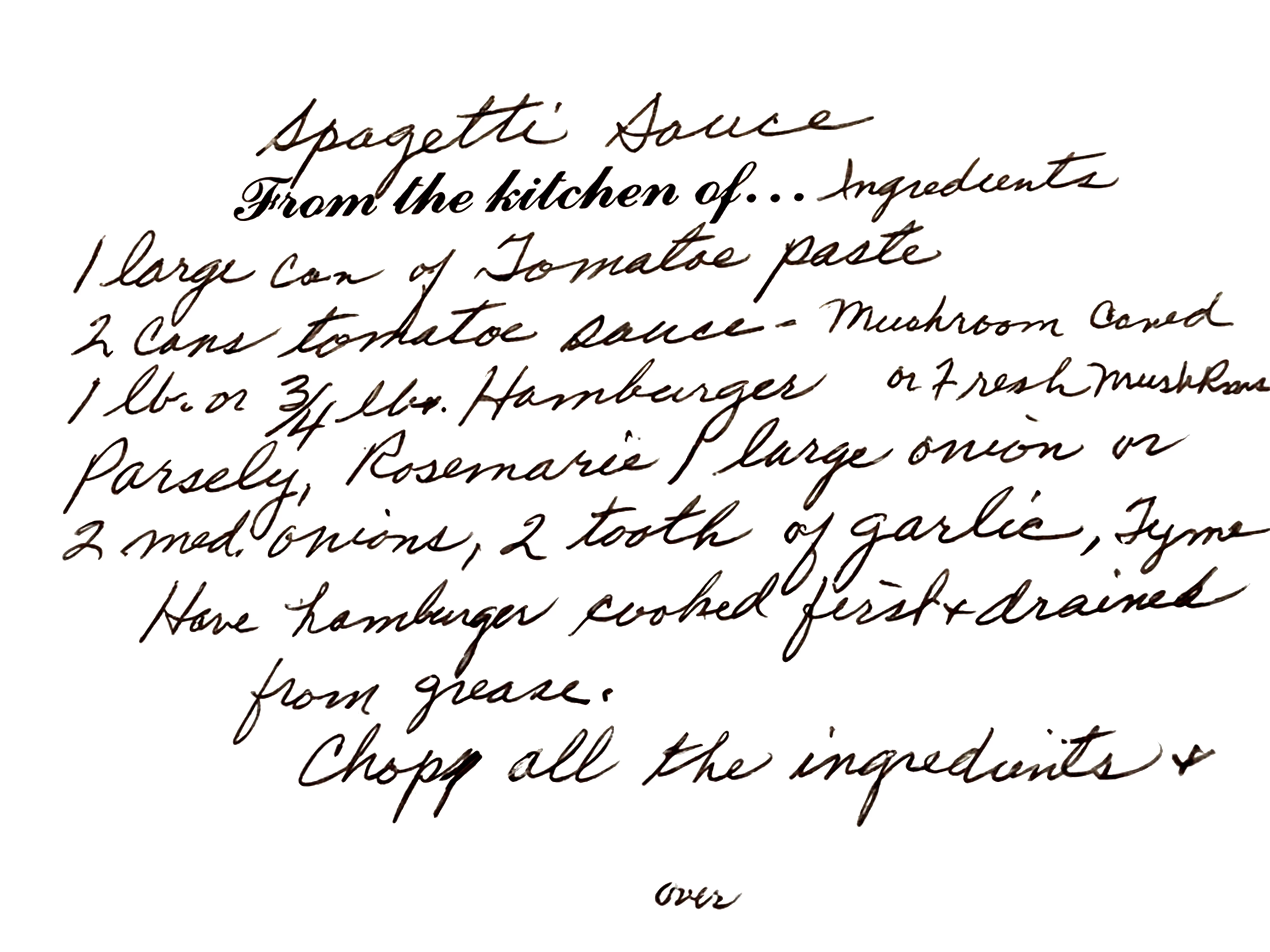
This is the full size file on a fully white background. Click to expand. Right click to copy.

image.png

4 replies

Trevor.Dennis
Community Expert
Trevor.DennisCommunity ExpertCorrect answer
Community Expert
December 14, 2025

I rather thought that Gemini 3 would do a decent job of this.  You can see that it has, but the checker board is part of the layer and not indicating transparent pixels.

image.png

However, the grey squares are all identical, so if I add a curves layer and Ctrl click one of those squares, it shows the spikeindicating that tone.

image.png


Curves was good at demonstrating, but Levels is better for removing

image.png


I have placed a copy merged layer at the top of the stack (Shift Ctrl Alt E) and a red layer below it (to demonstrate) and used Blend If to remove the white

image.png


Depending on how you need to use the transparent handwriting, just setting the blend mode to Multiply might be the way to go

image.png


This is the full size file on a fully white background. Click to expand. Right click to copy.

image.png

D Fosse
Community Expert
Community Expert
December 12, 2025

This would be about 600% easier if you could re-photograph without the shadow and with even lighting...that shadow is making this very difficult because you can't just select for tonal values or color.

Kevin Stohlmeyer
Community Expert
Community Expert
December 12, 2025

Hi @Villegas Media even if you could make a detailed selection it wouldnt do much good. 

What I tried was converting to grayscale first, then use Levels to brighten the card paper to a white. 

Then on a separate layer use the Remove tool to remove the lines in the copy. 

Cover up the remaining items on the card on a new layer. 

IMG_4505.jpg

creative explorer
Community Expert
Community Expert
December 12, 2025

@Villegas Media In Photoshop, I might try and select a portion of the  'blue line' with the selection tool, then go to 'Select' - Scroll down and select 'Similar' — and hopefully, it selects most of that colour line. and hit delete. 

m