
March 11, 2025
Question

Issue with JJMack's Smart Object Update Tools

  • March 11, 2025
  • 3 replies
  • 383 views

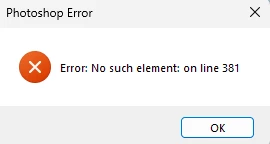
Alright, so I've tried both the Batch Update Smart Object and Batch Mockup Templates and I get an error message for the same line (line 370 on Batch Update Smart Object and line 381 Batch Mockup Templates). The line is:

while ( layers[i].kind == "LayerKind.SMARTOBJECT" ) { theLayers.push(layers[i]);objCount++ ; i++;}


Here's the error:
 

Here's what my workspace looks like:
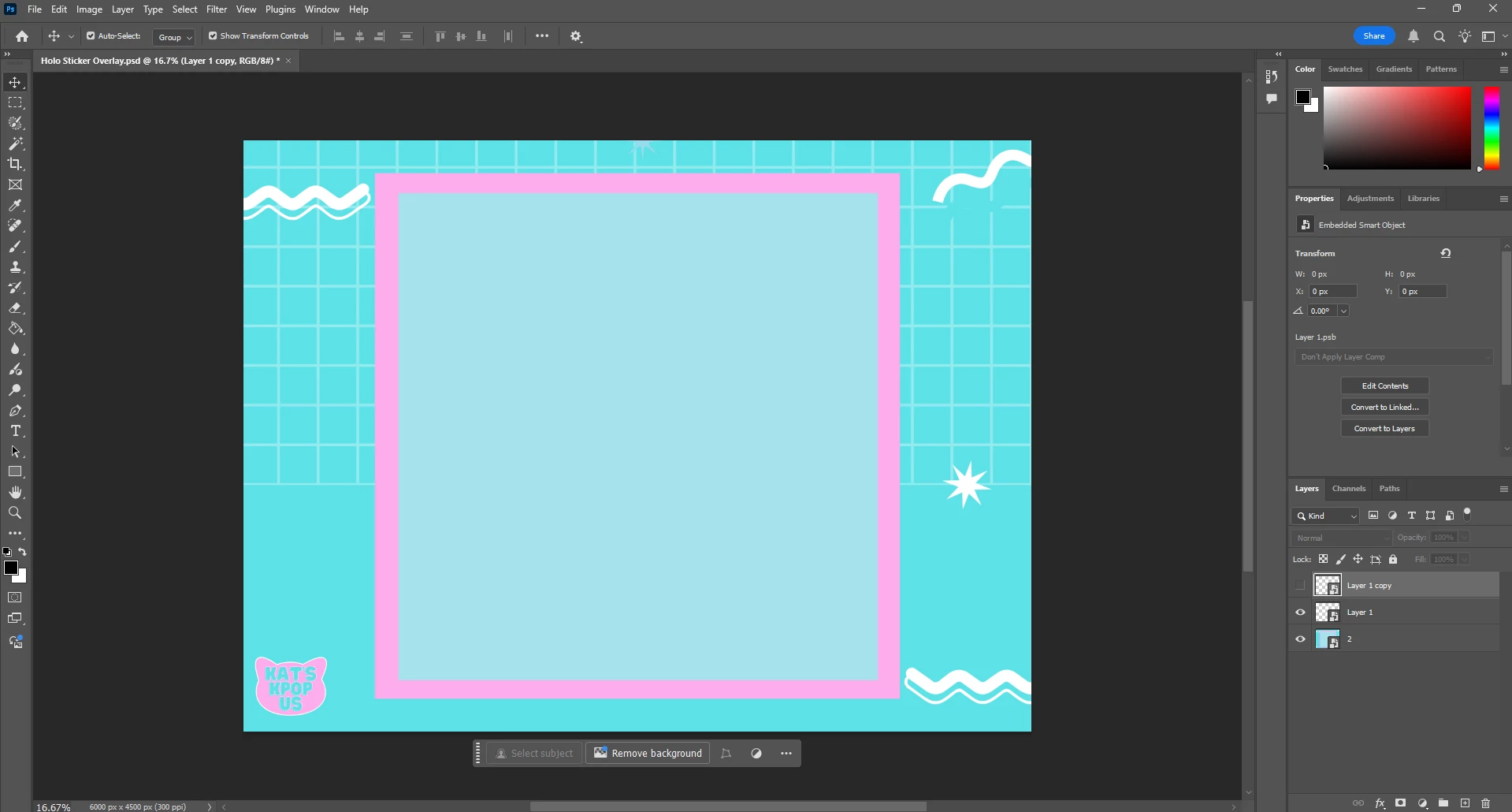
(layer 1 copy is visible since it has the drop shadow - this is how I've been doing it from the start. IK there's a better way, but it's what has worked)


I've used Batch Update Smart Object many times for Etsy listing images, and I've had this issue a few times but I've always been able to figure it out. But this time, I am just stumped and not sure what is wrong. I even used a file that was working and resized the canvas and everything to work, and added in the BG, and suddenly it doesn't work. 

3 replies

c.pfaffenbichler
Community Expert
Community Expert
March 12, 2025

Please try adding a Background Layer beneath the Smart Objects. 

Stephen Marsh
Community Expert
Community Expert
March 12, 2025
quote

Please try adding a Background Layer beneath the Smart Objects. 


By @c.pfaffenbichler


JJMack's collage scripts do require a Background layer. He didn't explicitly state that this was required for the smart object scripts, however, it's a good place to start.


_______


Simple Mockup Templates Four Rules:

  1. Simple Mockup Templates Only the Smart Object Layer on the top of the Template layers stack will be updated then a Jpeg file saved.
  2. Only Photoshop Objects are support in the top smart objects layers. That is they can not be Object File that are not supported by Photoshop like Camera RAW Files or Illustrator file like .ai, .svg. 
  3. I suggest these objects should be PSD or PSB that Photoshop creates. Avoid using PNG objects in Mockup template. For when replace content is used to replace .png  objects within a .psd template which has your png's object the replace content operation is very slow.
  4. The first None Smart Object Layer near the top of the layer stack Marks the end of Smart Object Layers the will be updated. Lower Smart Object Layers only update if they share top layers objects.
  5. The Replacement Image Collection need to be in sub folders named obj0, obj1, obj2, .... objN. Each folder must contains the same number of replacement Image files.
c.pfaffenbichler
Community Expert
Community Expert
March 12, 2025
quote

JJMack's collage scripts do require a Background layer. He didn't explicitly state that this was required for the smart object scripts, however, it's a good place to start.

I figured the while-clause in the line of code in the original post would not terminate well if the lowest Layer was a Smart Object. 

Trevor.Dennis
Community Expert
Community Expert
March 12, 2025

Unfortunately, JJ passed away a year or so back, but we love to see people are still using his Photoshop tools.  @c.pfaffenbichler  I can't remember if you do scripting, so I hope you won't mind me tagging @Stephen Marsh 

c.pfaffenbichler
Community Expert
Community Expert
March 12, 2025

Please post a link to the Scripts. 

Stephen Marsh
Community Expert
Community Expert
March 12, 2025
quote

Please post a link to the Scripts. 


By @c.pfaffenbichler


I made my backup publicly available here (the main scripts require a separate support script):


https://github.com/MarshySwamp/JJMack-Archive