December 12, 2025
Answered

Issue with Pixelation and Dull Colors in My Work

  • December 12, 2025
  • 4 replies
  • 491 views

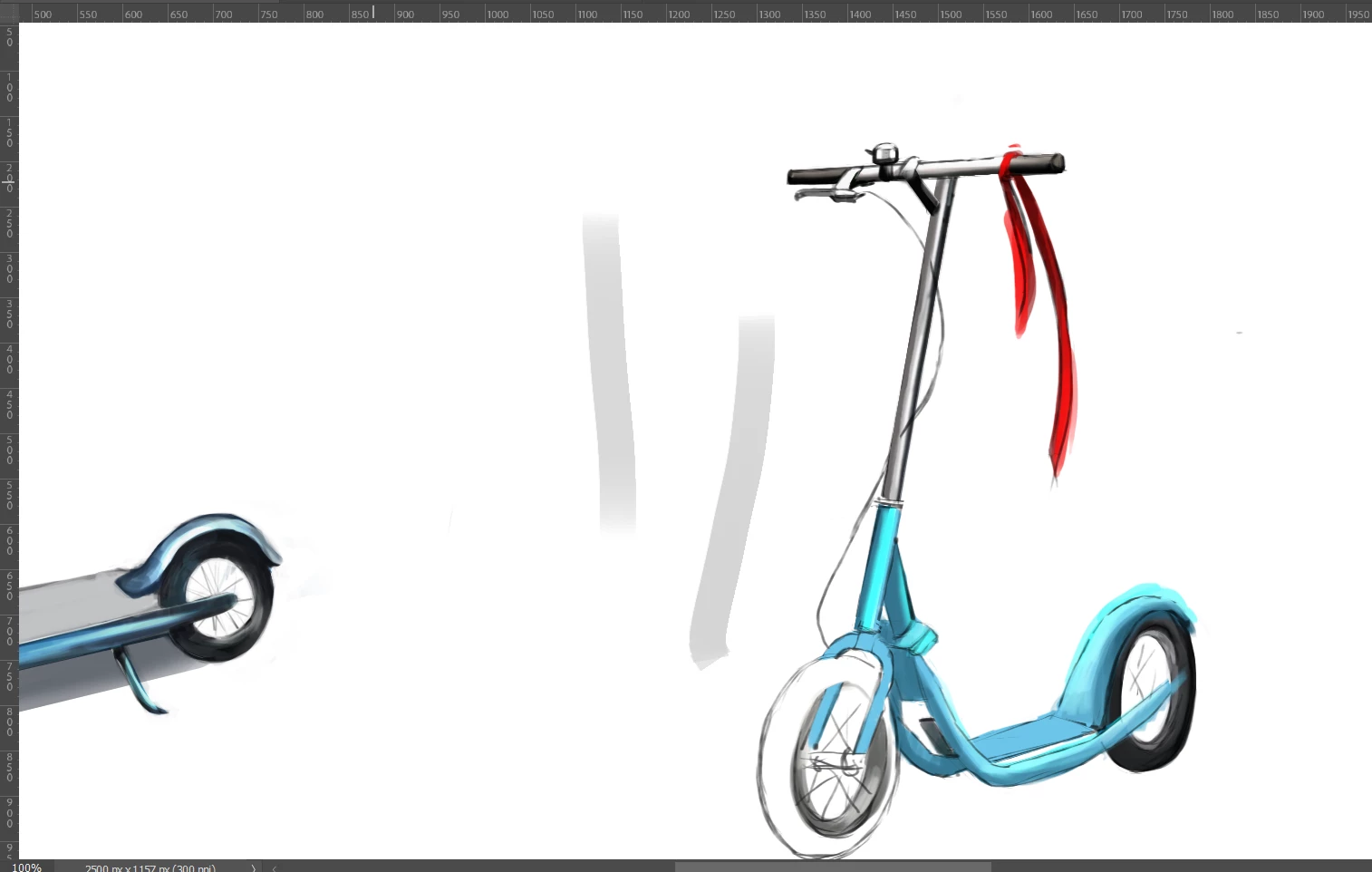
Hello, I don’t know how to solve this problem. My work looks pixelated even at 100%, and it also looks dull no matter what I try. Can you help me understand what’s going wrong?

Screenshot 2025-12-12 124303.png

Correct answer davescm

The colour issue has been answered by D Fosse above.

One thing to add to this thread though is about pixellation. If your work is for screen use, then ppi makes no difference. It could be 1ppi or 1000ppi that is just a number stored alongside the image in metadata to calculate print size and is ignored completely for screen use. On screen all that matters is the size in pixels and viewing at 100% gives a true representation of that as 100% means 1 screen pixel is used to display 1 image pixel . If you are seeing pixellation on your screen at 100% there could be several causes:

1. Have you resized any objects/layers? Resizing downwards is unlikely to cause issues but upwards can do. Make sure you are using an appropriate algorithm such as Bicubic Smoother and not Nearest Neighbour.
2. Have you placed (embedded or linked) any images in your layer stack. That involves resizing and again the selection of an appropriate resizing algorithm is important.

3.  Something I do see in your screenshot is that the brush anti-aliasing seems to be different on the left side of the gray brush strokes and the right. Without seeing the brush you used, that does look unusual. You may want to try resetting the brush tool, or closely at that brush for any setting that may be leading to that. I would also try a preference reset if neither of those work.

Dave

4 replies

davescm
Community Expert
davescmCommunity ExpertCorrect answer
Community Expert
December 12, 2025

The colour issue has been answered by D Fosse above.

One thing to add to this thread though is about pixellation. If your work is for screen use, then ppi makes no difference. It could be 1ppi or 1000ppi that is just a number stored alongside the image in metadata to calculate print size and is ignored completely for screen use. On screen all that matters is the size in pixels and viewing at 100% gives a true representation of that as 100% means 1 screen pixel is used to display 1 image pixel . If you are seeing pixellation on your screen at 100% there could be several causes:

1. Have you resized any objects/layers? Resizing downwards is unlikely to cause issues but upwards can do. Make sure you are using an appropriate algorithm such as Bicubic Smoother and not Nearest Neighbour.
2. Have you placed (embedded or linked) any images in your layer stack. That involves resizing and again the selection of an appropriate resizing algorithm is important.

3.  Something I do see in your screenshot is that the brush anti-aliasing seems to be different on the left side of the gray brush strokes and the right. Without seeing the brush you used, that does look unusual. You may want to try resetting the brush tool, or closely at that brush for any setting that may be leading to that. I would also try a preference reset if neither of those work.

Dave

D Fosse
Community Expert
Community Expert
December 12, 2025

@zahrag51641756 

Post a full screenshot of the entire Photoshop window, with the image displayed at 100%.


Before you make the screenshot, set the status bar to show "Document Profile" like this:

notification_3.png

December 12, 2025

Screenshot 2025-12-12 172329.png

D Fosse
Community Expert
Community Expert
December 12, 2025

OK, thanks. As for the color:


sRGB is a fairly small color space, and there isn't much more you can get out of it. The teal/cyan is right at the gamut boundary in sRGB. It cannot get any more saturated, sRGB cannot reproduce it.


The red is almost at the gamut boundary, very close. You can squeeze a tiny bit more out of it, but not so much that it's really noticeable. 


In other words, this is as good as it gets in sRGB.


If you move this into a bigger color space, like Adobe RGB, you can get more saturation. But if this is intended for web, don't do that. It greatly magnifies the risk of it being incorrectly handled in the web browser, dulling it even more. sRGB is small, but generally safe. For web, sRGB is still the defacto standard for this reason.


Now, you may (or may not) have a screen that has a larger gamut than sRGB. Wide gamut screens are not uncommon these days. If you took this image and disabled all color management, or maybe color management was just broken and not working properly, these sRGB numbers would be represented in the native (bigger) color space of the screen. That would give you a much more saturated image - but here's the thing: that would be an incorrect representation.


Bottom line - this is what you get. It looks fine; there's nothing wrong with the colors. Accept that and move on.


---


(All this assuming that your monitor profile is not corrupt or defective. If it is, all bets are off. In that case, you wouldn't be seeing what I see. If you still suspect something's wrong, assign your monitor profile (Monitor RGB) to the screenshot, then convert back to sRGB, and post that. This way, we can see if the monitor profile is good.)

Simmer1
Community Expert
Community Expert
December 12, 2025

Hi @zahrag51641756 


You can change the documents colour profile to a brighter one by selecting Edit> Assign Profile.


Like @creative explorer said the resolution really needs to be set to high res (300ppi) or more before you begin. 

jane-e
Community Expert
Community Expert
December 12, 2025
quote

the resolution really needs to be set to high res (300ppi) or more before you begin. 

By @Simmer1


The resolution is already 300 ppi, although we don't know (yet) if this was from the beginning or changed later on.


janee_0-1765542681857.png


Jane

creative explorer
Community Expert
Community Expert
December 12, 2025

@zahrag51641756 when your work looks pixelated at 100%, the issue is almost always related to the document's Resolution. If the resolution is too low for your intended output, you must resize the image to the correct pixel dimensions before you start working. Don't simply change the resolution value without also changing the width and height, as this will just stretch the existing small pixels, making the quality even worse. You are looking at this 100%, so I know you are not using a different preview resolution. Double check that you haven't accidentally disabled the smooth preview. 

Dull Colour? Colours do shift when you change from a vibrant RGB to a duller CMYK, which is why print files often look duller than they did on screen. Double-check your colour profile, sRGB IEC61966-2.1 for Web and U.S. Web Coated (SWOP) v2. for Print. 

m
jane-e
Community Expert
Community Expert
December 12, 2025

@zahrag51641756 

Can you tell us what format are you working in? If, for example, you are working on and saving a jpeg, then it will degrade over time.


It will also help us to help you if you show us your entire interface, including the Layers panel.


Jane