
Question
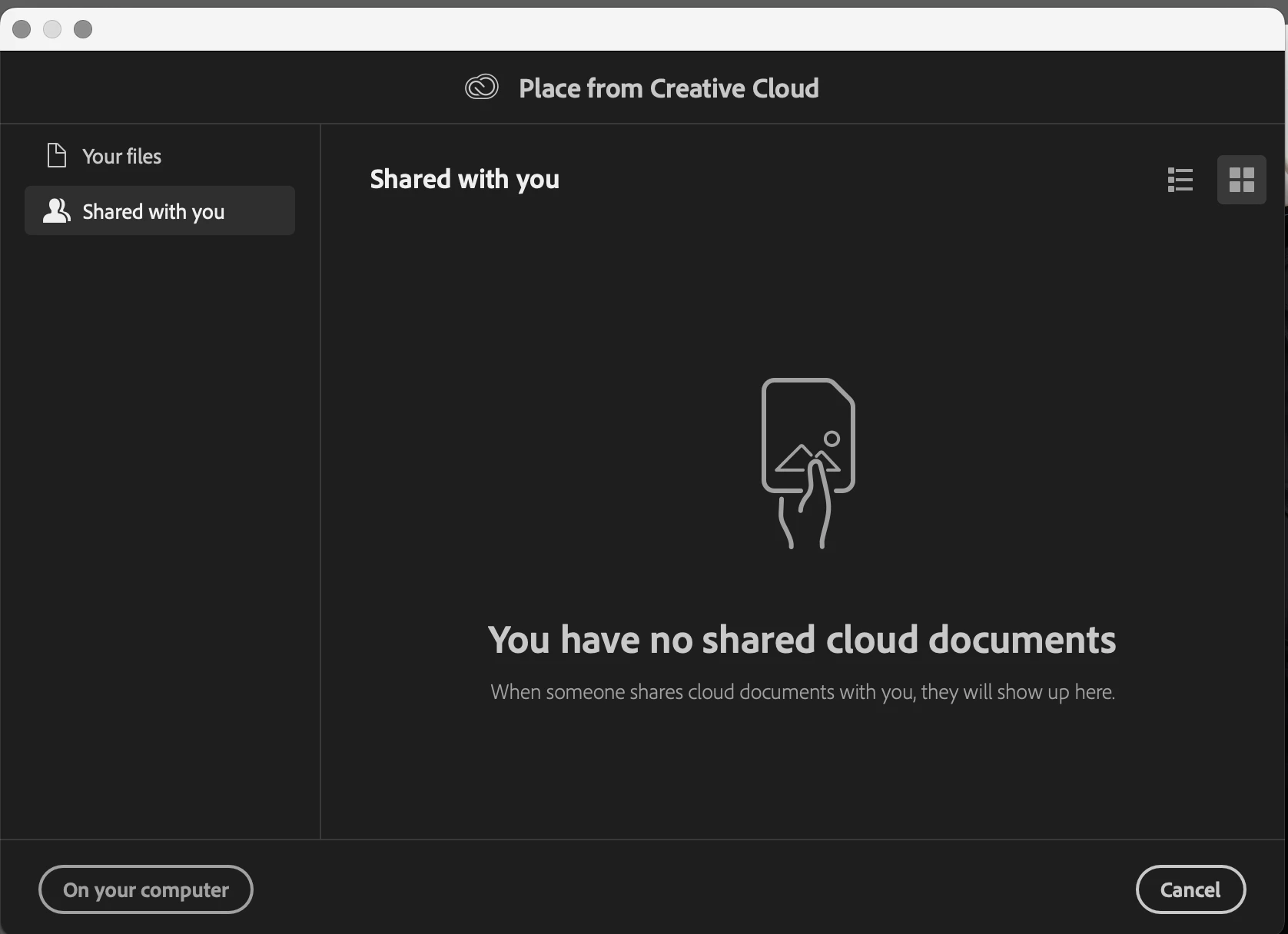
Issue with Shared Files Not Appearing in Adobe Creative Cloud Place Embedded Feature
Hello everyone,
I'm currently experiencing an issue with Adobe Creative Cloud and I was hoping someone here might be able to help or has faced a similar problem.
When I try to use the Place Embedded feature in Adobe Creative Cloud, I cannot see my shared files. This is very frustrating as it hinders my workflow significantly. Here’s a summary of the issue:
- Shared Files Not Visible: Despite having shared files with my account, they do not appear when I attempt to place them via the Place Embedded option.
- Account Syncing: I have checked to ensure that my Creative Cloud is properly synced and that I am logged into the correct account. All other files and features seem to be working correctly.
- File Permissions: I have verified that the shared files have the correct permissions and are accessible through other means, just not through Place Embedded.
- Software Updates: My software is up-to-date with the latest versions of Adobe Creative Cloud and related apps.
Has anyone else experienced this problem? Any suggestions on how to resolve this issue would be greatly appreciated.
Thank you in advance for your help!
 AdChoices