
Participant
December 25, 2020
Question

Issues with Eyedropper and Brush Tool

  • December 25, 2020
  • 1 reply
  • 1087 views

Hi everyone,

I'm tracing over an image in photoshop. So I have the original image as one layer and then my drawing layer as another. I've been working on this since yesterday, everything was fine but suddenly my eyedropper and brush tool won't work.

The eyedropper tool will actually draw white or erase when I try to use it on the image layer. The brush tool will only draw black again on the image layer. Neither of them work on the drawing layer.

I'm guessing it has something to do with my foreground and background colors???? I have no idea what's happening tbh.
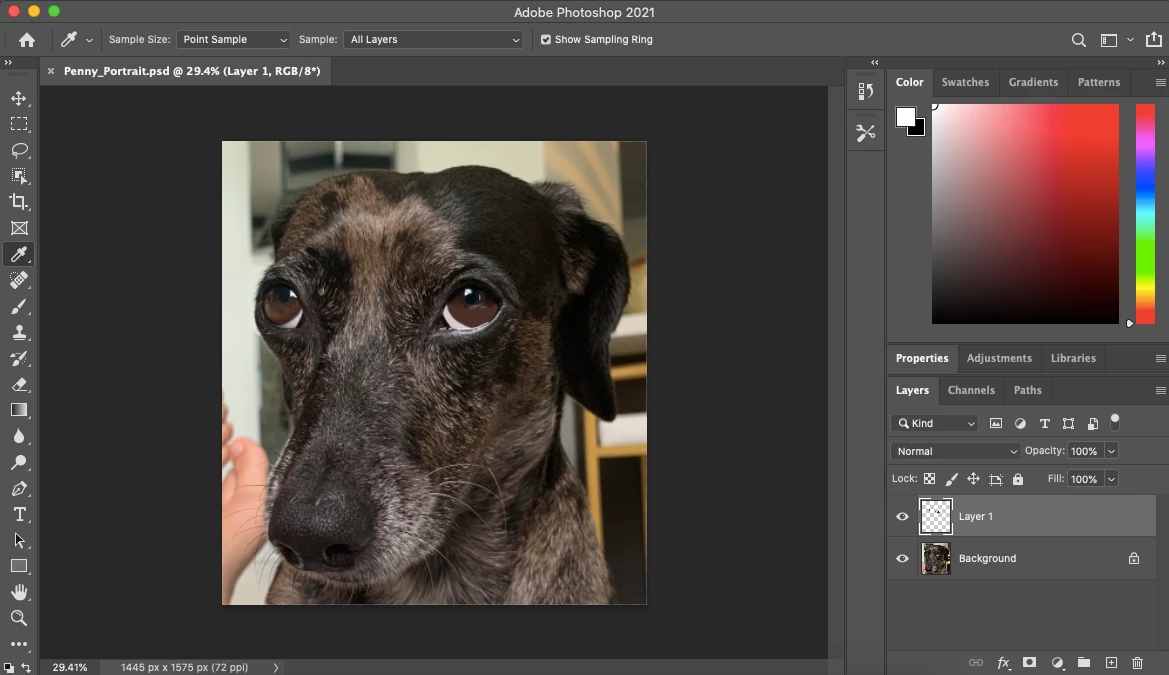
 

This topic has been closed for replies.

1 reply

jane-e
Community Expert
Community Expert
December 26, 2020

"The eyedropper tool will actually draw white or erase when I try to use it on the image layer. The brush tool will only draw black again on the image layer. Neither of them work on the drawing layer."


Hi

  • The Eyedropper tool shouldn't be able to draw at all. It only picks up a color. Can you clarify what is happening?
  • Your foreground color is white, so I am also confused that your Brush tool is drawing with the background color, which is black.
  • Your layers are named Layer 1 and Background, not Image and Drawing, so I'll use those names below.


Can you check to see if your Eyedropper tool is working? You have "All Layers" enabled, but try selecting the Background layer to see if the eyedropper is picking up color as the foreground color. If is still not working, reset it by right-clicking the Eyedropper tool in the options bar (not toolbar) and choose Reset Tool.


The Brush tool should be painting with the foreground color, not the background color. If you can't change the foreground color with the eyedropper, tool, then try changing it in either the Color or Swatches panel and paint on Layer 1 to see if it works. (Then Undo.) If it doesn't work, then Reset the tool as above.


You may have to reset Preferences in Photoshop > Prefs > General > Reset Preferences on Quit, but try these other steps first.


~ Jane