
oprie_ma
Inspiring
October 17, 2025
Answered

Jagged Lines with Photoshop on a Cintiq24HD

  • October 17, 2025
  • 2 replies
  • 258 views

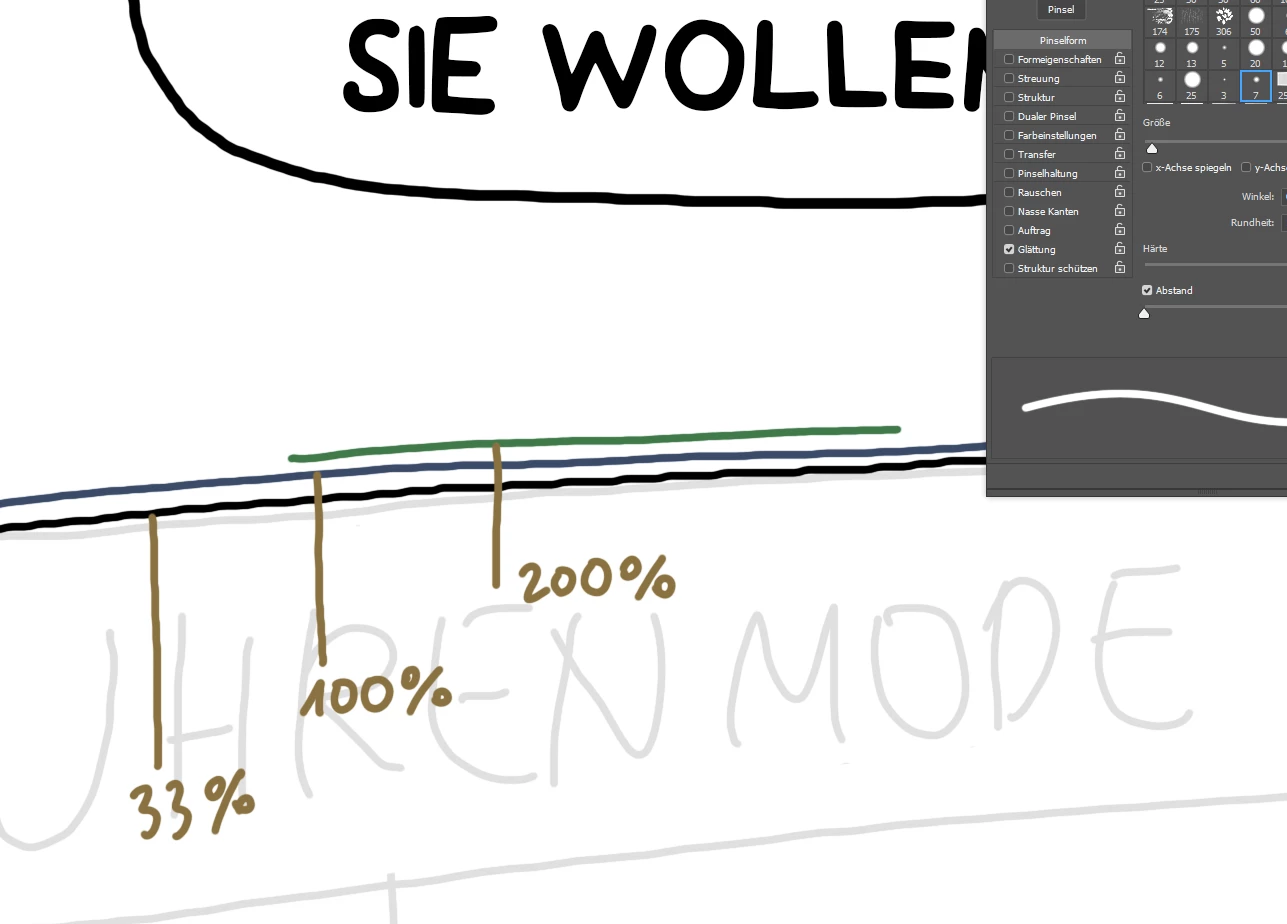
I have a new Windows PC and an old Cintiq 24HD with the latest drivers. As soon as I connected it, I noticed that the lines were quite jagged and not smooth. I spoke with Wacom and ran various tests. The tablet works perfectly on the old computer. Today I noticed that the lines in Photoshop are extremely jagged at 33% zoom, and the closer I get, the smoother they become. Is there a way to adjust this?

Thanks, o.
Correct answer oprie_ma

Okay, now I'll answer my own question. I had the same problem a few years ago and I don't remember the solution. After no one could really help me and the Windows Ink workaround only worked for a few days, I contacted Adobe support. They accessed my computer remotely, uninstalled Photoshop, and reinstalled it. After that, it was even worse than before. They said, "Contact Windows support." 😄🙊 Long story short (6 months later): Windows support told me this, and it f***ing worked!

Create a .txt file with the content "UseSystemStylus 0".

Place it in the following folder (in my case): Adobe Photoshop 2025 / Required / DynamicLinkMediaServer / Settings


Thats it. Lines are smooth again, no lagging. I'm happy as a puppy.

2 replies

oprie_ma
oprie_maAuthorCorrect answer
Inspiring
November 12, 2025

Okay, now I'll answer my own question. I had the same problem a few years ago and I don't remember the solution. After no one could really help me and the Windows Ink workaround only worked for a few days, I contacted Adobe support. They accessed my computer remotely, uninstalled Photoshop, and reinstalled it. After that, it was even worse than before. They said, "Contact Windows support." 😄🙊 Long story short (6 months later): Windows support told me this, and it f***ing worked!

Create a .txt file with the content "UseSystemStylus 0".

Place it in the following folder (in my case): Adobe Photoshop 2025 / Required / DynamicLinkMediaServer / Settings


Thats it. Lines are smooth again, no lagging. I'm happy as a puppy.

Sameer K
Community Manager
Community Manager
October 17, 2025

Hey, @oprie_ma. Welcome to the Photoshop Community. I just wanted to let you know I'll move this to discussions for now. Please share the system info from Photoshop Help > System info > Copy and paste into a text document > Upload and attach here.


Does this happen when you use any image? Could you try disabling GPU compositing? Here's how you can do it:

1 - Go to Photoshop in the top menu > Preferences, then Performance.
2 - Click on Advanced Settings.
3 - Uncheck the GPU Compositing option.
After doing this, restart Photoshop and see if the issue exists. If it doesn't help, try Photoshop (beta) from the Creative Cloud App > Apps tab > Beta apps.


Let me know how it goes. 

Thanks!

Sameer K

(Type '@' and type my name to mention me when you reply)

oprie_ma
oprie_maAuthor
Inspiring
October 17, 2025

Thank you, Sameer,


the performance change didn't work. The beta version works a bit better, even with the default brushes. It's still different from my old computer, but better than before. There's still some jagging when drawing a straight, slightly diagonal line, but it's not as bad. Thanks. (I wonder what's different in the beta version.)


I just tried drawing with the online paint tool: https://sketch.io/sketchpad/ - this works great. Clean and fast. 🤷‍🫤

oprie_ma
oprie_maAuthor
Inspiring
October 19, 2025

Okay, today I tried the beta again, and it's the same. I don't know what to do. I'm desperate.