
Answered
Large feathered selections suddenly no longer produce correct soft transitions in Curves and Levels. Very large feather values behave like much smaller ones.
A serious problem appeared suddenly yesterday in Photoshop.
My long-used workflow with large feathered selections no longer behaves correctly during direct adjustments such as Curves, Levels and Saturation.
Reproducible issue:
- Large image
- Large selection area
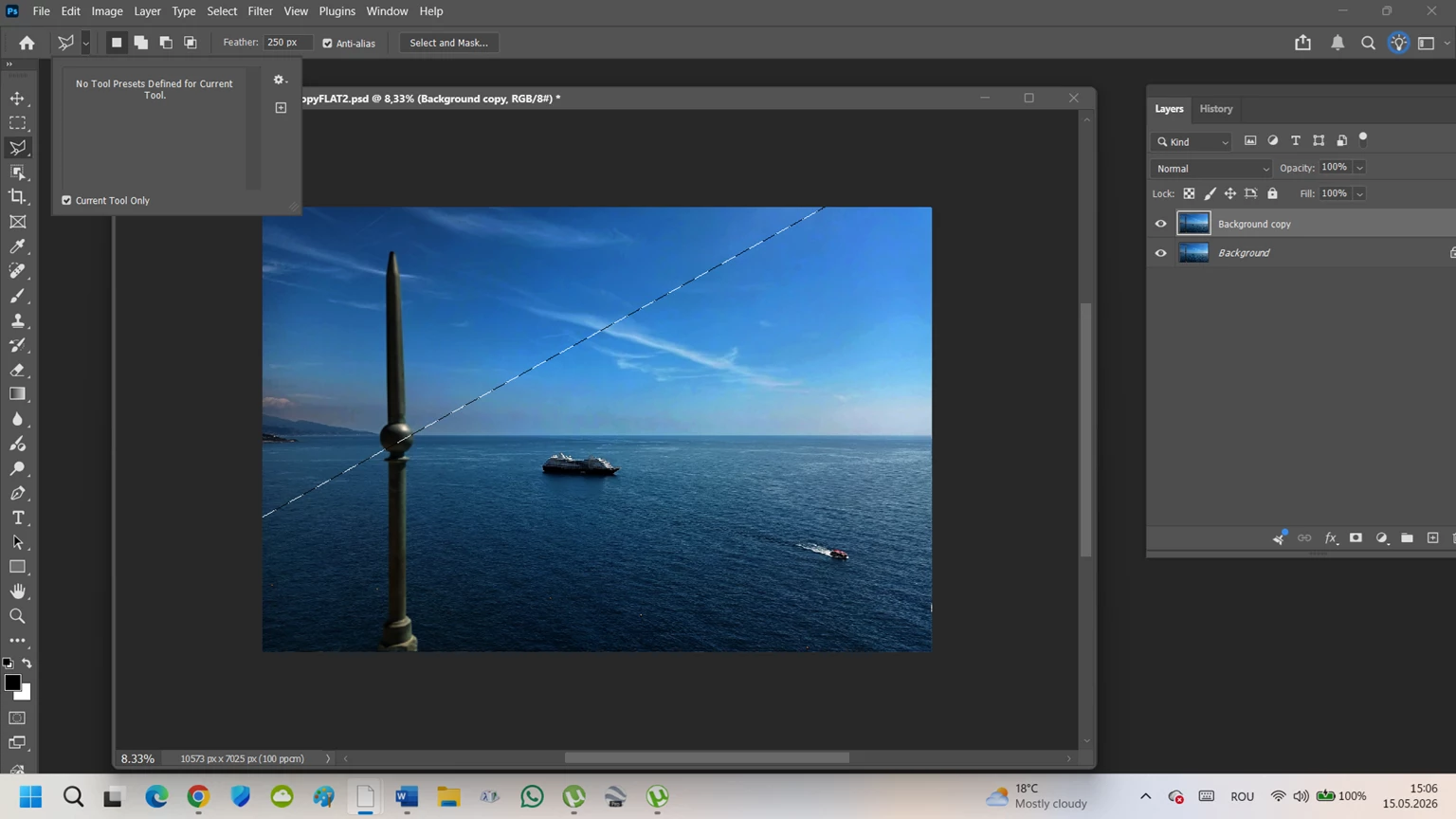
- Feather values between 250 px and 700 px
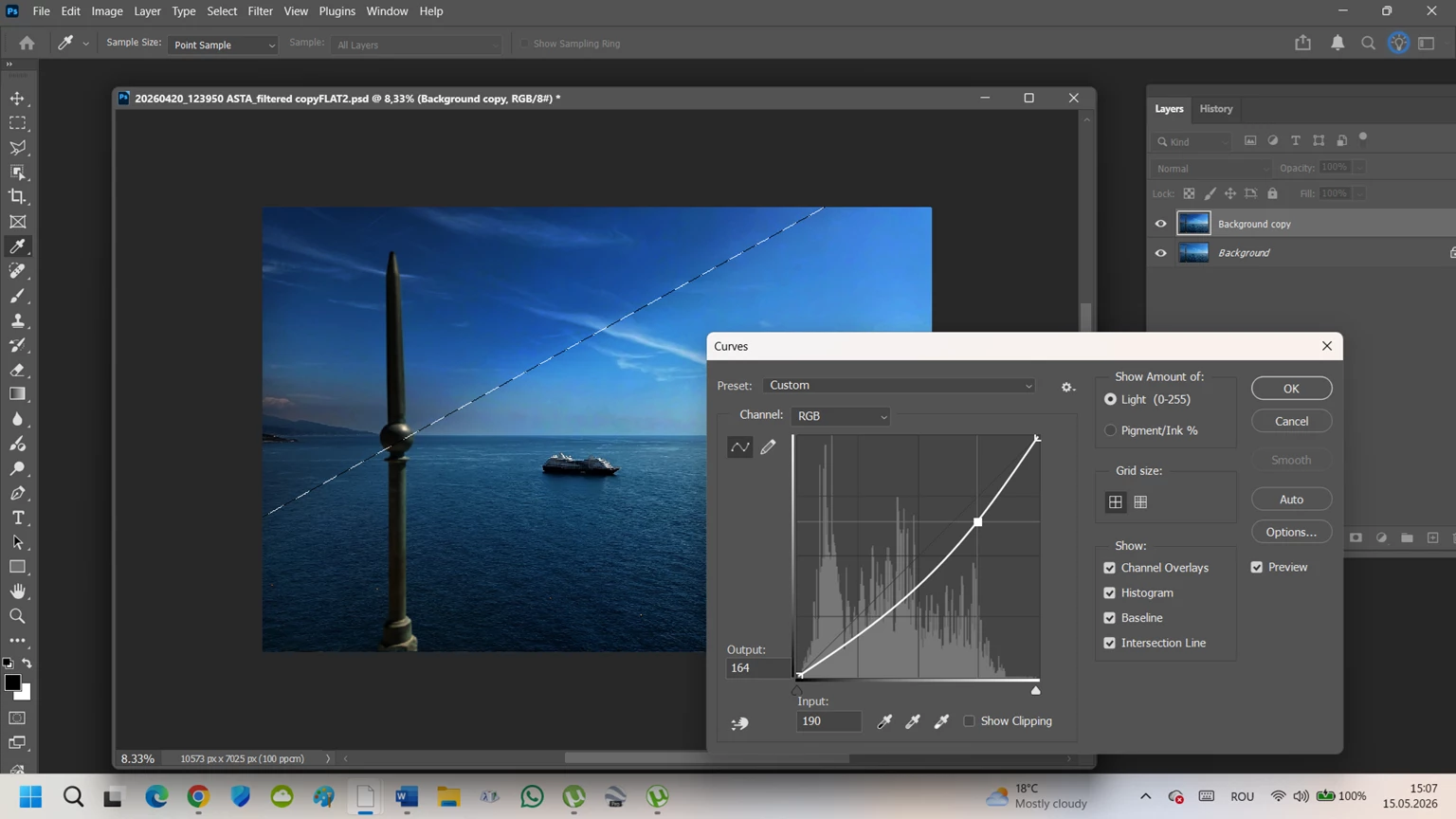
- Direct adjustment via Curves / Levels
Expected result:
A very broad and soft tonal transition.
Actual result:
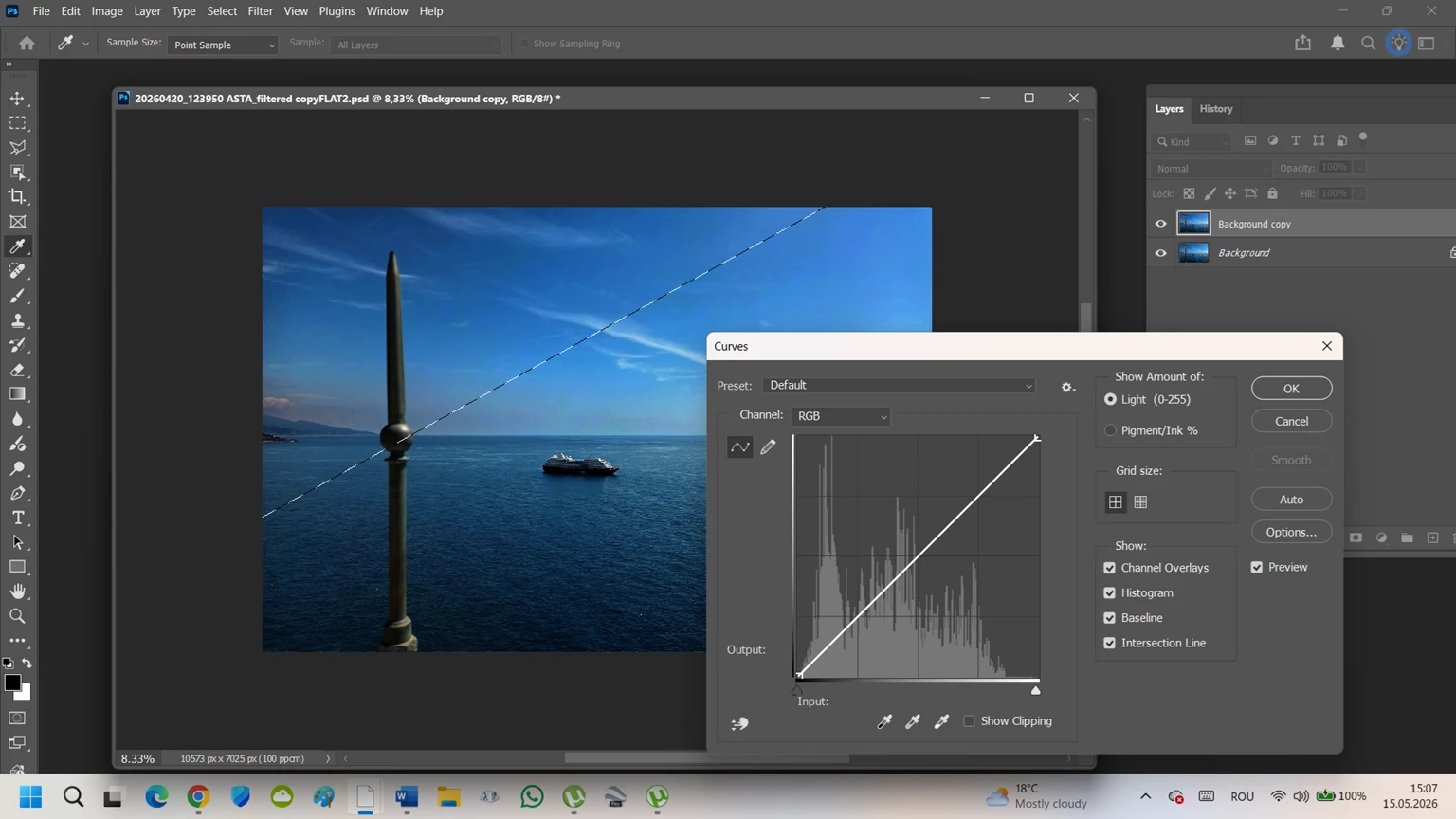
The transition remains extremely narrow, visually similar to a much smaller feather radius.
Important observations:
- The same workflow functioned correctly until yesterday
- Feather is actually stored in the selection (verified with Ctrl+J transparency test)
- The problem specifically affects practical adjustment behavior during Curves / Levels operations
- Reproduced after complete clean reinstall
- Adobe Cleaner Tool used
- Preferences reset
- GPU disabled and tested
- Multiple Photoshop versions tested
- Same behavior on a new Windows user profile
This seriously affects fast local correction workflows based on large feathered selections.
Attached screenshots show the problem visually.
Any sugestions?


 AdChoices