

Participant
March 20, 2025
Answered

Lines appear transparent when below a certain thickness

  • March 20, 2025
  • 2 replies
  • 193 views

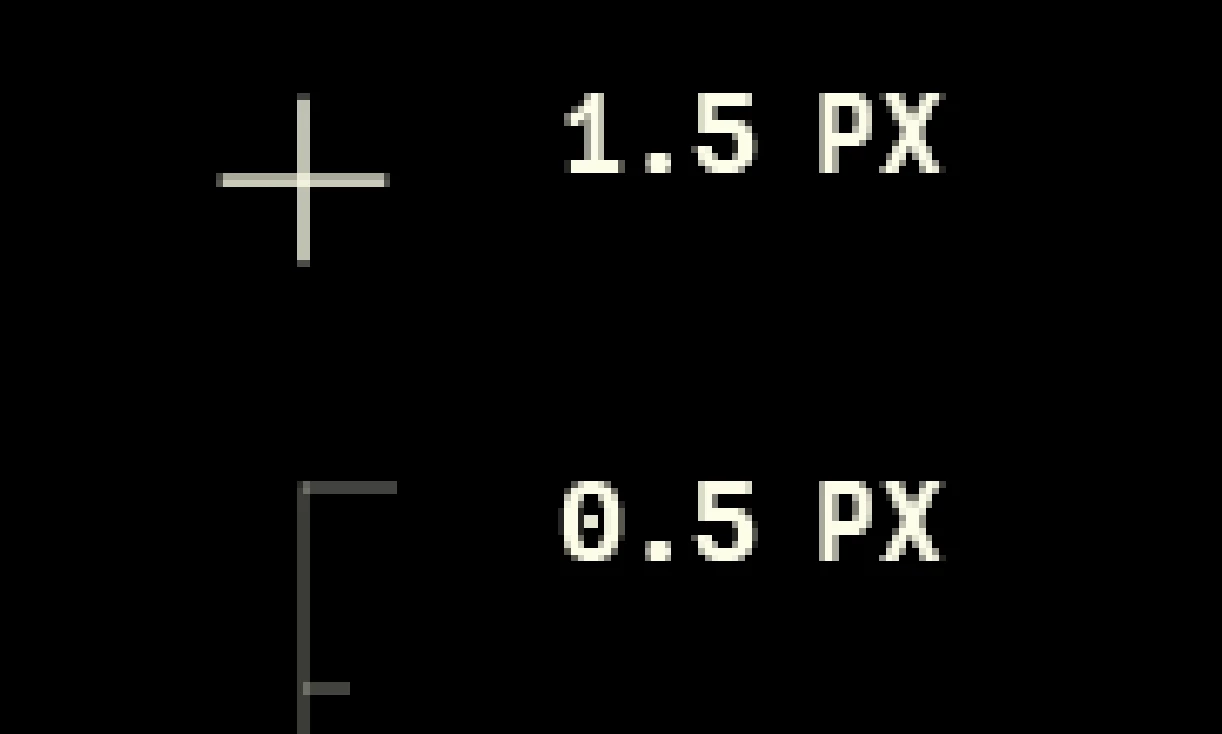
Lines lose opacity as their pixel width is reduced and its ruining my workflow! I'm working on a 1920 x 1080 wide canvas with 300 dpi, so I know it's not my resolution. Please help!

Correct answer davescm

Photoshop, like any other raster image editor, works in pixels. So a pixel is the minimum unit available in your image. There are no half pixels in a raster image, only whole pixels. If you select a line width of 0.5 pixels then the only way to display that using whole pixels is to reduce the value in that pixel, or make it transparent, which is what you are seeing.


Dave

2 replies

davescm
Community Expert
davescmCommunity ExpertCorrect answer
Community Expert
March 21, 2025

Photoshop, like any other raster image editor, works in pixels. So a pixel is the minimum unit available in your image. There are no half pixels in a raster image, only whole pixels. If you select a line width of 0.5 pixels then the only way to display that using whole pixels is to reduce the value in that pixel, or make it transparent, which is what you are seeing.


Dave

Genius
March 20, 2025

If you zoom into 100% (or 200% on a high-dpi display) you'll see things clearly. When zoomed out, your monitor can't show thin lines and small details clearly.

Participant
March 21, 2025

It's not just the display, I exported my artwork and the lines did not change.
