Participant
November 22, 2020
Answered

Lines (shape) disappear.

I want to place lines and 'corners' on a poster I created to accentuate the subject. I can make the lines, but they disappear when presing the return button (Mac). How do I keep them from disa

barbara_a7746676
barbara_a7746676Correct answer
Community Expert
March 23, 2022

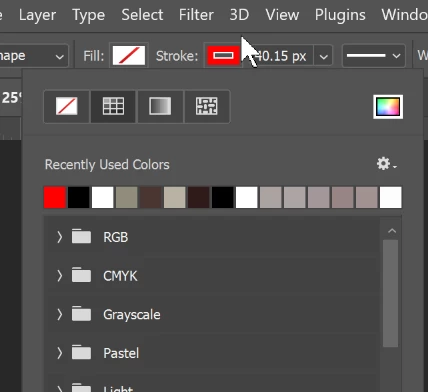
Do you have a color chosen for the tool?

23 replies

Zesty_wanderlust15A7
Known Participant
June 19, 2022

I don't know if this was for an old problem/bug or is still useful...

How To Fix Line Tool Not Working in Photoshop 2021 - Adobe Photoshop Line Tool Thickness Not Working - YouTube


Translate
jane-e
Community Expert
Community Expert
June 19, 2022

@Zesty_wanderlust15A7 Isn't that the same as the answer from @prophotomac that is marked correct? 😊


Jane


Translate
Zesty_wanderlust15A7
Known Participant
June 19, 2022

I haven't watched it closely, but I first thought the vid selected the middle icon, and saw the answer mentioning "top," but I now see he says not to use top... 😉

I've just posted this in case it was about a different problem, as I still see cries for "HELP" after some of the solutions...

Translate
barbara_a7746676
Community Expert
barbara_a7746676Community ExpertCorrect answer
Community Expert
March 23, 2022

Do you have a color chosen for the tool?

Translate
Participant
June 19, 2022

I reset the line tool.  I have a color chosen.  It is on the top layer.  All settings are as shown.  I can draw ONE line.  When I try to draw the second line, the first line disappears.  When I try to draw the third line, the second line disappears, and so one.  I apparently can only have one line.  What is going on????

Translate
jane-e
Community Expert
Community Expert
June 19, 2022

@barbara_a7746676 

Can you show a screen shot that shows

  • image area
  • layers panels
  • paths panel
  • properties panel
  • options bar

Select the path with the Path Selection tool (black arrow).

Jane

Translate
barbara_a7746676
Community Expert
Community Expert
March 23, 2022

Have you tried resetting the tool?

Right click on the tool icon in the Options bar.

Translate
C. McAssey
Participant
November 22, 2020

Check your alignment in "Stroke Options." If it is set to inside (the top setting) your stroke will not show.

Translate
Participant
November 26, 2020

Stroke options? Where is that option?

Translate
Bojan Živković11378569
Community Expert
Community Expert
November 26, 2020

Ensure that drawing mode is set to Shape (first arrow from the left on screenshot) then click where second arrow is pointing and lastly expand first drop down list (third bottom most arrow) and change to second or third option.

Translate
barbara_a7746676
Community Expert
Community Expert
November 22, 2020

In Photoshop pressing return will delete the line. That is normal. There's no need to press return when drawing a line. In the Options bar, you can choose Path, Shape, or Pixels. If you choose Pixels, pressing return will not delete the line, but on the other hand, the line will be bitmap instead of vector.

Which tool are you using to draw the lines and which setting are you choosing in the Options bar?

Translate
Participant
November 26, 2020

The pixel option is greyed out..not an option.

Translate
barbara_a7746676
Community Expert
Community Expert
November 26, 2020

Pixels was disabled for the line tool in the newest version of Photoshop.

Translate
barbara_a7746676
Community Expert
Community Expert
November 22, 2020

Sorry, I was thinking about Illustrator and this is the Photoshop forum.

Translate
barbara_a7746676
Community Expert
Community Expert
November 22, 2020

If you press Command-Y or View > Outline, do you see the line in outline view?

Translate
jane-e
Community Expert
Community Expert
November 22, 2020
Participant
November 22, 2020

Thanks Jane, but still after making a line, it disappears. I have read here that many people are having the smae problem.

Translate