
Known Participant
January 19, 2025
Answered

Liquify Tool "disk error" PS 2025

  • January 19, 2025
  • 5 replies
  • 1940 views

For several months, I had issues where Liquify would not work on my Windows 11 system. To use the tool, I had to go all the way back to my PS 2022 version. (I always keep at least several back versions on my computer because I frequently run into issues where newer versions are wonky.)


I solved the issue by resetting my preferences, which I hate doing because I have my own workspace I've created which suits my needs, and resetting craps that all up. So, after resetting, I worked with first Essentials workspace, then copied over my own workspace and Liquify was ok. Over the course of the past few days, I changed a few things to my workspace, adding some plugin panels, re-arranging some windows of pallets. now Liquify again does not work! What the heck is going on? It takes time to recreate the workspace I have used for years and am comfortable with to work quickly and efficiently. I've wasted hours trying to solve these issues. Another good reason to get rid of the subscription model. Most of the PS updates are bugging and sometimes take whole versions to correct.

Correct answer AlanGilbertson

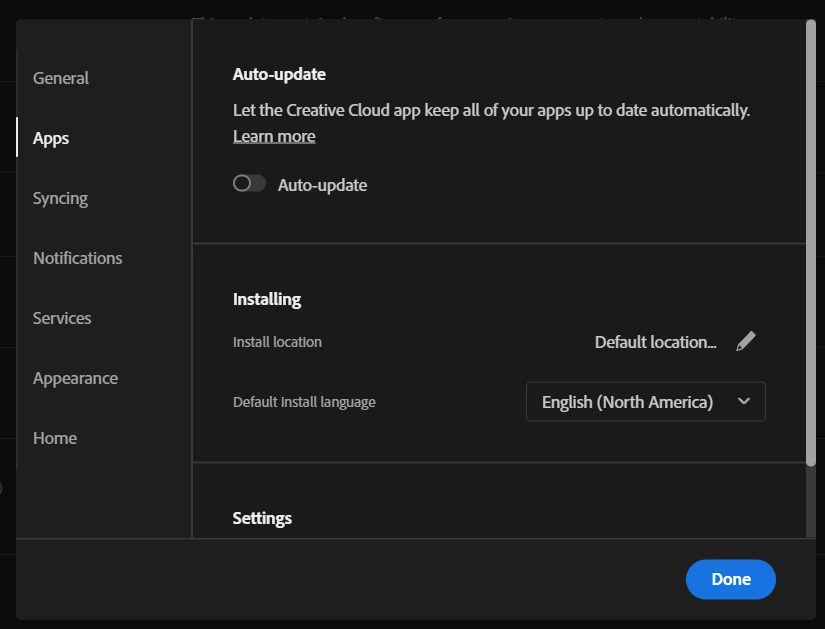
Turn off automatic updates in the CC desktop app:


Save a backup of your "Adobe Photoshop 2025 Settings" folder. On Windows, you'll find this at [systemdrive]\users\[userID]\AppData\Roaming\Adobe\Adobe Photoshop 2025. If you run into the problem again, just copy the backup over the existing.


Given that you should not be seeing this happen so often, I'd also recommend you open a command prompt as administrator and run sfc /scannow to check for any OS-level corrupted files, then run a thorough test of the drive this is sitting on to ensure there isn't a hidden hardware problem.


5 replies

Known Participant
November 5, 2025

Same old crap, new day and time. This intermittent "disk error" is getting old. PS 2025 will work somedays doing Liquify, other days I feel like Bill Murray in "Groundhog Day". Nothing has ever worked to alleviate this crap. As always, PS2022 comes to the rescue. I now have 2022, 2023, 2024, and 2025 on my system because of glitches in one might be exclusive to that version (especially 2025). Fortunately, everything always works in 2022. This is really getting old. I thought of installing yet the "latest and greatest" version v.27, but it will likely hog another 4-5GB only for me to fall back on PS 2022. 

D Fosse
Community Expert
Community Expert
November 6, 2025

I strongly suspect this is related to the reported bug that stops the Camera Raw plugin from opening after an indefinite period. Photoshop v25.9 and earlier are not affected. 

https://community.adobe.com/t5/photoshop-ecosystem-bugs/p-ps-25-27-could-not-complete-the-camera-raw-filter-command-because-of-a-program-error/idc-p/15571610#M129167 

Known Participant
July 7, 2025

Well, the stupid freaking Liquify issue raised its ugly head yet again. I seemed to have sorted it out, though I'm not quite sure how to be honest. Definitely, not by disabling lots of things or resetting the preferences, which I hated doing since I like the recent file view upon launch. I did try all of those things, though. What created this latest issue seems to be the go ol' update. I updated and the Liquify Beast is back. For now, I'm back to swapping between 2022 and 2025. Pain in the butt. Thank you Adobe.

Sameer K
Community Manager
Community Manager
July 8, 2025

Hey, @NemoNiemann, & @Enchanting_experience0D45. Thanks for bringing this up. Recently, @M-H shared a finding that went under the radar and it'll help us dig dipper into this. Please try the steps shared here: https://community.adobe.com/t5/photoshop-ecosystem-discussions/liquify-quot-disk-error-quot-still-happening-in-june-2025/m-p/15399965


Let us know how it goes in Photoshop 26.8.1. Thanks! 

Sameer K

(Type '@' and type my name to mention me when you reply)

Enchanting_experience0D45
Participant
June 24, 2025

I've had the same "disk error" when trying to run Liquify or larger images (Ps 26 version). Even with hundreds of GB free on two available disks, it wouldn't run the tool. I got Ps 25.0 version back and it's normal again. 

Participant
June 11, 2025

What worked for me was to run Photoshop without 3rd party plugins. You can do this in Windows by holding the SHIFT key while launching Photoshop.

The suspected real culprit in my case was Capture One, not Photoshop. I have C1 version 22 installed (yea old version but still working great), and whenever I had it running, PS Liquify will fail randomly with the disk error. Not running C1 concurrently with PS fixed the problem even if I launch PS normally (with plugins).

AlanGilbertson
Community Expert
AlanGilbertsonCommunity ExpertCorrect answer
Community Expert
January 19, 2025

Turn off automatic updates in the CC desktop app:


Save a backup of your "Adobe Photoshop 2025 Settings" folder. On Windows, you'll find this at [systemdrive]\users\[userID]\AppData\Roaming\Adobe\Adobe Photoshop 2025. If you run into the problem again, just copy the backup over the existing.


Given that you should not be seeing this happen so often, I'd also recommend you open a command prompt as administrator and run sfc /scannow to check for any OS-level corrupted files, then run a thorough test of the drive this is sitting on to ensure there isn't a hidden hardware problem.


Known Participant
January 22, 2025

Thanks for the suggestions. I already have automatic updates turned off. Though I run sfc /scannow periodically, I ran it again. No issues were found.  Just now I tried resetting the preferences by renaming the preference folder, which seemed to fix the issue previously, but this time I still get the same error message. I have had this issue now in PS 2024/2025 but not in PS 2022 or in checking just now, 2023, which is why I keep the older Photoshop version on my system -- just in case. Very frustrating.

AlanGilbertson
Community Expert
Community Expert
January 22, 2025

A couple of things come to mind, because what you're experiencing is unusual and very specific. Something is causing it to happen, but it's likely to be specific to your installation. Faced with something this bizarre, and I've had my share of bizarro experiences, my suspicions tend to fall on either the OS or the hardware (corrupted storage or memory). You've done almost all the normal app-related troubleshooting steps and clearly have deep knowledge of them. 


My next step would be to run an "upgrade in place" of Windows. If you're on 23H2 or later, then you also have an option in Settings > System > Recovery headed "Fix problems using Windows Update" with a button that says "Resinstall now." Details are here.


Another way to isolate the problem, if it's still going on, is to set up a separate, local account on your machine and install CC there, then see whether you still have the problem. If not, then the issue is something in your regular user account.


If the problem still shows up, I'd definitely run chkdsk /f /r on the drive that holds your program files and on the scratch drive if different, and a full memory check. In fact, I'd probably do those steps anyway if I hadn't run them in the last 12 months.