
Inspiring
June 20, 2025
Answered

Liquify "disk error" still happening in June 2025

  • June 20, 2025
  • 4 replies
  • 1613 views

Unfortunately, it's now June 2025 and this issue is still ongoing—at least for me and a few of my colleagues.
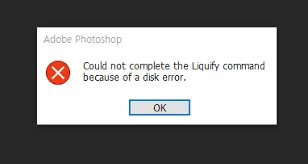
 

I'm running Windows 11 (23H2) with Photoshop 26.8 (though the Beta version 26.9 has the same problem). I'm having to restart Photoshop multiple times per hour just to get Liquify to work again.

I've already tried a fresh install of Windows on a brand-new Dell laptop (13th Gen i9, RTX 3500, 32GB RAM) with a clean install of Photoshop, but the error still appears after editing just a few images.

Clearing the cache, changing scratch disks, and adjusting performance settings haven't made any difference either.

Adobe, please help—this is seriously impacting our workflow.

Correct answer M-H

Just little update on updating Intel drivers, it also didnt help as I just got the error - its literally how little it takes to get one, this time it was 9th image.

quote

Also, try holding the ALT key when you go to File > Liquify to skip using the GPU and check if it works any better. 


With ALT I am able to get into Liquify after error but feels like its in a "limp" mode like when GPU is disabled in the settings.


After some further research and testing (and obviously lack of any response from adobe) it seems like its the Remove Tool what is causing the issue, specififally when processing is set to "faster" in ps preferences so to actually prevent it from happening it needs to be set to "More Stable". Adobe thank you again for not helping at all and making default Photoshop settings causing stability issues, well done! Thanks for all that again! Thanks Adobe!

4 replies

Known Participant
July 27, 2025

Hi,

I have encounted the same error, and now Liquify function doesn`t work at all. I mean I can enter the Liquify module in Ps, but after brushing some areas it doesn`t do anything to the image neither in the module nor in the saved effects after. I have restarted the app, the computer, and still nothing. What should we do?

M-HAuthor
Inspiring
July 28, 2025

It doesnt sound like the same error at all. This thread was specifically regarding "disk error"

You might want to start a new thread and describe your issue precisely to help the others to answer on it (os version, ps version, comp spec, photoshop's system info, how the issue occured and how to replicate it)

becomingcharly
Participating Frequently
July 20, 2025

Thank you!! First time I've checked the form for an issue, and it was solved immediately.

M-HAuthor
Inspiring
July 21, 2025

it wasnt quite immediately but very nice you had positive first experience here, sadly it doesnt happen to often

Participant
July 8, 2025

I have been having the same exact problem for months. 

M-HAuthor
Inspiring
July 14, 2025

did you try setting remove tool to "More Stable" in preferences?

Sameer K
Community Manager
Community Manager
June 25, 2025

Hey, @M-H. Welcome to the Photoshop Community. I'll need more info to help you figure this out. Press share the system info from Photoshop Help > System info > Copy & paste into a text document > upload & attach here. 


The laptop might have an integrated Intel UHD Graphics adapter for 13th Gen Intel CPUs. Have you tried updating the GPU drivers using the Intel Driver Assistant? Did that help? Head here to troubleshoot the GPU: https://adobe.ly/4gHvoOz


Does the error appear after a series of images processed with Liquify? Also, try holding the ALT key when you go to File > Liquify to skip using the GPU and check if it works any better. 


Thanks!
Sameer K

(Type '@' and type my name to mention me when you reply)

M-HAuthor
Inspiring
June 25, 2025

Hey @Sameer K , thanks for your reply!

If that helps I've attached sys info dumps from 2 devices where the issue is quite persitent. It was flagged before by many users on totally different setups too. e.g. here 

I've got RTX 3500 selected in PS settings and getting green ticks for it in GPU compatibilty check:

Regardless tho I did just update integrated Intel drivers so I'll see if that makes any difference


The issue appears after series of images but actual number can totally vary on what seems like how "complex" the edit before and after Liqufy step is, it could be every 3 or every 15 images. Other edit steps include Patch Tool, Remove Tool, Clone & Healing brushes, Pen Tool+Selections, Dust&Scratches & Blur filters

M-HAuthorCorrect answer
Inspiring
July 3, 2025

Just little update on updating Intel drivers, it also didnt help as I just got the error - its literally how little it takes to get one, this time it was 9th image.

quote

Also, try holding the ALT key when you go to File > Liquify to skip using the GPU and check if it works any better. 


With ALT I am able to get into Liquify after error but feels like its in a "limp" mode like when GPU is disabled in the settings.


After some further research and testing (and obviously lack of any response from adobe) it seems like its the Remove Tool what is causing the issue, specififally when processing is set to "faster" in ps preferences so to actually prevent it from happening it needs to be set to "More Stable". Adobe thank you again for not helping at all and making default Photoshop settings causing stability issues, well done! Thanks for all that again! Thanks Adobe!