

bellevue scott
Inspiring
February 15, 2019
Question

Mac OS - Finder icons broken

  • February 15, 2019
  • 14 replies
  • 14013 views

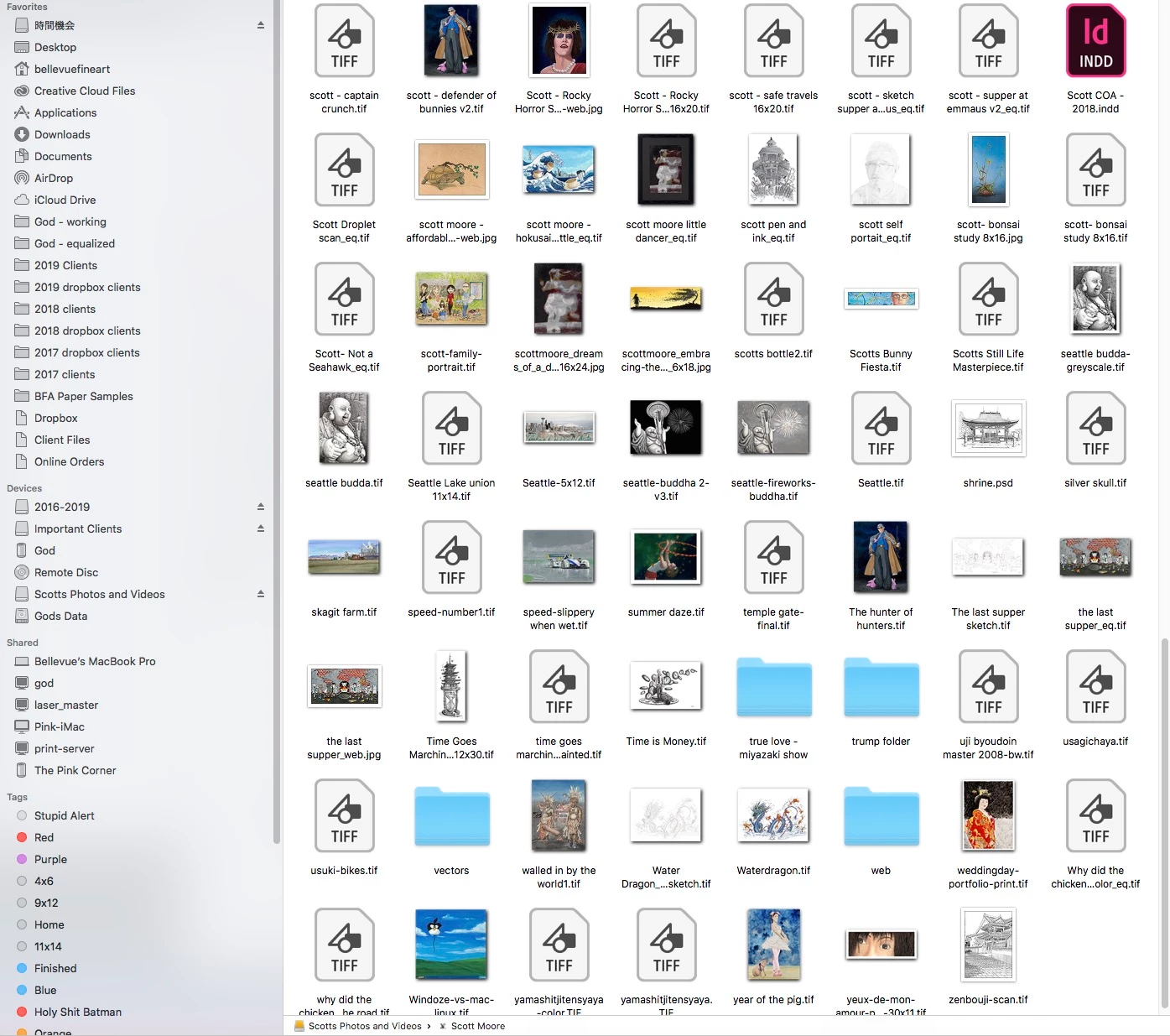
On my mac, OS 10.13.6 (although this has been happening for years now), icons appear broken. Instead I get the generic "tif" icon. This is more than just an annoyance. It has a significant impact on productivity as a graphics professional, and I'd like to understand how to fix it. And pardon me if this is an old issue, but it's been forever that this is happening, and solving this problem would really help my business work flow.

I showed this image in a Mac forum, and was immediately treated like a newbie and told by several people that this is not an Apple issue, but an Adobe issue. But I reset the default program for tifs to be "preview" and restarted, and that does not solve the issue. I've also on several occasions, if not more, gone and deleted the finder plst file and rebooted, as well as relaunching finder, and nothing helps.

How can I fix this issue? Any ideas?
This topic has been closed for replies.

14 replies

bellevue scott
Inspiring
February 15, 2019

Somebody marked this as the correct answer, but it is not the correct answer as it does not solve the issue. It was helpful, and a good supposition, but not "correct". How do I unmark this thread as "answered". It's not correct, and it's not answered.

jane-e
Community Expert
Community Expert
February 15, 2019

https://forums.adobe.com/people/bellevue+scott  wrote

Somebody marked this as the correct answer, but it is not the correct answer as it does not solve the issue. It was helpful, and a good supposition, but not "correct". How do I unmark this thread as "answered". It's not correct, and it's not answered.

Hi Scott, this is what Jive (the forum software) says, but any moderator can unmark it. I'll do that now for you.

~ Jane

bellevue scott
Inspiring
February 15, 2019

:-) Thank you Jane. Still looking for an answer to this on both this forum and on Apple's website forum. I know this has been a long standing issue since I think 10.11.X where Adobe and Apple both point fingers at each other, but it's become so debilitating I can't ignore it. The other day I spent two hours opening and closing files to look for a client image because I can't see a preview, and then two days later, all those icons have again reverted back to broken icons. As someone who generates nothing but graphics files and is in the Adobe suite all day long, this has become a real issue that's costing me real time and money.

Also just upgraded my main machine to 10.14.x and no change. I'm on Adobe Cloud 2019 for all my Adobe apps.

jane-e
Community Expert
Community Expert
February 15, 2019

https://forums.adobe.com/people/bellevue+scott  wrote


I showed this image in a Mac forum, and was immediately treated like a newbie and told by several people that this is not an Apple issue, but an Adobe issue.

Hi Scott,

It would be an Adobe issue if it happened in Bridge, but an Apple image when it happens in the Finder, imho.

It is working for me in 10.13.6 (High Sierra). Cmd+J on a Finder window brings up View Options or use the View menu as Gene said.

Confirm your associations for tifs / tiffs with Cmd + I on any file. I have Preview set as the Default for tiffs and jpegs and then use the right mouse > open with to open in PS (or use Bridge).

You might also look at some of the ideas here:

https://apple.stackexchange.com/questions/182536/why-cant-i-see-thumbnails-in-the-finder

~ Jane

bellevue scott
Inspiring
February 15, 2019

Icon preview is checked, and always has been. And again, this is across multiple machines I have with varying OS versions, and they all have this issue, even the one with Mojave.

gener7
Community Expert
Community Expert
February 15, 2019

I have 10.13.6 on my 2012 MBP and no problem displaying tiffs.

One trick I use on a Finder Window is to reduce, then increase thumbnail size using the thumbnail slider that I can activate by pressing "Cmd /"  As soon as I see them build, I increase the size.

Another idea:

Ensure Finder "Show preview" options are checked If the problem seems to be with documents in a specific folder or on the Desktop, it may be that the view settings for that folder have been reverted. The default options for folders are to have document previews visible, but corruption in the ".DS_Store" file that contains these settings might prevent the previews from being enabled. For the affected folder, users should ensure it is in the foreground as the active window, and then from the Finder's "View" menu select "Show View Options". Then select the option to "Show icon preview" and close the options window.

bellevue scott
Inspiring
February 15, 2019

Yes, I've done this all along

gener7
Community Expert
Community Expert
February 15, 2019

Let's try this: Open a tiff in Photoshop, make a "non-destructive change" such as clicking a layer eyeball off and on. That effectively changes the file and you can resave it thereby rebuilding it. If it still doesn't work, check Image Pyramid in the Tiff Options and try again.

marliton
Community Expert
Community Expert
February 15, 2019

Hi. This is an old bug in MacOS (since 10.11.x). It's supposed that it was already solved. Try coping a couple of file to a computer with the last version of MacOS and check it.

Marlon Ceballos
bellevue scott
Inspiring
February 15, 2019

I have 5 macs here, the latest OS being Mojave, and it's the same on all macs, so this is not a solved issue.