


NB, colourmanagement
Community Expert
Community Expert
March 25, 2025
Answered

macOS Sequioa / Photoshop 25 and messed up print settings during printing

  • March 25, 2025
  • 12 replies
  • 1739 views

It's no wonder there have been a few threads here about printing from macOS Sequoia.


I'm not an early adopter, meaning my main Mac is still on macOS Ventura and, mainly, PS24, so I've not experienced this printing issue.. But, today I experienced the Sequoia/Photoshop 25 print pipeline issue we've been hearing about here.

I wonder about macOS Sonoma too now. 


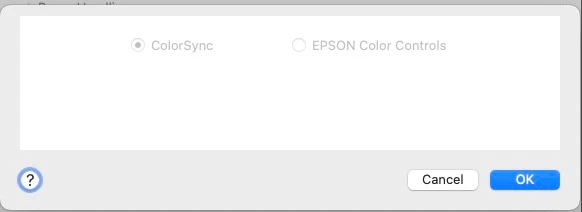
In Photoshop's print process, I prefer to use Photoshop Manages Color and select the ICC profile myself - meaning that, now, I just need to go to the Print Settings (which opens the Epson or Canon etc. print driver), and, there, under Printer Options/Print Settings I select the media type and also check that in the Color Matching section the options are greyed out - with Colorsync selected [here, as below, the options should be greyed, because selecting Photoshop Manages Color tells the driver to disable color management]. 
What's the issue with printing?
Selected options within Print Settings / Printer Options which are correctly used on macOS Ventura with Photoshop 24 and Photoshop 25, but are not in Sequoia with Photoshop 25. I am not using the 'Airprint' driver [that has its own issues] but, either Epson or Canon's own print driver software. (Not the layout print plug ins from either)


In Sequoia with Photoshop 25, after selecting the right media in Printer Options, I now need to click Save to get back to Photoshop's Print button. [it was click 'OK' in PS25 in Ventura, so, Save here came with Photoshop 25]

The problem now is that the media I selected by name is NOT saved, it doesn’t stick [so prints are bad] - if I go straight back to Print Settings/Printer Options/Print Settings to check what's being used, the Media selection here has reverted to whatever was default.

[AND on a Canon Printer the perceptual option has reappeared too (more on that below).]


To add to the confusion, in my test on a Canon driver, there's also a Perceptual or NO Color Adjusment option there. Perceptual should not be offered, since Photoshop is doing the color management. Selecting NO Color Adjustment here doesn’t stick either, it apparently reverts to Perceptual when the window closes after saving.

No wonder prints are bad.


Apple? Adobe? Epson? Canon? who's messed this up? 


I hope this helps

neil barstow colourmanagement - adobe forum volunteer,

colourmanagement consultant & co-author of 'getting colour right'

See my free articles on colourmanagement online

Help others by clicking "Correct Answer" if the question is answered.

Found the answer elsewhere? Share it here. "Upvote" is for useful posts

Correct answer NB, colourmanagement

Just in case it's helpful to anyone with this issue, Canon's Professional Print & Layout software ( a Photoshop plug-in) works properly with ICC profiles and even allows printing with colour management turned off, so that profiling targets can be printed. 


I'd imagine Epson's similarly named Print layout software provides better control over printing (with ICC profiles) also, it doesn’t, though, allow printing with colour management turned off so that profiling targets can be printed


I hope this helps

neil barstow colourmanagement - adobe forum volunteer,

colourmanagement consultant & co-author of 'getting colour right'

See my free articles on colourmanagement online

Help others by clicking "Correct Answer" if the question is answered.

Found the answer elsewhere? Share it here. "Upvote" is for useful posts


12 replies

NB, colourmanagement
Community Expert
Community Expert
March 26, 2025

@MarkDS "if one goes straight to PRINT withoiut re-opening anything, the print comes out correctly. So the moral of this story is: after selecting a bunch of settings and saving them, DO NOT LOOK BACK. Trust the system and just print."

Thx for the reply, but sadly not in this users case (with a Canon). the print is awful (nearly every time) hence my investigations. 

we used to have a solution to savings preset to appear in the list above (do it in Preview) but even that's not working properly now. 

Yeah I'm a RIP fan and I use GMG colorproof RIP here for certified proofing with an Epson Pro4900 (no Canons here), the downside is that Colorproof’s Windows only so has to be run through Parallels and colorproof only likes Intel, not ARM processors, so it has to be on a pre Silicon Mac.


Colorburst X-PHOTO & X-PROOF provided an amazing solution for many of my clients, with great control over black generation too, increasing clarity and fine detail and saving ink - but development ceased years back. I suspect the addition of Epson's orange and Green inks made RIP development for every new printer just too expensive. Colornurst actually drove the printer as a CMYK+n device, rather than using the driver. Their later product sat atop the driver, so one lost the black generation control. .

Look at Proofmaster perhaps?


I'm told Canon's own print utility ("Professional Print and Layout") works OK (there's also Canon "Print Studio Pro") - be good to know how well those work ';~} 

You already mentioned Epson Print Layout, so, I guess that's all good and settings stick?


thanks for taking the time


neil barstow colourmanagement - adobe forum volunteer,

colourmanagement consultant & co-author of 'getting colour right'

See my free articles on colourmanagement online

Help others by clicking "Correct Answer" if the question is answered.

Found the answer elsewhere? Share it here. "Upvote" is for useful posts


MarkDS
Inspiring
March 25, 2025

I have been given to understand that Apple messed it up with uncorrected APIs going back as far as Ventura. BUT THAT SAID, the business of printer drivers appearing not to stick could also be printer manufacturer driver issue. In fact, with the Epson driver for the P5370 I find it infuriating that once one selects the Printer and Print settings in the driver ane clicks SAVE, one cannot go back into this menu to see whether it saved correctly, because it always shows the default settings upon being opened, not the most recenrtly saved ones. However, if one goes straight to PRINT withoiut re-opening anything, the print comes out correctly. So the moral of this story is: after selecting a bunch of settings and saving them, DO NOT LOOK BACK. Trust the system and just print. Now that works with this particular printer and OS version. All bets off for any other. I am of the view that both the printer manufaturers and Apple Computer do NOT have their act together on this print pipeline and it really is long overdue that once and for all they fix it. I'm close to either buying a RIP or a Windows computer to get myself disentangled from all this nonsense.