



Magic wand tolerance not working on simple black line art on of transparent/white background
Hi, I'm trying to select a line art character with the magic wand tool.
The image is just a black line drawing on a transparent background.
You can view it in proper transparant PNG form here: image
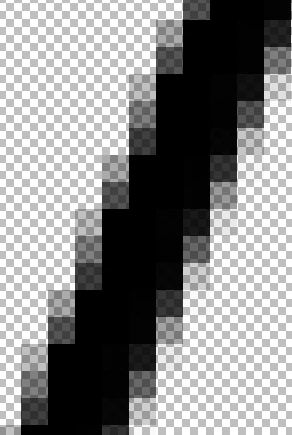
It was drawn with a sketch pen in an art program, so it isn't just simple block lines, but has faded edges and antialiasing:
Here the general area (in blue) I want to select (contiguously). This is achieved by making a magic wand selection in the transparant area, then inversting the selection:
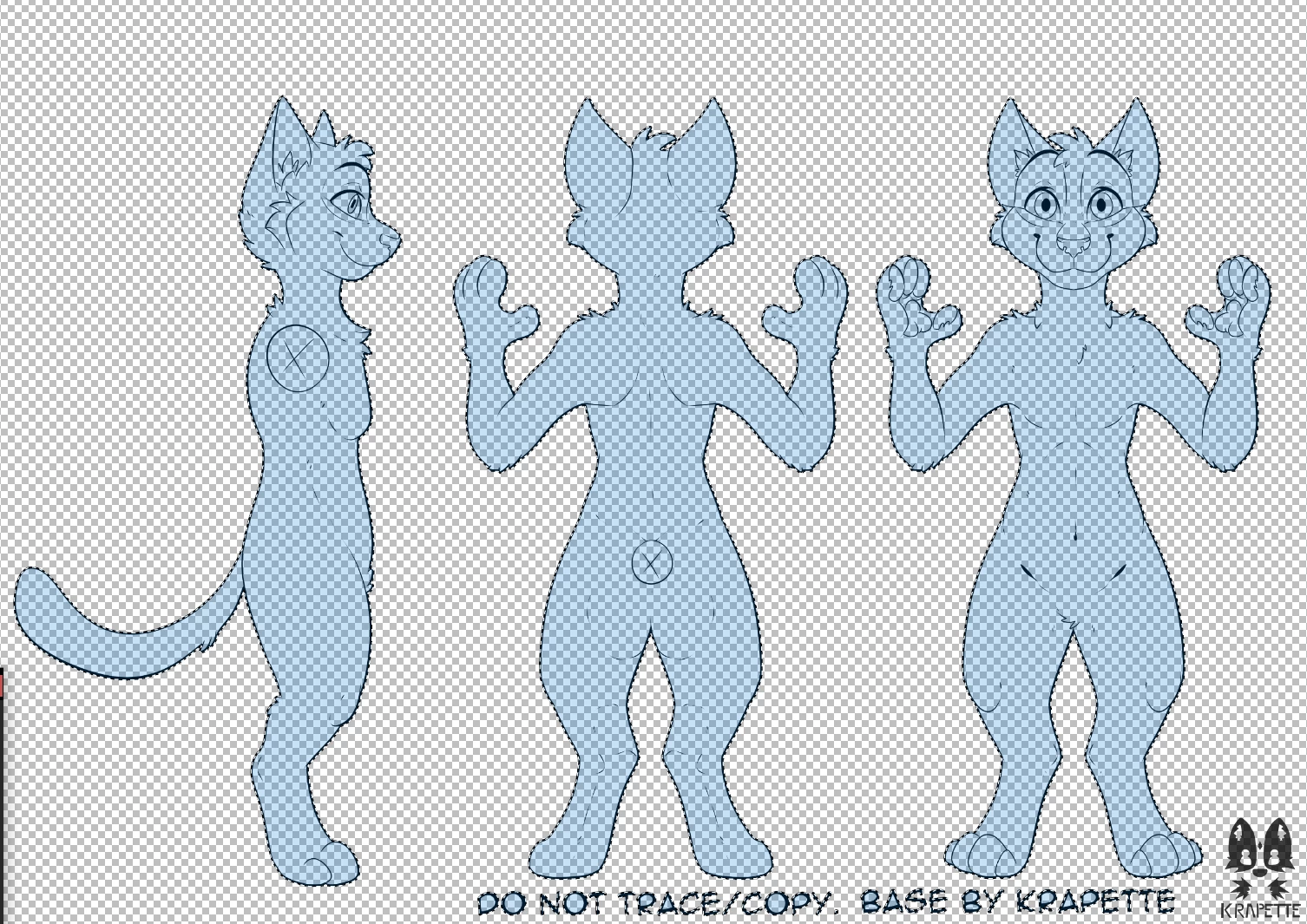
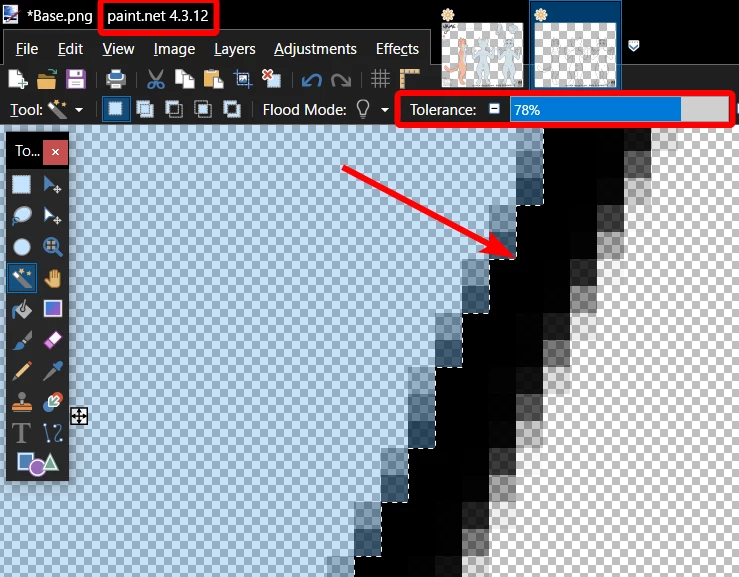
I want the initial magic wand selection to go on the INSIDE of the faded edges and aliasing.
This is so that when I invert the magic wand selection in order to achieve my desired general area (as described above), it will prevent the future colouring in of this character from spilling over the lines.
Here you can see this working perfectly with 78% tolerance in Paint.NET:
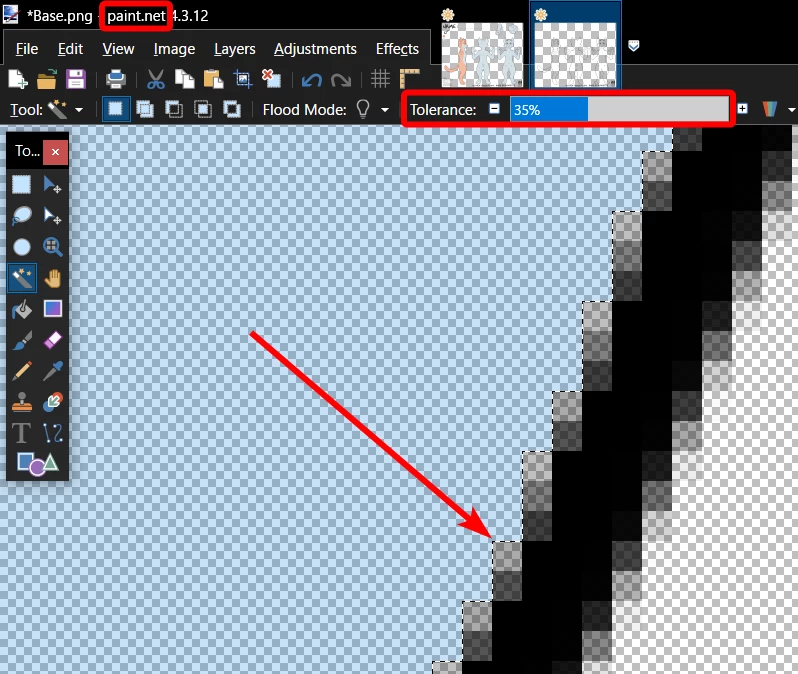
Here you can see that the tolerance is necessary - on a lower setting it won't select as desired:
My problem is - I cannot get the same result in Photoshop!
When using the magic wand, the selection is ALWAYS as follows - the exact same - on all tolerance levels from 1 (minmum) to 255 (inclusive)!
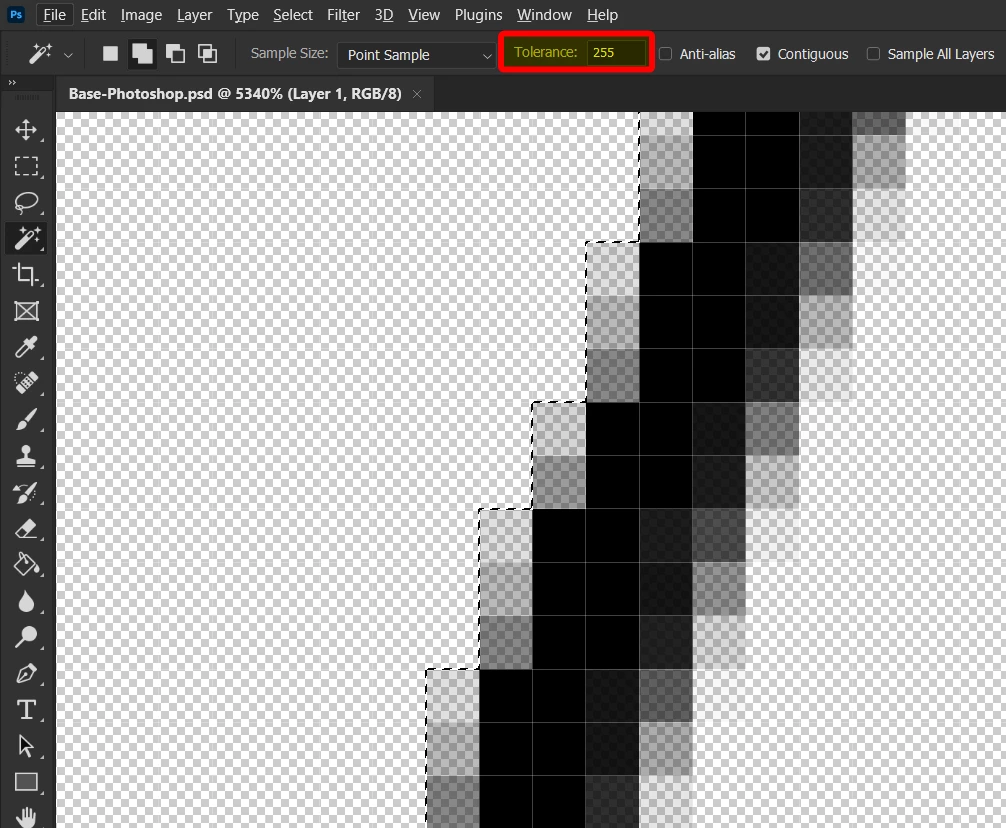
What I want is - to make the perfect selection as shown in the 78% tolerance pic above in Paint.NET!
What I tried so far:
- Adjusting the Sample Size and using it with every combination of tolerance level. This had no effect, except for higher levels making the wand act as if I had "Contiguous" unchecked.
- Making a white colour background as a base layer and ticking "Sample all layers". No effect.
- Adjusting eye dropper tool settings then re-trying the Wand. No effect.
- Using the Quick Selection tool brush type thing - every selection I made disappeared and was really messy.
- Ticking/unticking anti-alias: this only made some areas closer, but others were the same. Besides thats just a side effect result and not exactly what I want.
- Unticking Contiguous: this just made it select inside the character too instead of wrapping the lines from the outside.
- "Select subject" button - just selected nothing.
- I am hitting enter on the Tolerance level text box after changing the value so it confirms it, and re-selecting. The new tolerance level appears to be set, but it doesn't change anything.
How can I achieve what I want (described above) in Photoshop? Surely I must be doing something gravely wrong that I can't reproduce the results of a free program in an expensive industry standard one. Please enlighten me.
Thanks in advance!
How I want it selected:
 AdChoices