amyvk2000
Participant
November 5, 2016
Answered

Making my background transparent?

  • November 5, 2016
  • 1 reply
  • 2270 views

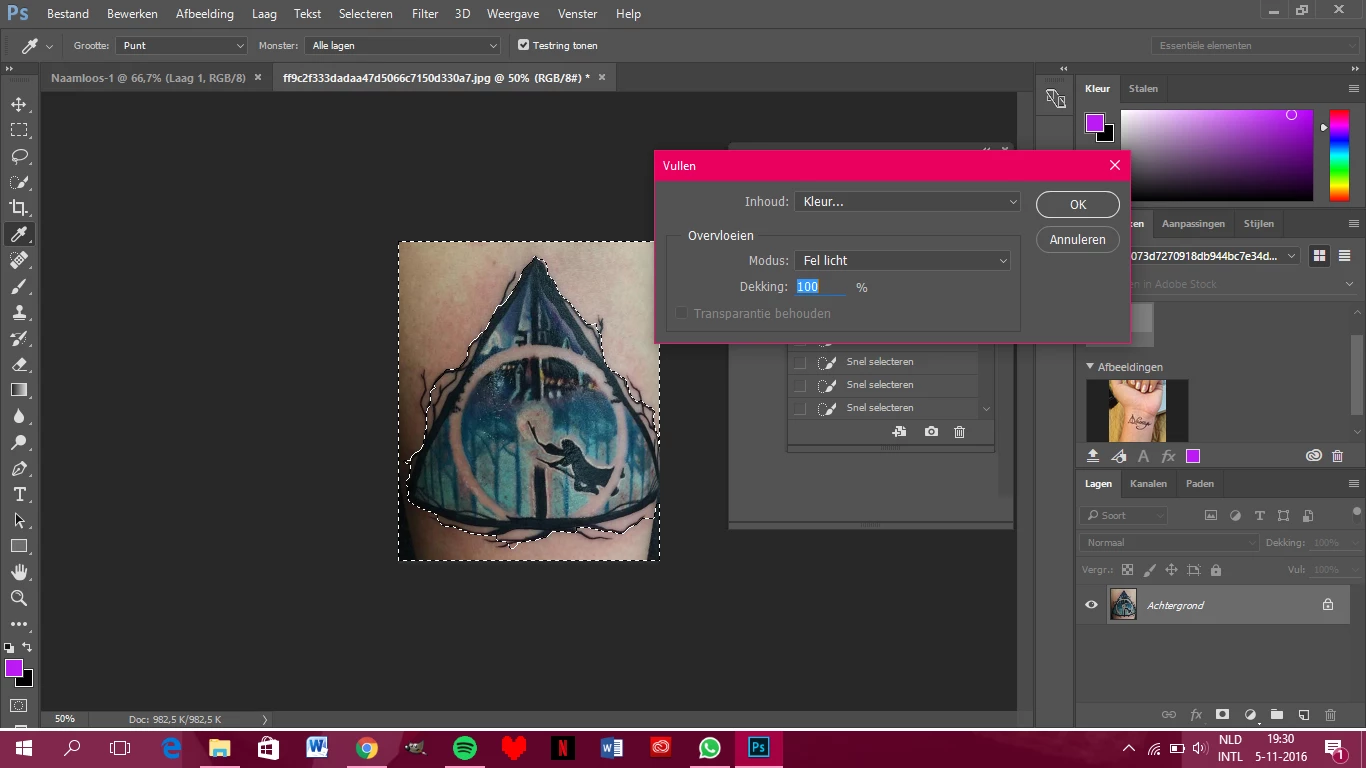
I just started editing in the newest Photoshop. Usually, when I used the fast selection tool and clicked delete, my background would be transparent. When I do it now, I get this pop-up (see picture, my photoshop is Dutch.. Sorry for that) and I just can't find a way to find a solution to this.. Can anyone help me with this?

PS. I am a beginner

This topic has been closed for replies.
Correct answer gener7

Click the padlock icon on your Background Layer to make it a floating layer (Layer 0) so that you can delete to transparency.

1 reply

gener7
Community Expert
gener7Community ExpertCorrect answer
Community Expert
November 5, 2016

Click the padlock icon on your Background Layer to make it a floating layer (Layer 0) so that you can delete to transparency.

amyvk2000
amyvk2000Author
Participant
November 5, 2016

Such a simple solution... Thank you so much!

gener7
Community Expert
Community Expert
November 5, 2016

Thank you!

Whenever I answer a question to a beginner, I'm reminded of  the saying:

"When someone asks you the time, they do not need to know how a watch works."

Gene