
Participant
July 17, 2023
Question

Massive memory leak issue in Photoshop 24.6 Mac M1

  • July 17, 2023
  • 22 replies
  • 3920 views

Issue: 

Photoshop continually increases memory use to the point it is using up to 100GB RAM and MacOS becomes unusably slow


A bit more detail: 

I use a script called BMTCollage written by the late Adobe Forum expert JJMack to apply graphic designs onto photos of t-shirt mockups. The script loops through the number of t-shirt designs (i.e. 10 transparent PNGs) and applies them to the number of t-shirt photo PSD files (i.e. 5) to create end result JPEG t-shirt mockups (i.e. 50 mockups) as an example. 


The mockup script uses a smart object layer in the PSD file to identify where the PNG graphic should be placed. 


While running this script, Photoshop 24.6 Mac memory increases and increases, to the point where it can hit 80 - 100GB and then MacOS struggles with the paging to disk (even when there is 300GB+ free on a fast internal SSD) and declares it has run out of application memory. 
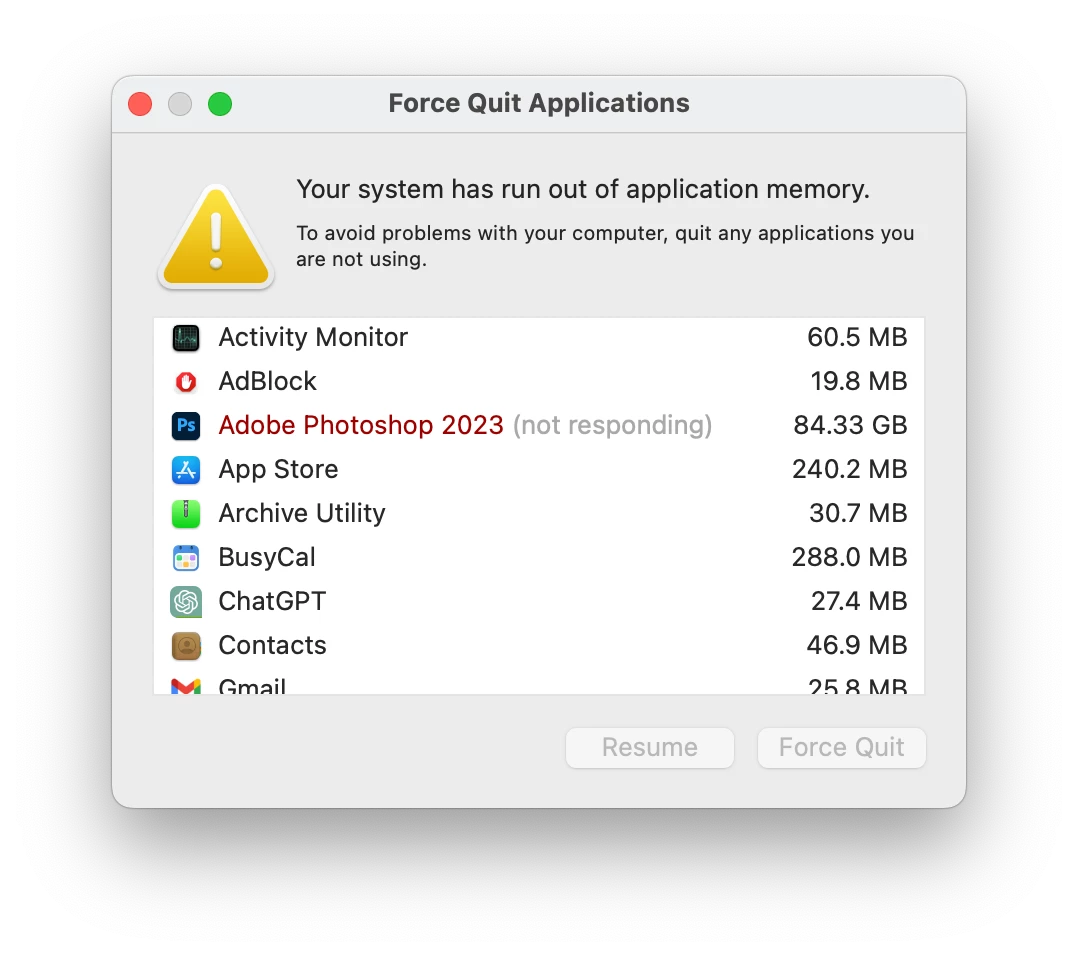


Photoshop version: Adobe Photoshop Version: 24.6.0 20230615.r.573 15cc86e arm64
OS and version: macOS 13.4.1(c)  running on M1 iMac 


Steps to reproduce the behavior:


Step 1

Download this ZIP file (105.4MB) which contains the Photoshop script and sample images to work with.


Step 2

Unzip and locate the "Scripts & Misc." folder.


Step 3

Copy the "Mockups.jsx" and "PCTpreferences.jsx" scripts into your Photoshop Scripts folder (/Applications/Adobe Photoshop [VERSION]/Presets/Scripts/) 


Step 4

In Photoshop, go to File > Scripts > Mockups


Step 5

In the script's dialogue box, select the correct folders on your Mac. 

- In "Batch Folder of a Mockups Template File", select the "Mockups" folder (from the expanded ZIP)

- In "Objects Collection Folder", select the "Obj0" folder (from the expanded ZIP)

- In "Output Folder", select the "Export" folder (from the expanded ZIP) 

- Tick the "Edit Smart Object" and "Fit Image" tick boxes. 


Step 6

- Click "create mockup collages" and let Photoshop run through the script. 


Expected result: Photoshop should complete the script and manage its memory appropriately within the limits set in Preferences.


Actual result: Photoshop continually increases its RAM consumption as it loops through the script, eventually getting to an enormous RAM size and causing MacOS to become unstable. (It doesn't crash MacOS but the OS becomes extremely slow until Photoshop is force quit.)


I noticed this memory usage pattern starting when generative fill was introduced in Photoshop Beta, which has now come across to Photoshop 24.6 stable. I'm not sure if that is really when it started though; it may be coincidental. 

This topic has been closed for replies.

22 replies

EthosWhippet
Known Participant
January 30, 2024
I went and looked at the file I'm loading, and it's bigger than I thought
(4.5 GB), so this situation is likely MY fault. No point loading it here,
sorry.
BrettN
Community Manager
Community Manager
January 30, 2024

Any file sharing service is fine. Dropbox, for example, works.

EthosWhippet
Known Participant
January 30, 2024

I use a LOT of patterns, and have them saved into one file that I load every time I have to re-install Photoshop (which lately seems like once a week). So, that is likely the problem. I have my brushes, gradients, and swatches saved the same way for the same reason.  However, having to load them one at a time just to use them seems counterintuitive, and a pain in the butt.


How would you like me to proved you with the file?

BrettN
Community Manager
Community Manager
January 30, 2024

@EthosWhippet Would you be able to provide the patterns preset file(s) you are working with? It is possible that:

  • the file itself is large
  • contains a high number of patterns
  • the resolution of the patterns is big

Launching Photoshop after importing presets with some combination of the above could require using the amount of memory you are seeing taken up. These patterns are loaded into temporary memory on launch so they are ready to use and remain there until you close the application, even if you delete the file from which they were loaded. The patterns could be larger in temp memory than on disk thanks to being uncompressed from the preset file. But I could tell you more if I have a file to recreate the behavior with. 

EthosWhippet
Known Participant
January 28, 2024

I figured out what was causing this for ME. For some reason, when I load ANY of my saved patterns into Photoshop, ram usage goes from 10-15 gb all the way up to 37 GB and stays there. If I delete all the patterns (included legacy patterns etc), it stays high until I re-boot the program. So basically, using any sort of patterns is currently messing with performance worse than the neural filters. Why in the world would this be? I use them regularly, so this is not cool.

EthosWhippet
Known Participant
January 27, 2024
Not for me, the Activity Monitor shows it being ONLY Photoshop.


[image: __tpx__]
dhs.whg@gmail.com
Participant
January 27, 2024

At first I thought it is Adope photoshop, but then I found out that Apple photos has some process filling the memory. When I rebuild the database and waited some time the memory problem was gone.

Kevin Stohlmeyer
Community Expert
Community Expert
January 26, 2024

@EthosWhippet I have the same setup as you and dont see the 35 GB on startup.

I did notice this in your system report:

Built-in memory: 65536 MB

Free memory: 5605 MB

Memory available to Photoshop: 61601 MB


What does your Activity Monitor show? (Applications/Utilities/Activity Monitor - click the Memory tab)

Are you running Chrome at all?

EthosWhippet
Known Participant
January 26, 2024
Yes. I've uninstalled, removed all traces, clean re-install without
preferences etc. NOTHING helps.


[image: __tpx__]
Kevin Stohlmeyer
Community Expert
Community Expert
January 26, 2024

@EthosWhippet 35GB right out of the gate isn't indicitive of a memory leak. Have you tried resetting preferences and clearing caches?