Inspiring
December 15, 2025
解決済み

Model aircraft on blue cloth needs blue removing from its black and silver bodywork

  • December 15, 2025
  • 返信数 4.
  • 506 ビュー

Hi,

Avro Lancaster superb large 1/32 model, black wing undersides and fuselage, and tail fins, and silver wheel hubs, legs and tail wheel, blue has appeared in the black and silver of these as it was on a vivid blue cloth. What method to remove that, to get it as if it had been sat on grey cloth instead ?

Placing it into a real scene this blue 'invasion' is readily apparent. 

I have the areas masked and selected but auto colour doesnt do it.  The wing underside especially has taken on a very blue look., feathering out as the wing dihedral takes it further from the cloth.

I attach the .psd file with that mask. I have removed the real scene runway to keep file size down.

With more than one model over the years photographed on this electric blue cloth, knowing how to remove the blue, and prior to that the magenta that was used, would be VERY WELCOME !


Cheers

Merlin

解決に役立った回答 Conrad_C

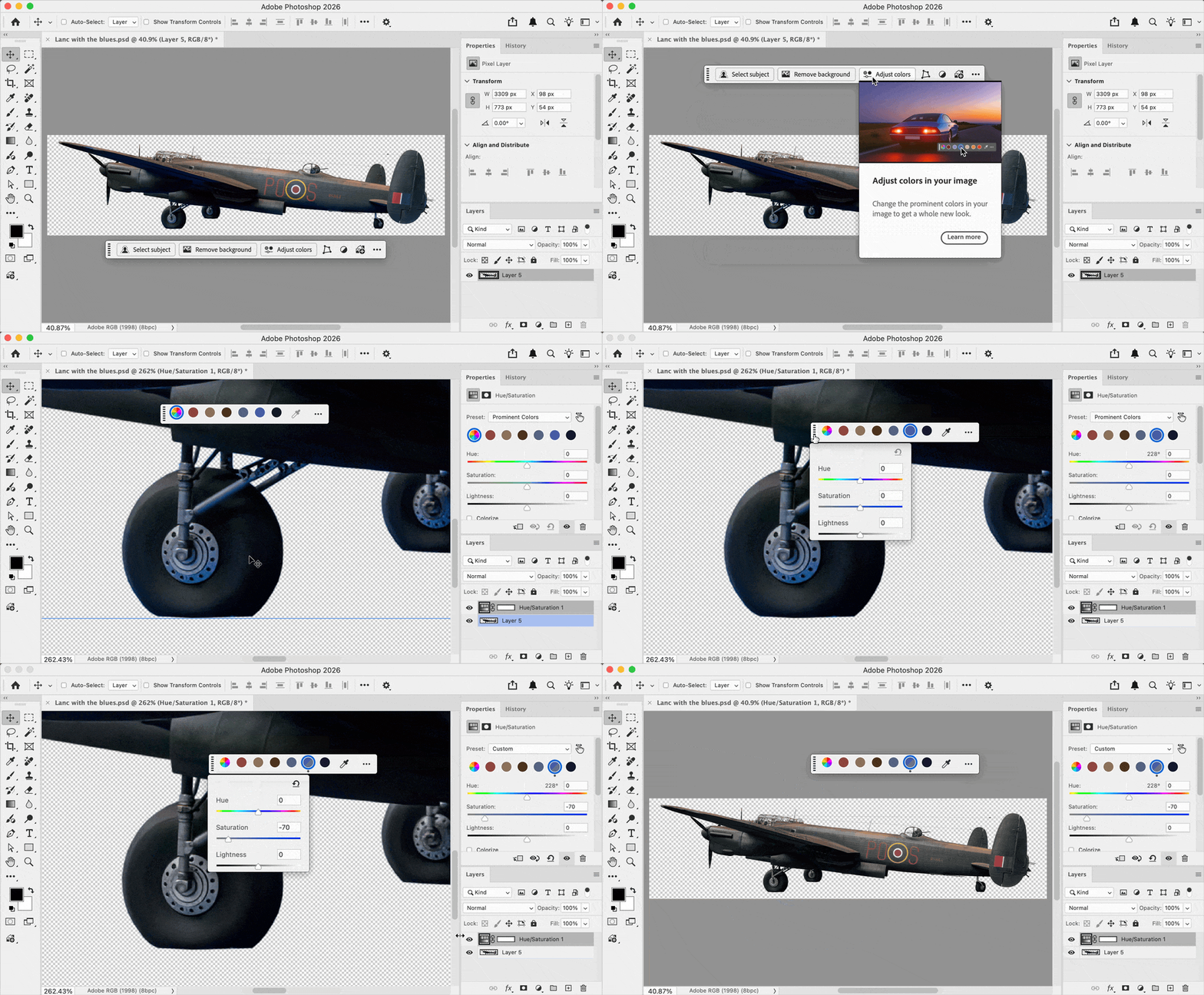
barbara_a is absolutely correct that there are multiple approaches to this. The demo below is another one, using the recently added Adjust Colors feature. Adjust Colors auto-detects the most prominent colors in the image, and the result is a Hue/Saturation adjustment layer. 


With either technique shown so far, reducing blue uniformly works fine on this image. But if a different aircraft model has a similar blue in important markings elsewhere on the aircraft and you don’t want to reduce that, then you’d have to manually mask out the blue aircraft markings that shouldn’t be removed. 


(Ignore the rough colors in the demo, the Adobe forum software degrades color in attached GIF animations. The GIF file I uploaded looks fine. )


Photoshop Adjust Colors Merlin3.gif


A third approach would be to do a Select > Color Range, select the correct range of blue, and use that selection as a basis for reducing blue saturation using any adjustment layer you like that works (Hue/Saturation, Color and Vibrance, etc.).

返信数 4

Conrad_C
Community Expert
Community Expert
December 17, 2025

A couple more notes:


This comment is for future model photos. In movie/TV productions, when they use green screens/blue screens, the way they prevent the background color from “spilling” onto the subject is to get some distance between the subject and the colored background. For example, if shooting a model, they will avoid placing the model directly on top of the colored background because the background will be close enough to reflect color onto the model. For models such as aircraft and spacecraft, they will suspend the model so that a colored background in any direction is several feet away.  (Of course they have to remove the suspending stand or wires later, but they may decide that’s easier than cleaning up key color spill.) 


In a situation where it isn’t possible to completely prevent key color spill onto a subject, there are spill suppression options in the chroma keying features of professional video editing/effects applications such as Premiere and After Effects. Photoshop doesn’t have a specific spill suppression feature so you have to do it manually as we’ve shown, using any color range selection technique that works, sometimes combined with a mask.  


The other note is, as someone who built an air force or two of plastic models in my youth, it’s always nice to see good model aircraft! Too bad the only documentation of my models was with a cheap snapshot film camera decades ago.

Trevor.Dennis
Community Expert
Community Expert
December 16, 2025

Is anyone else having trouble viewing this image?  I'd like to see the original if possible. 

I tried Chrome and Edge and Hard Reset the page (Ctrl F5)

image.png

jane-e
Community Expert
Community Expert
December 16, 2025

Yes, I got the same error message.

Jane

Conrad_C
Community Expert
Conrad_CCommunity Expert解決!
Community Expert
December 16, 2025

barbara_a is absolutely correct that there are multiple approaches to this. The demo below is another one, using the recently added Adjust Colors feature. Adjust Colors auto-detects the most prominent colors in the image, and the result is a Hue/Saturation adjustment layer. 


With either technique shown so far, reducing blue uniformly works fine on this image. But if a different aircraft model has a similar blue in important markings elsewhere on the aircraft and you don’t want to reduce that, then you’d have to manually mask out the blue aircraft markings that shouldn’t be removed. 


(Ignore the rough colors in the demo, the Adobe forum software degrades color in attached GIF animations. The GIF file I uploaded looks fine. )


Photoshop Adjust Colors Merlin3.gif


A third approach would be to do a Select > Color Range, select the correct range of blue, and use that selection as a basis for reducing blue saturation using any adjustment layer you like that works (Hue/Saturation, Color and Vibrance, etc.).

Merlin3作成者
Inspiring
December 17, 2025

Hi, reply part 2, to Conrad_C this time.

I cannot find the Adjust Color feature, and searching photoshop help with those words doesnt find it.

I am 26.11.0

The video doesnt show mouse going to where it lives.

Would this method honor the mask I had running (see reply to barbara_a)

Cheers

Merlin

Srishti_Bali
Legend
December 17, 2025

Hi @Merlin3


The Adjust Color option shown in @Conrad_C 's GIF is on the Contextual taskbar. Select the object, and it should automatically show up. If you do not see that bar on your screen, you can enable it from the Window menu.


Regards,

Srishti

barbara_a7746676
Community Expert
Community Expert
December 16, 2025

There's more than one command that could accomplish this. I did it in the Filter > Camera Raw dialog. 

image.png

Merlin3作成者
Inspiring
December 17, 2025

Hi, taking each of these solutions one at a time, I will start with Barbara_a. with this reply

Thank you all for the replies, most encouraging that it can be done.

I open my .psd, then I load the selection 'black with the blues' that protects the RAF blue roundels and upper part of aircraft. go filter>camera raw filter and drag the blue slider fully left, with saturation selected, and all the aircraft is affected, inc the roundels. Whilst the parts I wanted lose the blue, and thats great to see, this filter has left behind my mask.

Is there a way around it doing that ?

A way of importing a channel from a .psd file for example ?

....but should it not have done that anyway starting from a .psd file ?

Cheers

Merlin