Participating Frequently
May 9, 2023
Answered

Mouse pointer offset

  • May 9, 2023
  • 13 replies
  • 1829 views

Hello, I am coming here because I am desperate. I have not been able to work for several days due to a mouse offset bug, like this:
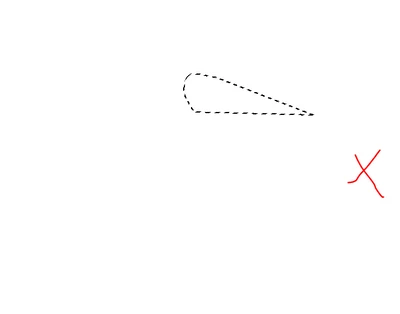


The cross represents the place where I clicked with my lasso selection, as you can see, I managed to obtain a nice shape at an offset location with a single click. So I can no longer retouch or even delete elements from my photos without destroying everything with my tools. I note that this bug only occurs when I click, otherwise the cursor of my mouse seems to be correctly positioned (for example, on menu buttons like the one shown below, the mouse interacts correctly with the button without offset).



I recently added a second 4K monitor to my setup. I tried turning it off to see if it would solve the problem. I haven't seen anyone else having this issue on the net, so I'm coming here in case someone has a solution. I tried resetting Photoshop, uninstalling and reinstalling it, and using an older version.


Thank you!
Correct answer River IV.

Hey @Julien297684039owr! I have been having this same exact issue myself for the last two days. I am taking a Photoshop class at University, so this problem has been extra frustrating! My instructor was trying to help me and she came upon this thread. Resetting the scaling back down to 100% did indeed "fix" the problem, but again, the UI is super tiny, and for some reason the UI scaling options within Photoshop do not actually make the UI bigger.


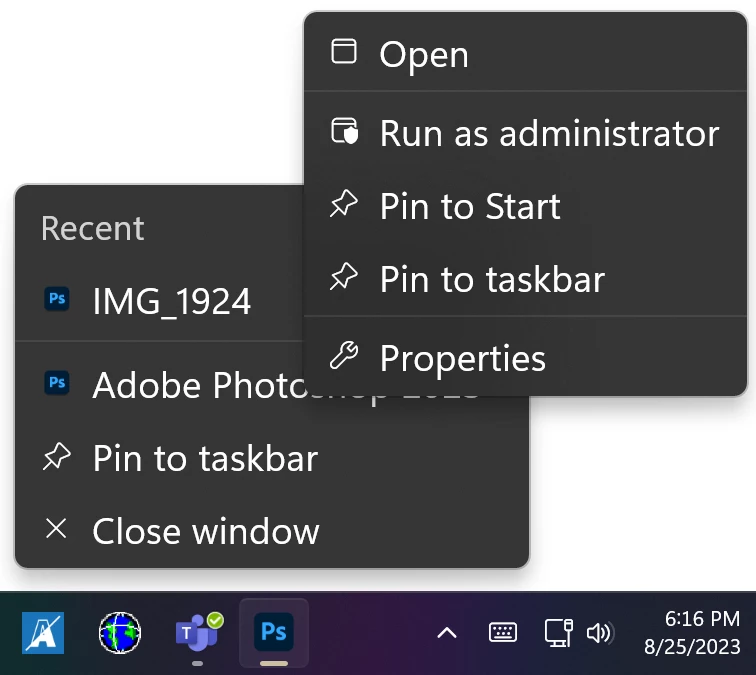
WELL! I found a way to ultimately fix this problem! At least, it worked for me, so hopefully it will work for you, and/or others who may also be having this issue. So go ahead and set your display's scaling to how you need it for the program. Then, if you right click on the app's icon in the taskbar, then right click again on the application's name. Select properties from that menu.


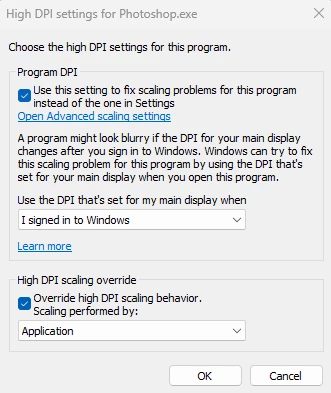
On the "Compatibility" tab, there is a button at the bottom to "Change high DPI settings." (I myself clicked "Change settings for all users" and THEN clicked "Change high DPI settings," but that may not be necessary). Then on that screen you will want to check the box under "Program DPI" AND "High DPI scaling override." Under "High DPI scaling override," I also selected "Application" from the drop down menu, but I am not 100% certain if the other options will work or not. Same for the drop down box under "Program DPI;" not sure if other selections will work or not. Then just hit Okay --> Apply --> Okay. Then the problem should be fixed!

*Disclaimer: This may only work on Windows 11, as when I was early on with troubleshooting, I was on Windows 10 and this did not seem to work for me, but I may be wrong and I just didn't have the right combination of settings.*

@CShubertTagging you so that you can pass this along to the Adobe team!


13 replies

Participating Frequently
May 12, 2023

Hello @CShubert , indeed it seems to be related to that because when I set myself at 100%, my tools work properly. Now my concern is that at 100%, I can't see much and even reading text requires me to get closer to my screen! Thank you for your suggestions anyway, we're making progress.

River IV.Correct answer
Participant
August 25, 2023

Hey @Julien297684039owr! I have been having this same exact issue myself for the last two days. I am taking a Photoshop class at University, so this problem has been extra frustrating! My instructor was trying to help me and she came upon this thread. Resetting the scaling back down to 100% did indeed "fix" the problem, but again, the UI is super tiny, and for some reason the UI scaling options within Photoshop do not actually make the UI bigger.


WELL! I found a way to ultimately fix this problem! At least, it worked for me, so hopefully it will work for you, and/or others who may also be having this issue. So go ahead and set your display's scaling to how you need it for the program. Then, if you right click on the app's icon in the taskbar, then right click again on the application's name. Select properties from that menu.


On the "Compatibility" tab, there is a button at the bottom to "Change high DPI settings." (I myself clicked "Change settings for all users" and THEN clicked "Change high DPI settings," but that may not be necessary). Then on that screen you will want to check the box under "Program DPI" AND "High DPI scaling override." Under "High DPI scaling override," I also selected "Application" from the drop down menu, but I am not 100% certain if the other options will work or not. Same for the drop down box under "Program DPI;" not sure if other selections will work or not. Then just hit Okay --> Apply --> Okay. Then the problem should be fixed!

*Disclaimer: This may only work on Windows 11, as when I was early on with troubleshooting, I was on Windows 10 and this did not seem to work for me, but I may be wrong and I just didn't have the right combination of settings.*

@CShubertTagging you so that you can pass this along to the Adobe team!


Participant
November 20, 2025

Just wanted to say thanks, this solved my issue.

CShubert
Community Manager
Community Manager
May 11, 2023

@Julien297684039owr the team believes this is a coordinate issue due to having two different sized displays, they were wondering:


Go to Windows > Display Preferences and set the zoom percentage level to 100%, 150%, or 200% and then restart the machine. See if that helps.


Participating Frequently
May 11, 2023

This is not my mouse. I tried with another one, and it's the same problem

CShubert
Community Manager
Community Manager
May 10, 2023

Curious @Julien297684039owr have we tried a different mouse? Wired vs wireless, what happens?


Participating Frequently
May 10, 2023

I have noticed that the mouse cursor only lags after a left-click, otherwise the right-click works fine.

Participating Frequently
May 10, 2023

No, unfortunately it still doesn't work

CShubert
Community Manager
Community Manager
May 10, 2023

Appreciate your patience @Julien297684039owr 


Go to Preferences > Technology Previews... and enable “Older GPU mode (pre 2016)” - Restart Photoshop. Does the problem persist?


Participating Frequently
May 10, 2023

And i am using a mouse only !

Participating Frequently
May 10, 2023

I have updated my drivers and it's not the solution, the problem still persists even after disabling the options. Thank you for your ideas.

CShubert
Community Manager
Community Manager
May 10, 2023

Thank you for the update @Julien297684039owr one thing we see:


Vendor name: NVIDIA
Driver date: 2023-02-24 000000.000000-000
Driver age: 3 months
Driver version: 31.0.15.3118  - if there is an update, please do so and restart and see if that solves this.


Another idea:


Go to Preferences/Tools and disable flick panning and overscroll - does the issue still occur?

Are you using only a mouse or do you also have a graphics tablet/pen?