imagexREK
Known Participant
April 2, 2021
Answered

moving image under crop frame

  • April 2, 2021
  • 2 replies
  • 1976 views

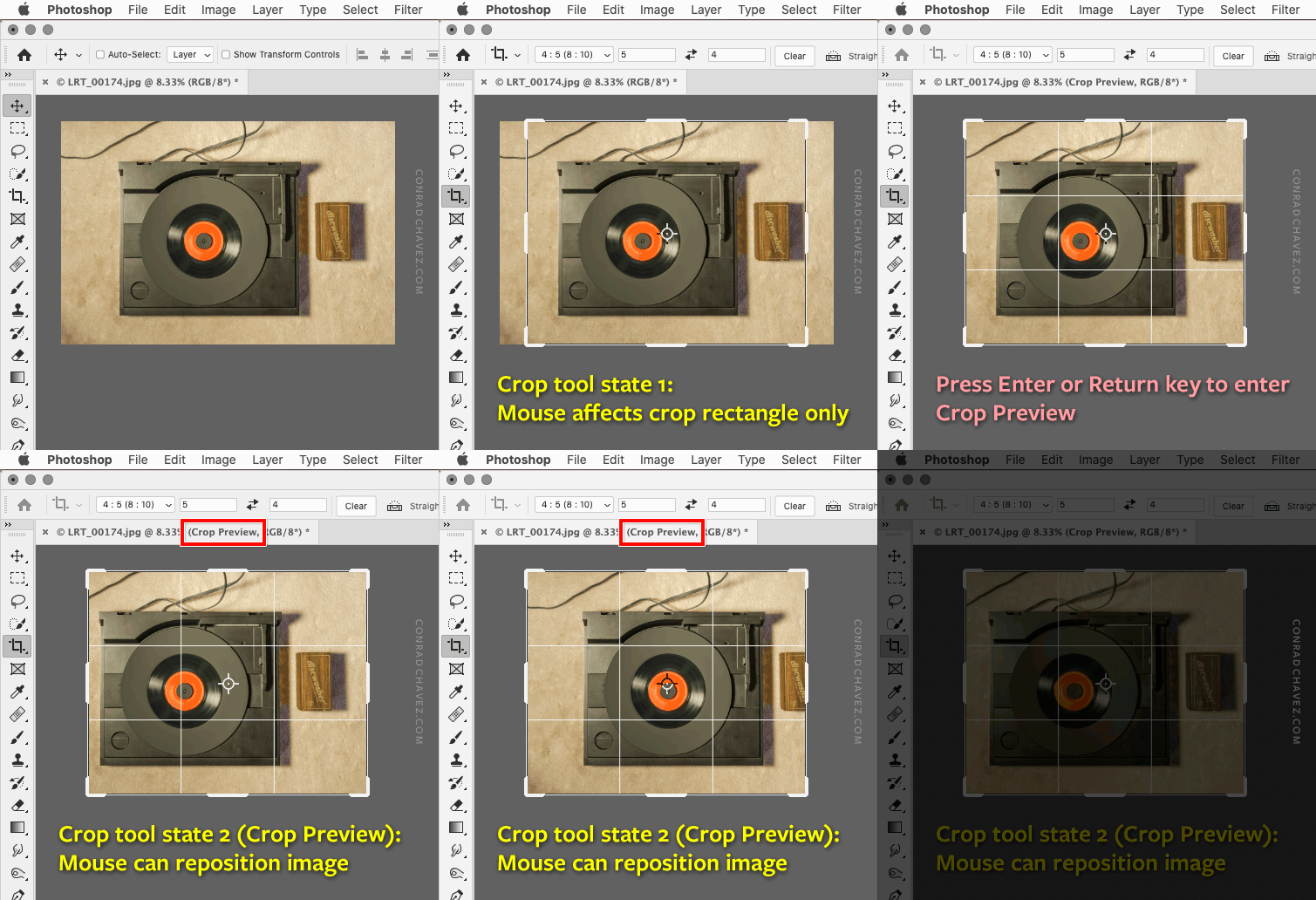
When I ask to crop an image with aspect ratio and specified resolution, the imposed crop frame fills the image in one dimension (say vertical) and is centered on the image cropping off the two side equally horizontally.  I can't find a way to move the image right or left so the crop covers one side of the image more than the other.  Is this possible? 

Correct answer Conrad_C

I’m not sure if this is what you’re running into, but the Crop tool rectangle can have two states and they work slighly differently. If you are using another tool and switch to the Crop tool, you can’t reposition the image behind the crop rectangle because the tool is set up for adjusting the rectangle. But if you press Enter or Return, that will switch it to the second Crop rectangle state (Crop Preview), which does let you pan the image behind the crop rectangle.


2 replies

JJMack
Community Expert
Community Expert
April 2, 2021

Have you tried als the Crop tools options and controls including classic mode.

JJMack
Participant
April 12, 2025

Specifically, under the Gear icon on the tool bar, uncheck Auto Center Preview. Drag your cursor inside the Crop preview to adjust the Crop frame's vertical-horizontal position while keeping its dimensions. Handy when readying a 3:2 Apple ratio image for printing on A4, for example.

Conrad_C
Community Expert
Conrad_CCommunity ExpertCorrect answer
Community Expert
April 2, 2021

I’m not sure if this is what you’re running into, but the Crop tool rectangle can have two states and they work slighly differently. If you are using another tool and switch to the Crop tool, you can’t reposition the image behind the crop rectangle because the tool is set up for adjusting the rectangle. But if you press Enter or Return, that will switch it to the second Crop rectangle state (Crop Preview), which does let you pan the image behind the crop rectangle.