
Participating Frequently
October 14, 2019
Answered

Multiple actions over the same image

  • October 14, 2019
  • 5 replies
  • 1126 views

Hello everyone. I have an image and different actions i want to apply to it. The thing is each one of those actions generate a different color scheme for the image. I can batch process but only applying one of these color schemes. Would it be possible to create a batch process where i export the same image applying all those color changes and save a copy of each one at the same time instead of running one batch for every color scheme i want?


thanks in advance
This topic has been closed for replies.
Correct answer JJMack

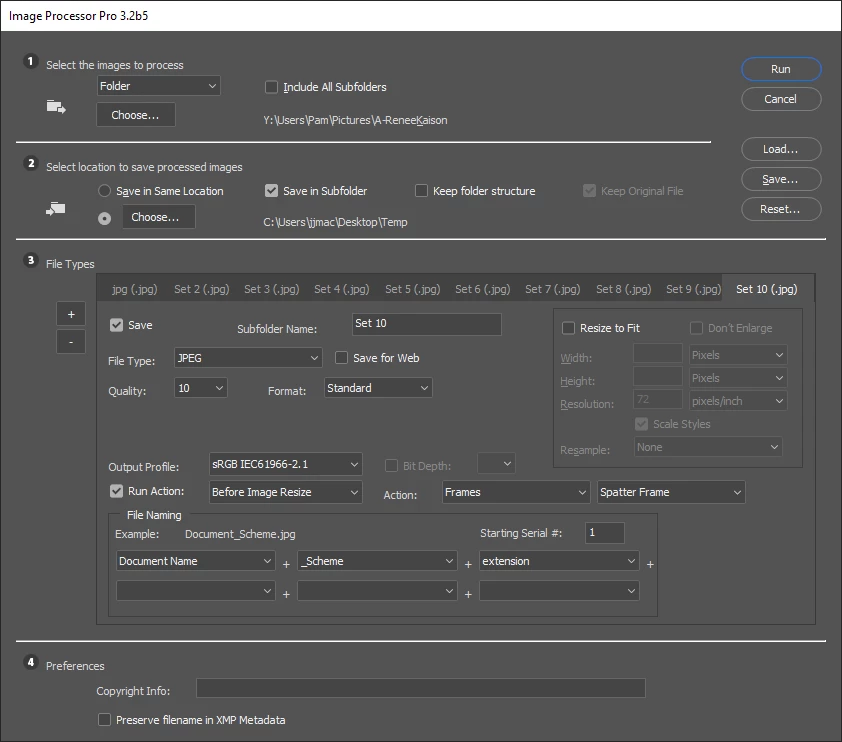
A problem you have creating actions is they do not have a good feature to name output files all the can doe is save the current document named file withe its current filename or a fixed new filename.  What you want to do can easily be done using simple actions and a download Plugin Script.  Image Processor Pro.   In a single run you cans save up to 10 output files each with a different filename for each color scheme.  DocumentName_SchemeName.jpg each will use one of the different actions you recorded.  All you need to do is download and install Image Processor Pro.  Then use menu Fle>Automated>Image Processor Pro... You cans even record the into a single action the setting you use in the IPP dialog will be recorder into the action step. Into the same or  different folder sets


5 replies

raulegidoAuthor
Participating Frequently
October 14, 2019

I was able to solve this problem with image processor pro. Totally recommended. Thanks a lot everyone for your fast responses. Have a nice day.

JJMack
Community Expert
JJMackCommunity ExpertCorrect answer
Community Expert
October 14, 2019

A problem you have creating actions is they do not have a good feature to name output files all the can doe is save the current document named file withe its current filename or a fixed new filename.  What you want to do can easily be done using simple actions and a download Plugin Script.  Image Processor Pro.   In a single run you cans save up to 10 output files each with a different filename for each color scheme.  DocumentName_SchemeName.jpg each will use one of the different actions you recorded.  All you need to do is download and install Image Processor Pro.  Then use menu Fle>Automated>Image Processor Pro... You cans even record the into a single action the setting you use in the IPP dialog will be recorder into the action step. Into the same or  different folder sets


JJMack
Stephen Marsh
Community Expert
Community Expert
October 14, 2019
Yes, that is another good option JJMack (I have recommended this before, but I did not think of it now)!
Stephen Marsh
Community Expert
Community Expert
October 14, 2019

Here is the code for the script illustrated in the action:


// History Snapshots to PSD.jsx
// forums.adobe.com/thread/2034807
// Special thanks to SuperMerlin
#target photoshop;  
app.bringToFront();  
main();  
function main(){  
if(!documents.length) return;  
try{  
    var Path = activeDocument.path;  
    }catch(err){  
        alert("You save your document before running this script!");  
        return;  
        }  
var doc = app.activeDocument;  
var now = doc.activeHistoryState;  
var Snaps = snapShotList();
var docName = doc.name.replace(/\.[^\.]+$/, ''); // Remove filename extension
var outputFolder = Folder(Path + "/snapshots");  
if(!outputFolder.exists) outputFolder.create();  
for (var z in Snaps){  
    revertNamedSnapshot(Snaps[z]);  
    //var saveFile = File(outputFolder + "/" + Snaps[z].toString().replace(/\./g,'_') + ".jpg");  
    var saveFile = File(outputFolder + "/" + Snaps[z].toString().replace(/\./g,'_') + "_" + docName + ".psd");  
    //var saveFile = File(outputFolder + "/" + Snaps[z].toString().replace(/\./g,'_') + ".tif");  
  
    //SaveForWeb(saveFile,80);  
    SavePSD(saveFile);  
    //SaveTIFF(saveFile);  
    }  
doc.activeHistoryState = now;  
};  
function SaveTIFF(saveFile){  
tiffSaveOptions = new TiffSaveOptions();   
tiffSaveOptions.embedColorProfile = true;  
tiffSaveOptions.byteOrder = ByteOrder.IBM;  
tiffSaveOptions.transparency=true;  
tiffSaveOptions.interleaveChannels=true;  
tiffSaveOptions.alphaChannels = false;   
tiffSaveOptions.imageCompression = TIFFEncoding.NONE;   
activeDocument.saveAs(saveFile, tiffSaveOptions, true, Extension.LOWERCASE);   
};  
function SavePSD(saveFile){   
psdSaveOptions = new PhotoshopSaveOptions();   
psdSaveOptions.embedColorProfile = true;   
psdSaveOptions.alphaChannels = true;    
psdSaveOptions.layers = true;
psdSaveOptions.annotations = true;
psdSaveOptions.spotColors = true;
activeDocument.saveAs(saveFile, psdSaveOptions, true, Extension.LOWERCASE);   
};  
function SaveForWeb(saveFile,jpegQuality) {  
var sfwOptions = new ExportOptionsSaveForWeb();   
   sfwOptions.format = SaveDocumentType.JPEG;   
   sfwOptions.includeProfile = false;   
   sfwOptions.interlaced = 0;   
   sfwOptions.optimized = true;   
   sfwOptions.quality = jpegQuality;  
activeDocument.exportDocument(saveFile, ExportType.SAVEFORWEB, sfwOptions);  
};  
function snapShotList(){  
var doc = app.activeDocument;  
var hs = doc.historyStates;  
var now = doc.activeHistoryState;  
var Name = new Array();  
for(var a =0;a <hs.length;a++){  
   if(hs[a].snapshot) {  
       doc.activeHistoryState = hs[a];  
       Name.push(hs[a].name);  
       }  
    }  
doc.activeHistoryState = now;  
return Name;  
};  
function revertNamedSnapshot(name) {  
var desc = new ActionDescriptor();  
var ref = new ActionReference();  
ref.putName( charIDToTypeID('SnpS'), name );  
desc.putReference( charIDToTypeID('null'), ref );  
executeAction( charIDToTypeID('slct'), desc, DialogModes.NO );  
};  


https://prepression.blogspot.com/2017/11/downloading-and-installing-adobe-scripts.html


And here is the final result:


Stephen Marsh
Community Expert
Community Expert
October 14, 2019

You said that you have multiple actions and each creates a different colour scheme...


Can you show a screenshot of your actions panel, with the set expanded so the various actions are visible?


An action can play another action, so it is possible for one "parent" action to play all "child" actions.

raulegidoAuthor
Participating Frequently
October 14, 2019
Hello Stephen. Here you can see an image https://ibb.co/Ws0JyHM . As you can see i have two different actions (multifiller and multifiller2). Both of them create a different variation of the original image. What i want is to apply each one of them and create two different image variations at the same time.
Stephen Marsh
Community Expert
Community Expert
October 14, 2019
Yes, that is what I was expecting. So create another action in the set and record the entire playback of the first variation action. Then save a named history snapshot. Then in the same action, record the playback of the second variation action and saved history snapshot. I’ll post a script that you can record into an action, that will then save out each history snapshot as a new file. If you batch this process, then every separate image will have multiple variations saved.
Stephen Marsh
Community Expert
Community Expert
October 14, 2019

I think so...


You can create an action to play an action for a certain colour scheme, then save it as history snapshot, then repeat again. Then a script can be referenced in the action to save all history snapshots to files. Then the batch would continue to the next file etc.

raulegidoAuthor
Participating Frequently
October 14, 2019
thanks for your answer. Would you mind to explain me a little bit more about that? I know how to create one action that does what i want. But not two at the same time.. Could you please give me an example for example about how to make two different color or whatever changes and save into separate files? i would be able to apply that to my action. Thanks a lot again