nshimandle
Participant
February 12, 2016
Answered

My file has a lot of blank space "outside" the artboard that I can't get rid of? How do I crop the file to the actual artboard size?

  • February 12, 2016
  • 24 replies
  • 53022 views

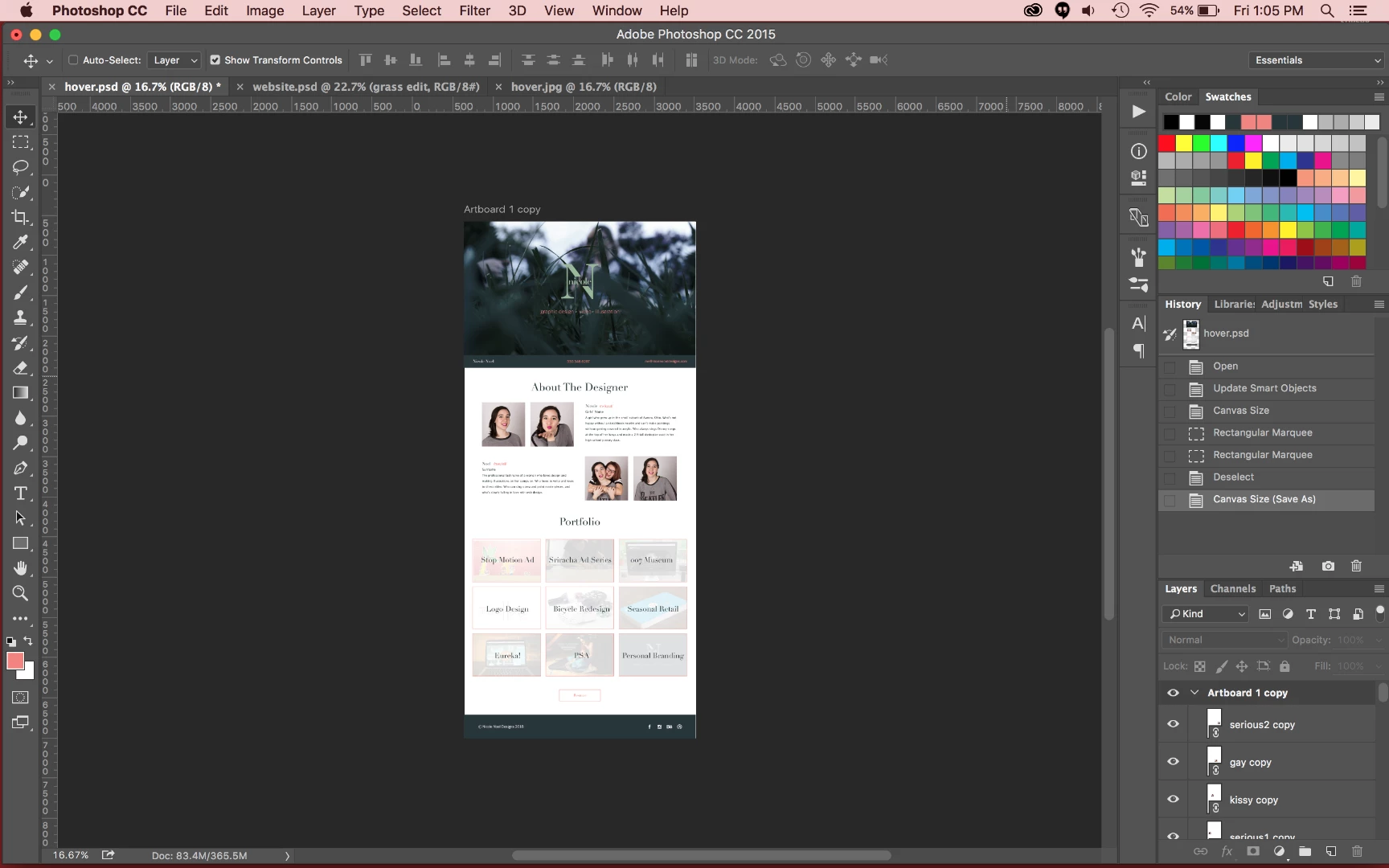
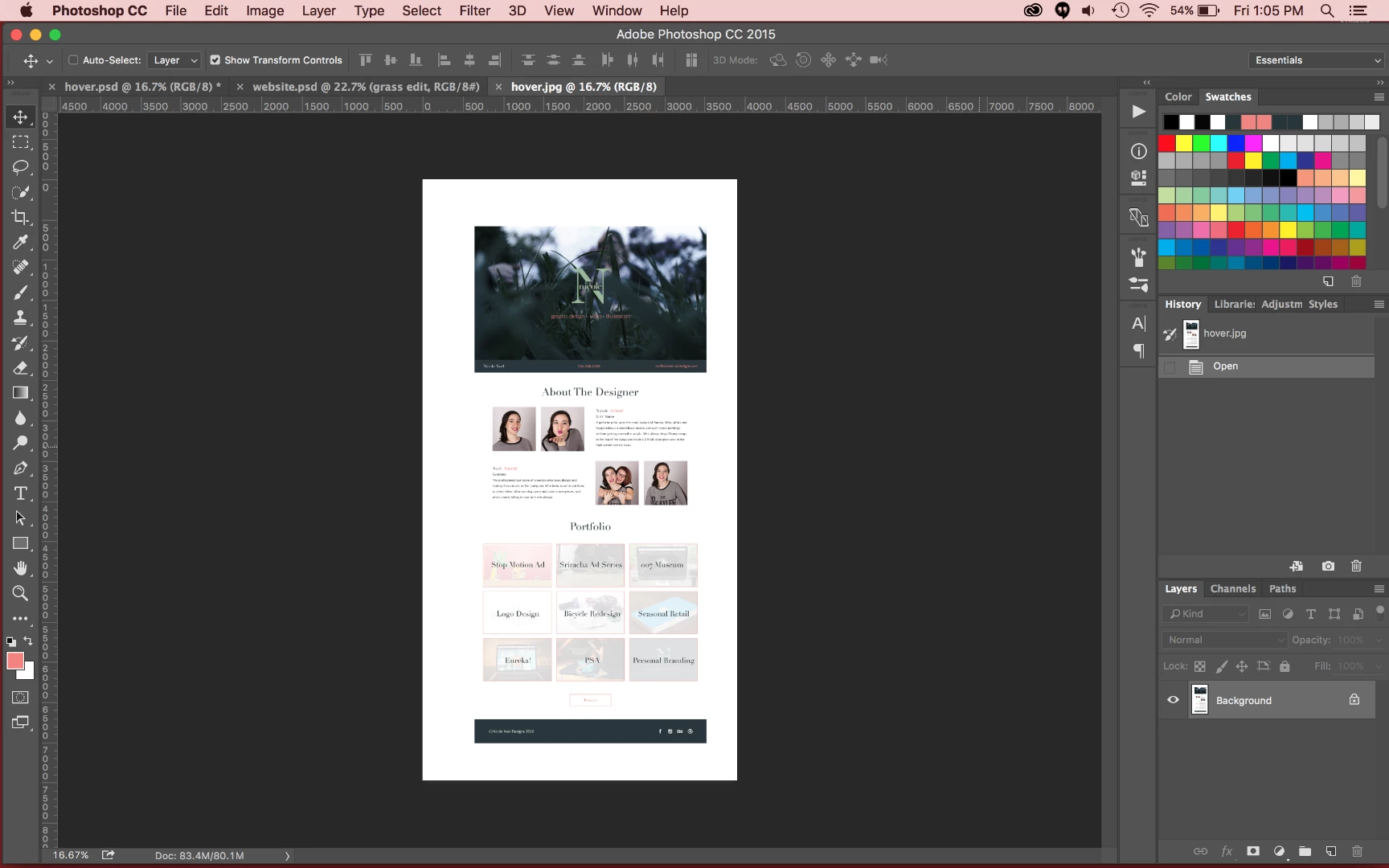
Above is my artboard and workspace, but when I try to resize the image (or save it as a jpeg to show the problem I'm having) there's a ton of white space outside of the artboard and the crop tool and artboard tool both say that my file is only as big as the above size, but its actually as big as the below screen grab.

I can't find anyone else having this problem. Am I the only one? How can I fix it? It's being a huge problem for web design. And it's done this for all of my web design projects since it updated to have artboards.

This topic has been closed for replies.
Correct answer ChristopherButler

Hi Nicole,

I am pretty sure this is a problem we are tracking; We have not addressed it yet, but it is on our list of things to solve.

Artboard documents have an auto-expanding canvas; this is part of the user experience that gives an infinite feel to the document; you can place things anywhere in the view and they should remain visible no matter where you drag them. To help maintain that illusion, we paint the entire matte area with the same color outside the artboards.

We hide this canvas from you, although it is still there. You can see how big it is at any given moment by choosing "Image>Canvas Size...". That size will change as things get moved around, getting bigger and smaller as needed. The hidden canvas size will snap to the next larger or smaller "tile boundary", which is nominally in 1024 pixel increments. This is done for performance.

The problem is that the export code is really unaware of the fact that artboards can grow and shrink the canvas. So when you export an artboard document, it looks at the current canvas size and just uses that. That's why you get that extra white space. This extra white space problem also happens for other things, like document thumbnails. We agree this is pretty annoying, and as I said, it's on our list to fix.

Try this workaround:

1. Get your document all ready to export.

2. Under the Artboard Tool, choose the gear icon (top tool bar, far right) and uncheck auto-size canvas

3. Choose the rectangular marquee tool and cover the Artboard from edge to edge. (Snap helps here)

4. Choose Crop. This will shrink the canvas to just the artboard bounds.

5. Export As..., pick your format, e.g. PNG. and export.

6. Verify no extra white space.

Note that "auto-size canvas" is a document-sticky property and is saved with the document.

24 replies

Participant
December 4, 2019

Will Adobe ever fix this issue? I use Photoshop every day and use artboards religiously. This issue happens to me almost every single time. The above answer says they're working on fixing it, but this post is from 2016. It is more than "pretty annoying" when it happens every time. This fix only works if you do it on a project-by-project basis. I wish there was a global setting to un-auto-size canvases for everything.

Participant
May 29, 2020

Wow, super frustrating. I unselected "Include ICC Profile" and "Include Artboard Name" and it finally cropped to the proper artboard dimensions. Not sure if this solves the issue for others, but it worked for me.


mikestoneclark
Participant
July 30, 2019

Almost August 2019 and still does this. "Export artboards to files" still gives me a border...

jwhitleyhh
Participant
May 18, 2023

Still happening in May of 2023 as well. This is so ridiculous. We pay Adobe too much money for issues like this to go unsolved this long.

Participant
December 18, 2018

It’s now Photoshop CC 2019 and the problem is still there. Can’t save for web becuase it exports things that are outside the art board. It should only export the image inside the artboard. The solution is simple - you guys just need to make the same option as illustrator so you can just export what is inside the artboard itself.

FoxCadet
Known Participant
July 8, 2018

When will this be resolved? I don't want a workaround as a permanent solution. It's been years now.

daniellem1234
Participating Frequently
April 1, 2018

This is happening to me and frustrating the hell out of me. How do I stop this, I am wasting so much time.

Participating Frequently
December 20, 2017

Another way, which is not the most effective way, but works, is to:

1) Open your exported doucment (if it is a .pdf) into Photoshop

2) Crop it with regular crop tool.

leactz
Participant
December 8, 2017

So! I have found the answer to this terrible problem. It is simple.

Menu:

Image ----> dropdown: Trim ----->  radio button: based on transparent pixels.

Sorted!

Participant
December 11, 2017

yes!!! thank you so much!

Nick MrHorse
Participant
November 16, 2017

Quick solution...don't use artboards.

Participating Frequently
November 17, 2017

Yeah, it sucks that files auto load with them. I also need to export to Zeplin, which requires an art board—def something I can add at the very end to try to limit the bugs/errors, but even after being 'done' some changes come in, and I can't get rid of an artboard once it's already in there so...

Nick MrHorse
Participant
November 17, 2017

You can get rid of artboards once they are created.

  1. Open the file that has an artboard
  2. Use the Marquee tool and click and drag till you have everything selected
  3. In the Layers panel, right-click the artboard. Select 'ungroup artboards'
  4. If you have a ton white space outside the Marquess selection just tap "C" to use the crop tool and press enter twice.


That'll get rid of the artboard and crop everything down to the canvas size you need. (it will not cut off your images)

However, if you're using Zeplin I don't know how to help you there. Try using Invision or if you're designing web/apps then switch over to Adobe Xd. It's faster and has a great handoff for Devs now.

Participating Frequently
November 14, 2017

Hey so, it's been a year since this has been brought up. Glad I found this thread because it's been driving me INSANE, but really? A year, a FULL SUITE update release, and no fix? This is really inhibiting my performance/speed ability in doing my work...

Participant
November 16, 2017

I totally agree, Photoshop has been a nightmare the past couple of weeks and this is one of my issues.

A quick workaround I found is to add a mask to the artboard group, you can't transform the mask so you'd need to make it again if you change the document size, but it fixes the extra space problem.

Participant
November 14, 2017

Guys, get your s#$t together... its now easier to pull my original psd into illustrator and resize the art board there for exporting. Whats up with that?