emilyk82109764
Participating Frequently
May 16, 2017
Answered

My images are hazy and I don't know why

  • May 16, 2017
  • 4 replies
  • 4541 views

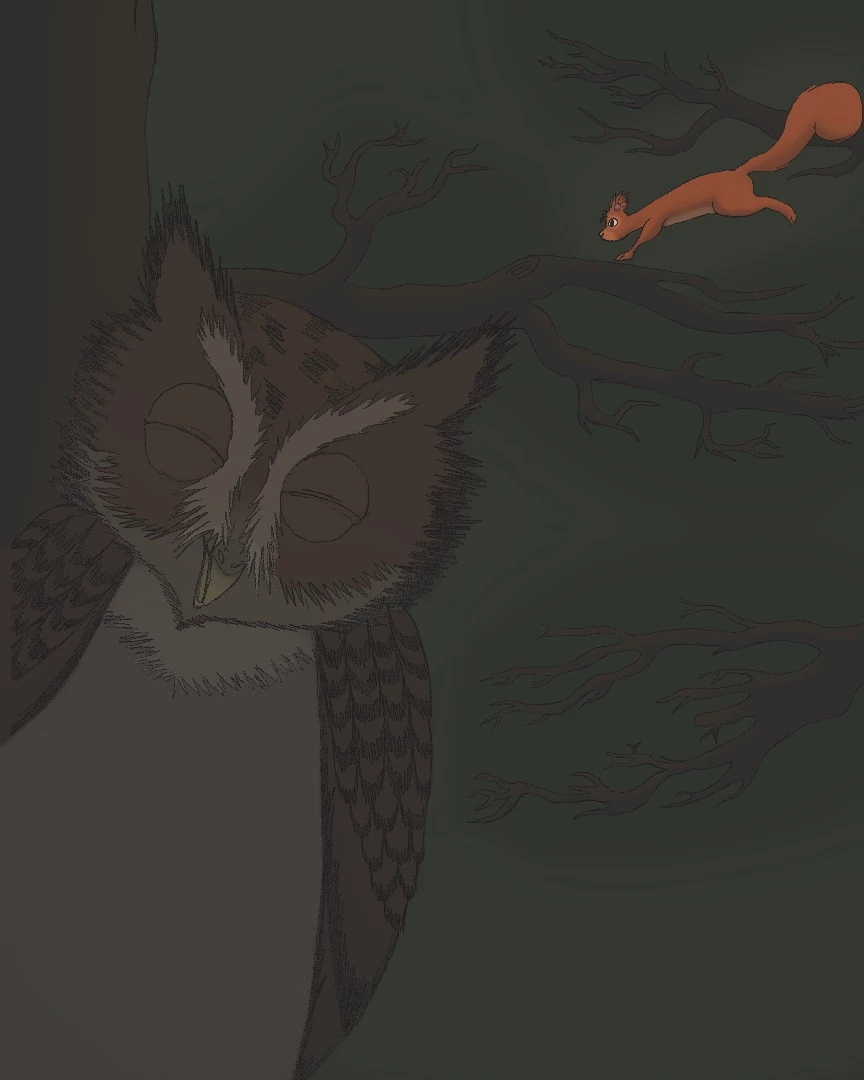
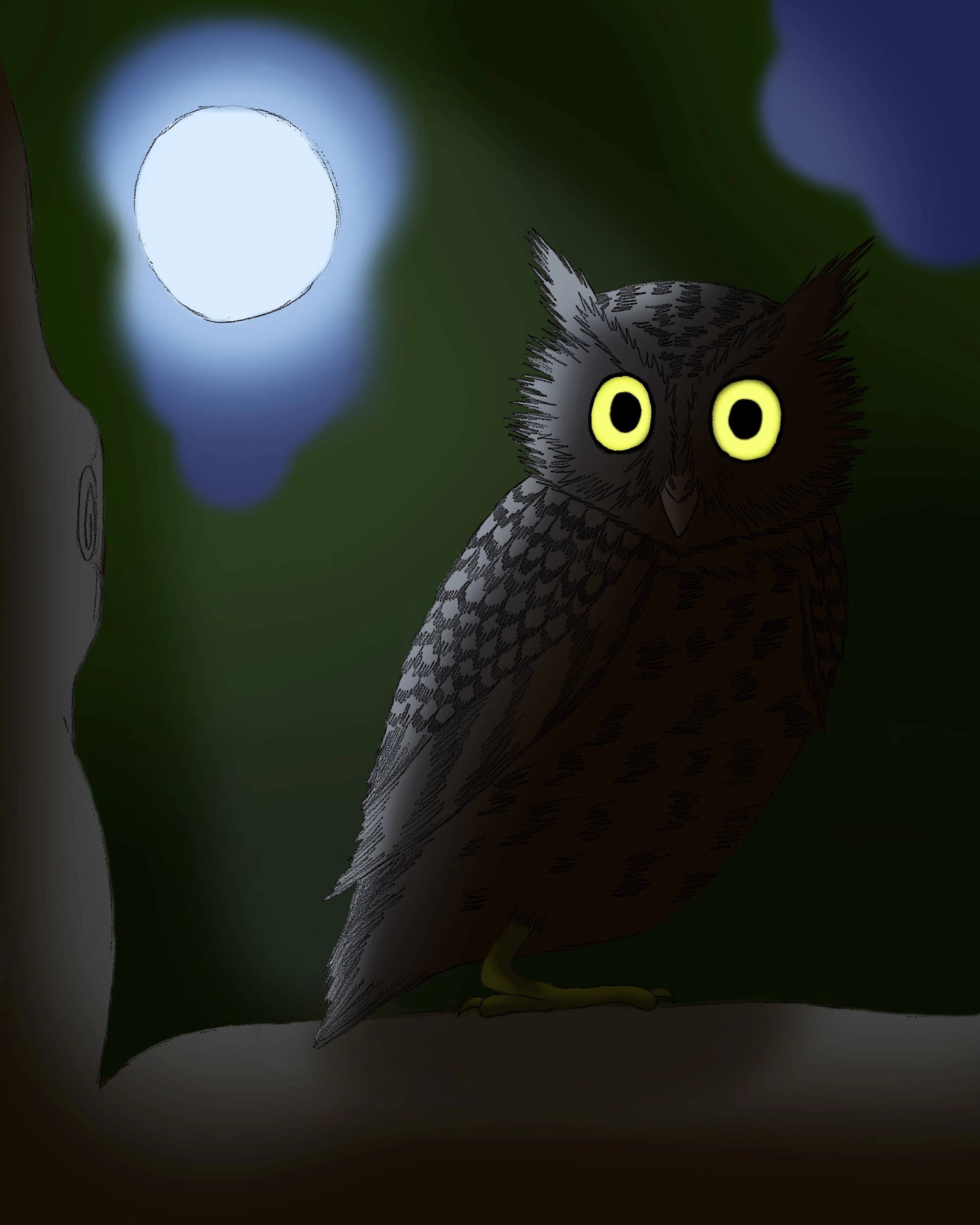
Hello. I am illustrating a book. I've been doing it since 2014, but this is the first time I have run into this problem.  The first image you see looks fine, no issues, but when you look at the second one you can tell it looks hazy. I just noticed this the other day and I don't know why all of my images minus page 1 and 2 ( I've completed 9 images so far) look hazy. I have the color set to CMYK mode so the color doesn't darken during printing. Could that be the reason why my images look the way they do? I could really use some help right now.

Thanks in advance!
    This topic has been closed for replies.
    Correct answer D Fosse

    I don't know how the book is going to be printed. I complete the images and give them to author by email or flash drive. He uses Create Space, so I don't know how the entire process works.

    The one thing I'm going to try and do to fix the haze in my images I'm going to lighten up the picture.


    This is extremely flat and low contrast, and with a black level way up in the mid grays. Brightening will only make it worse.

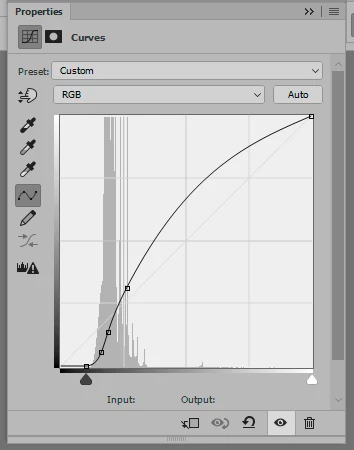
    You need to increase separation and contrast in the shadows, and by a substantial amount at that. A curve like this would only be the starting point.

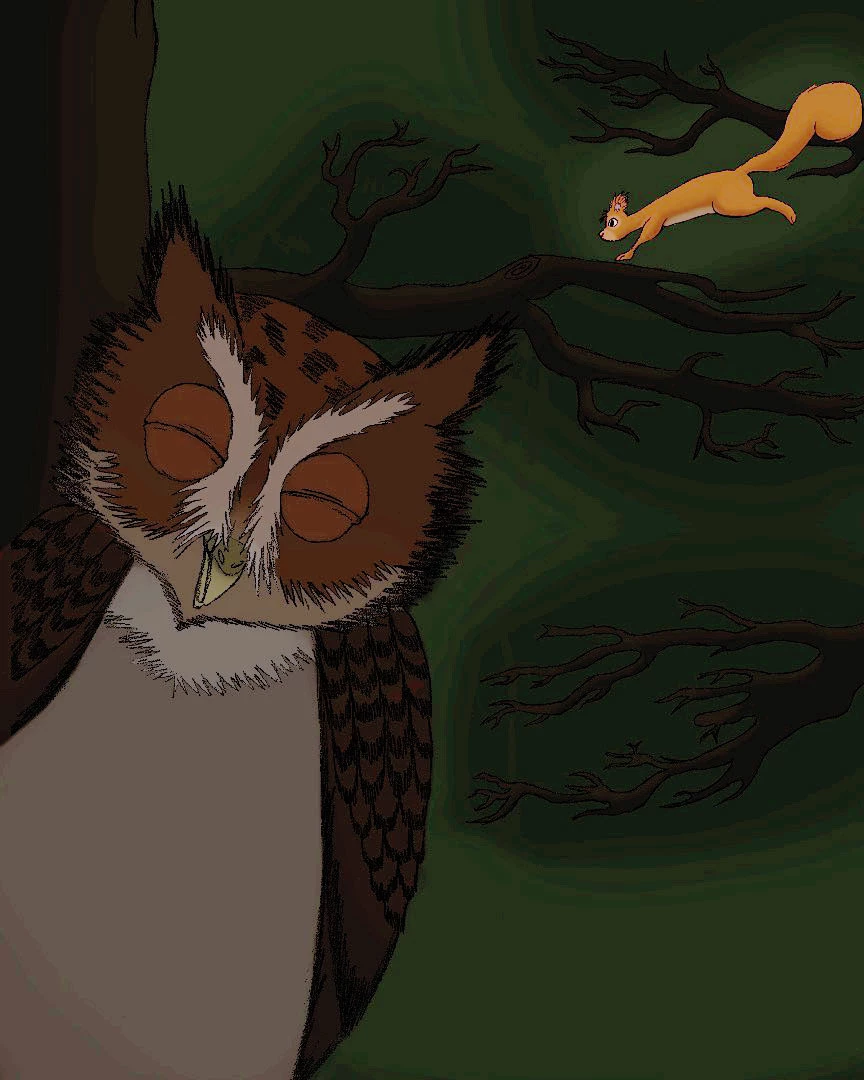
    For this to print properly, it would have to look something like this:

    Don't work in CMYK! I can't emphasize this enough. You don't even know how it will be printed. You only convert to CMYK at the very end, and even then only if you have received a confirmed final CMYK profile from the printer.

    4 replies

    emilyk82109764
    Participating Frequently
    May 16, 2017

    Ok, I'll change the color mode, that looks like that is going to be the only way to fix this problem. Thanks for helping me.

    Per Berntsen
    Community Expert
    Community Expert
    May 16, 2017

    You should start out in RGB from the beginning - converting a CMYK file to RGB is generally a bad idea.

    Ideally, you should start out with a 16-bit RGB tiff or PSD, and do as much work as possible on adjustment layers.

    Exactly how are you creating these illustrations?

    Derek Cross
    Community Expert
    Community Expert
    May 16, 2017

    Work in RBG, if you've already converted to CMYK, then go back to the orginals.

    Theresa J
    Community Expert
    Community Expert
    May 16, 2017

    It could be a profile issue. What CMYK color space are you working in? When do you see the haze, when you are working on the illustration or in the exported jpeg? How are you exporting the jpegs?

    emilyk82109764
    Participating Frequently
    May 16, 2017

    I'm just clicking on "Save As" on the file tab and choose JPEG before I save.  I'm using CMYK Sliders and CMYK Spectrum

    Sahil.Chawla
    Adobe Employee
    Adobe Employee
    May 16, 2017

    Does your final image have to be a jpeg? If you are saving for print, why not use a TIFF or an EPS? JPEG are meant for compression and with CMYK, you are probably losing color information. Please try saving it as a TIFF and let us know if it helps.

    Sahil.Chawla
    Adobe Employee
    Adobe Employee
    May 16, 2017

    Hi emilyk,

    As the images you are saving look hazy, Could you please let us know which format are you saving the images in?

    Which version of Photoshop are you using and on Which operating system?

    Could you try saving them as tiff?

    Regards,

    Sahil

    emilyk82109764
    Participating Frequently
    May 16, 2017

    I was using Photoshop 2015 at first that is when I notice they were hazy. I updated to the newest version to see if it would help. I save the images as photoshop files and JPEG.