
Participant
November 16, 2024
Question

Narzędzie usuwania - "nie można użyć tej funkcji ponieważ nie powiodło się zainicjowanie jej"

  • November 16, 2024
  • 4 replies
  • 620 views

Mam problem z narzędziem usuwania. Gdy wybieram je, pojawia się błąd "Nie można użyć tej funkcji ponieważ nie powiodło się zainicjowanie jej"
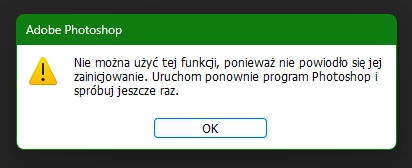

Ponowne uruchomienie nie pomaga. Tak samo reinstalacja, aktualizacja, pobranie poprzedniej wersji, wyczyszczenie preferencji także nie pomaga.

Próbowałem na najnowszej wersji Photoshop 26.0 i 25.9.1
System operacyjny Win11

Proszę o pomoc.


4 replies

Participant
May 20, 2025

I used Adobe Creative Cloud  Cleaner Tool, clean all, and still I have the same problem in Photoshop.

Sameer K
Community Manager
Community Manager
May 21, 2025

Hey, @martyna_4979. Thanks for the update. This post is more than 6 months old now. Please share the system info from Photoshop Help > System info > Copy and paste into a text document > Upload and attach here.


The error is known, and here are a few steps you can try: https://adobe.ly/44NRgVU


Also, please test and confirm if the issue exists with Photoshop (Beta). You can get Photoshop (beta) from the Creative Cloud > Apps tab > Beta Apps section. 


Thanks! 
Sameer K

(Type '@' and type my name to mention me when you reply)

Participant
May 12, 2025

I reinstalled photoshop and whole Adobe Cloud, with deleting preferences, and this problem still bothering me. Also "file-export as" didn't work.

Participant
November 16, 2024

I reset preferences and it didn't solve the problem

Community Manager
December 11, 2024

Hi @cheerful_gem00684! Is the issue still persisting in version 26.1 of Photoshop?

If the Remove tool in Photoshop still won't initialize, it might be because some components need to be downloaded from Adobe's servers. Here are some steps to troubleshoot the issue:

  1. Check Internet Connection: Ensure your computer is connected to the Internet, as the required components need to be downloaded.
  2. Free Up Disk Space: The feature components require between 0.5 GB to 1 GB of disk space. Make sure you have enough free space available.
  3. Change Preferences: Go to Preferences > Image Processing and select the More Stable option for Remove Tool Processing.

If the problem persists, consider using the Adobe Creative Cloud Cleaner Tool to resolve installation issues. 
Let me know how it goes, thank you!
Alek

*(If you mention me with an @, like @Aleke, I’ll get a notification and can respond faster.)*
Dan Rodney
Community Expert
Community Expert
November 16, 2024
Try resetting Photoshop Preferences:
Launch Photoshop and immediately hold down Alt + Control + Shift
A dialog will appear asking if you want to delete the settings file. Click Yes.

Auto-translation (sorry if it's not correct):
Spróbuj zresetować preferencje programu Photoshop:
Uruchom program Photoshop i natychmiast przytrzymaj klawisze Alt + Control + Shift.
Pojawi się okno dialogowe z pytaniem, czy chcesz usunąć plik ustawień. Kliknij Tak.
— Adobe Certified Expert & Instructor at Noble Desktop | Web Developer, Designer, InDesign Scriptor