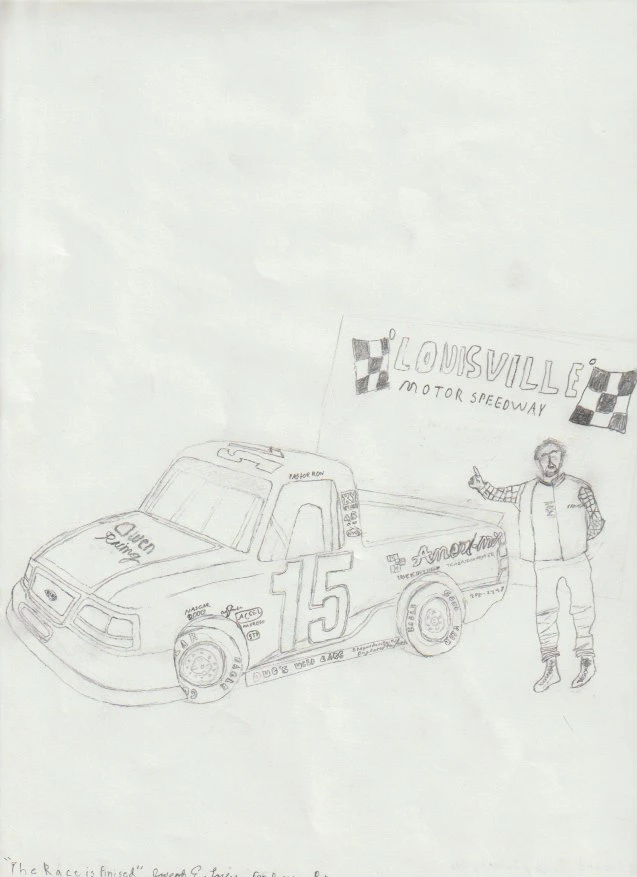
I drew something by hand and I scanned it onto my computer, I have it in photoshop now and im wondering how do I remove all the white in-between each line manually
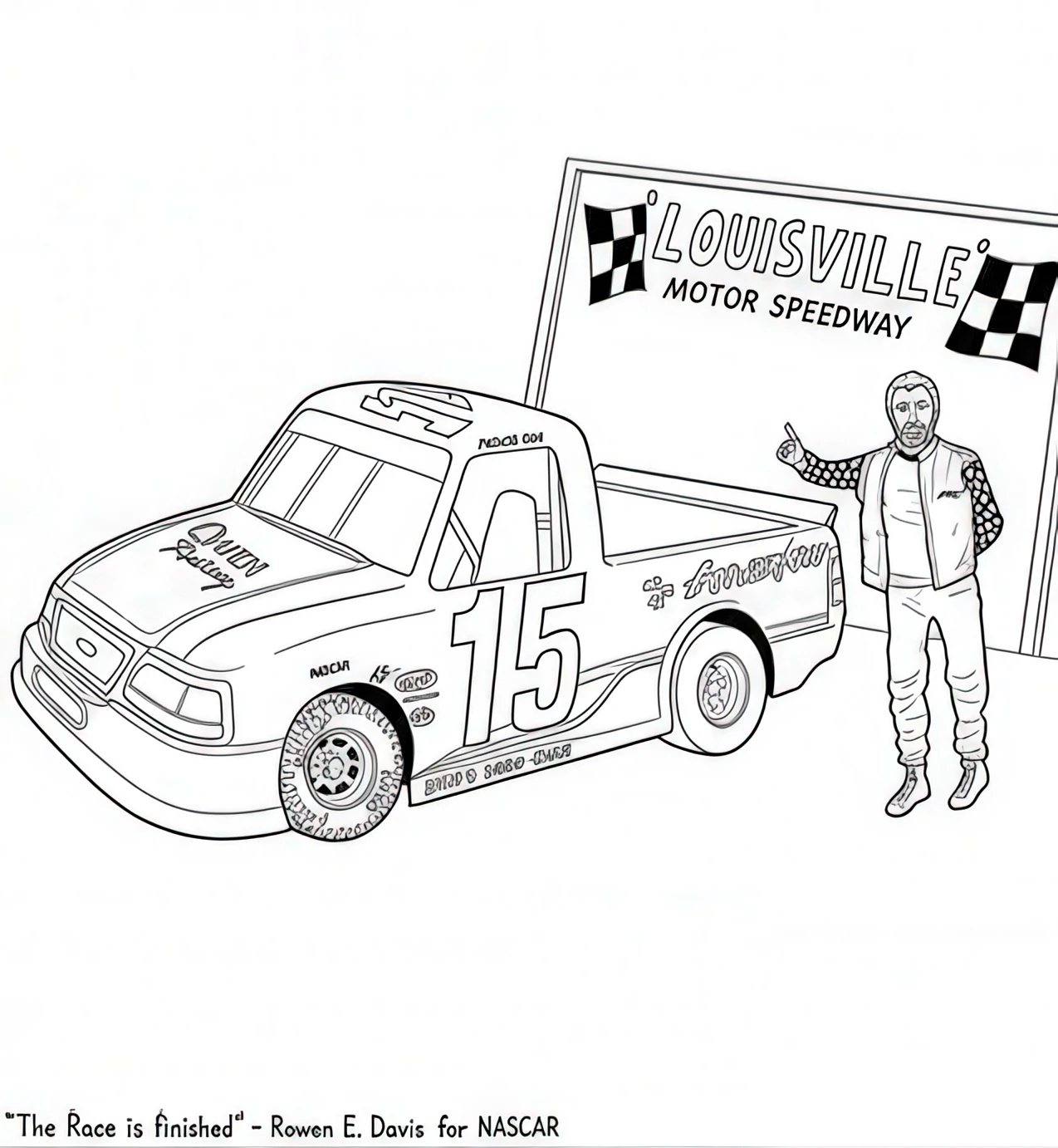
It’s tempting to use one of the Generative Ai tools. I asked Nano Banana 3.1 using this prompt. I am thinking that should not have asked it to put tread on the front tire, but I enlarged it with Gigapixel making it easier to correct. (I have just noticed my typo but the Ai appears to have worked it out)
‘Turn the rough sketch into a detailed line drawing with a white background. Improve the head and face of the person standing next to the vehicle. Show tread pattern on the front tie.’
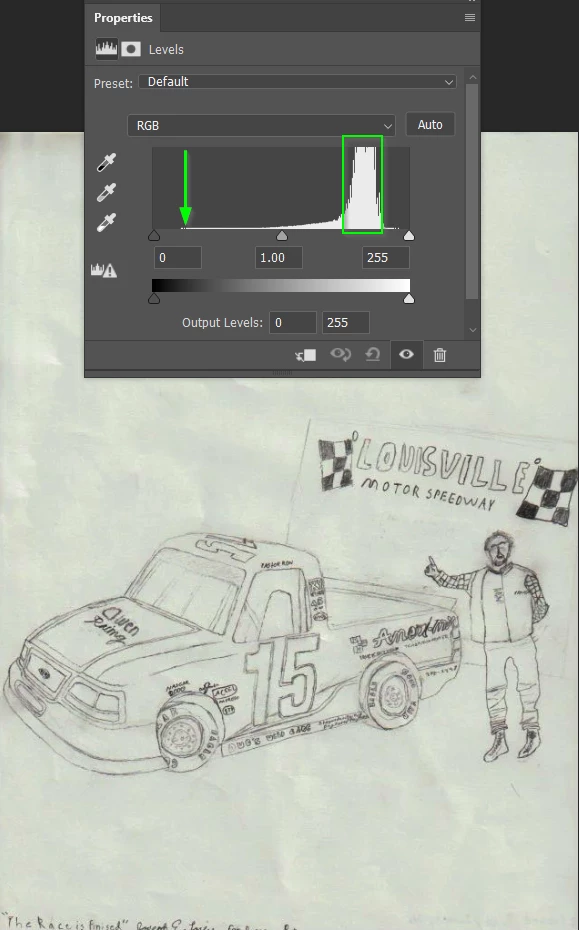
I am not entirely clear on what you mean by ‘Remove the white’ I would try and correct the levels as a first step. The green rectangle represents the various shades of very light grey, and the green arrow shows the darkest tones, those being the linework.
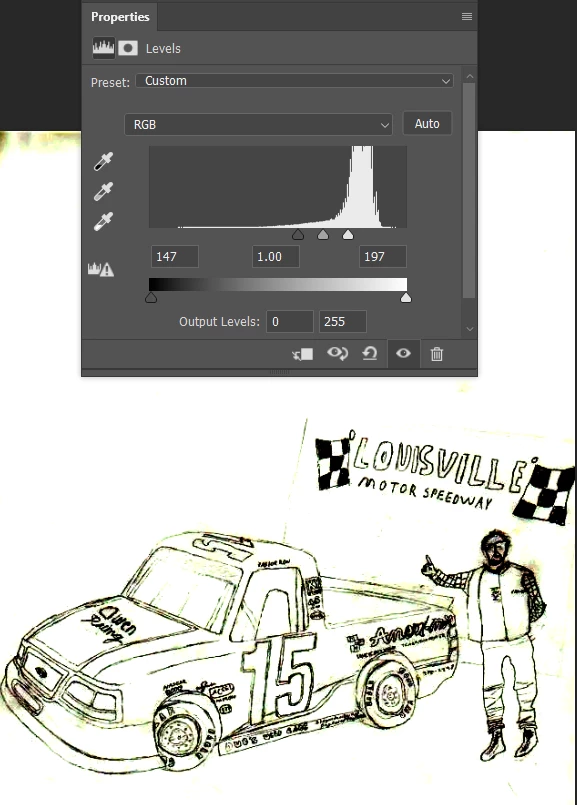
This is about as far as I felt I could push it. I also added a B&W adjustment layer to remove the yellow hue.
If you consolidate those changes to a single layer using Shift Ctrl Alt E you can then paint of the lines with the brush blend mode set to Overlay. With black as the foreground colour the lines will firm up. With white you can paint out the light grey areas.
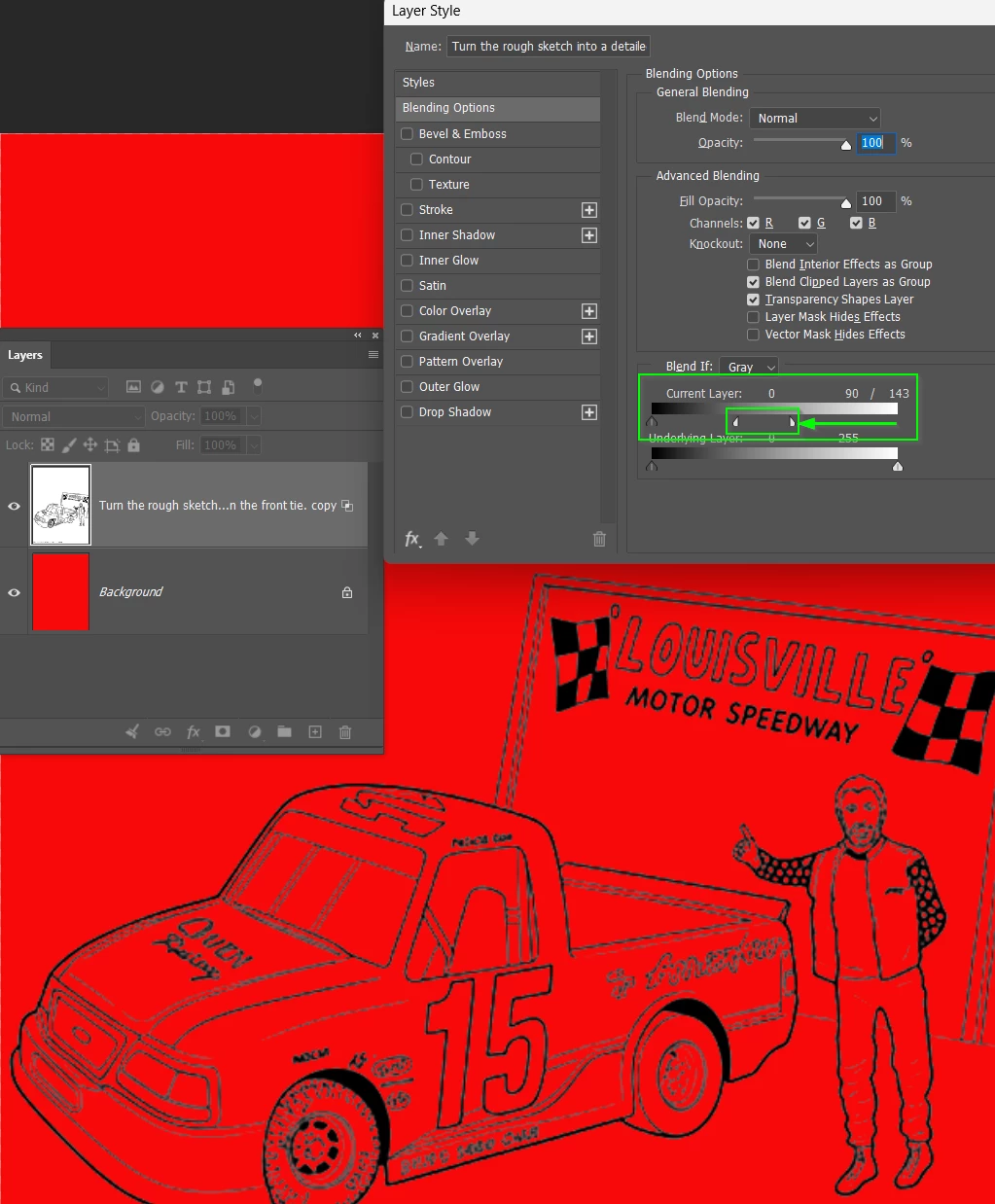
I’ve demonstrated removing the white by placing a layer filled with red below it.
Double click the layer to open the Layer Styles panel, and use the upper ‘Blend If’ sliders dragging the right hand sliders to the left. You can separate the two parts of the sliders by holding down Alt/Opt as you drag.
If you’re compositing in Photoshop, you can use layer blend modes such as multiply or darken (presuming a pure white background).
As @Trevor.Dennis demonstrated, the layer blend if sliders are also a great option, with or without blend modes. Blend if sliders are for creating layer transparency inside Photoshop, you can of course export a transparent PNG if you require this outside of Photoshop.
Another option if you have a pure white or black background:
It’s tempting to use one of the Generative Ai tools. I asked Nano Banana 3.1 using this prompt. I am thinking that should not have asked it to put tread on the front tire, but I enlarged it with Gigapixel making it easier to correct. (I have just noticed my typo but the Ai appears to have worked it out)
‘Turn the rough sketch into a detailed line drawing with a white background. Improve the head and face of the person standing next to the vehicle. Show tread pattern on the front tie.’
I am not entirely clear on what you mean by ‘Remove the white’ I would try and correct the levels as a first step. The green rectangle represents the various shades of very light grey, and the green arrow shows the darkest tones, those being the linework.
This is about as far as I felt I could push it. I also added a B&W adjustment layer to remove the yellow hue.
If you consolidate those changes to a single layer using Shift Ctrl Alt E you can then paint of the lines with the brush blend mode set to Overlay. With black as the foreground colour the lines will firm up. With white you can paint out the light grey areas.
I’ve demonstrated removing the white by placing a layer filled with red below it.
Double click the layer to open the Layer Styles panel, and use the upper ‘Blend If’ sliders dragging the right hand sliders to the left. You can separate the two parts of the sliders by holding down Alt/Opt as you drag.





 AdChoices