leethestrange86
Known Participant
June 18, 2018
Answered

No path coming up when using Path Blur

  • June 18, 2018
  • 8 replies
  • 9167 views

Hey guys,

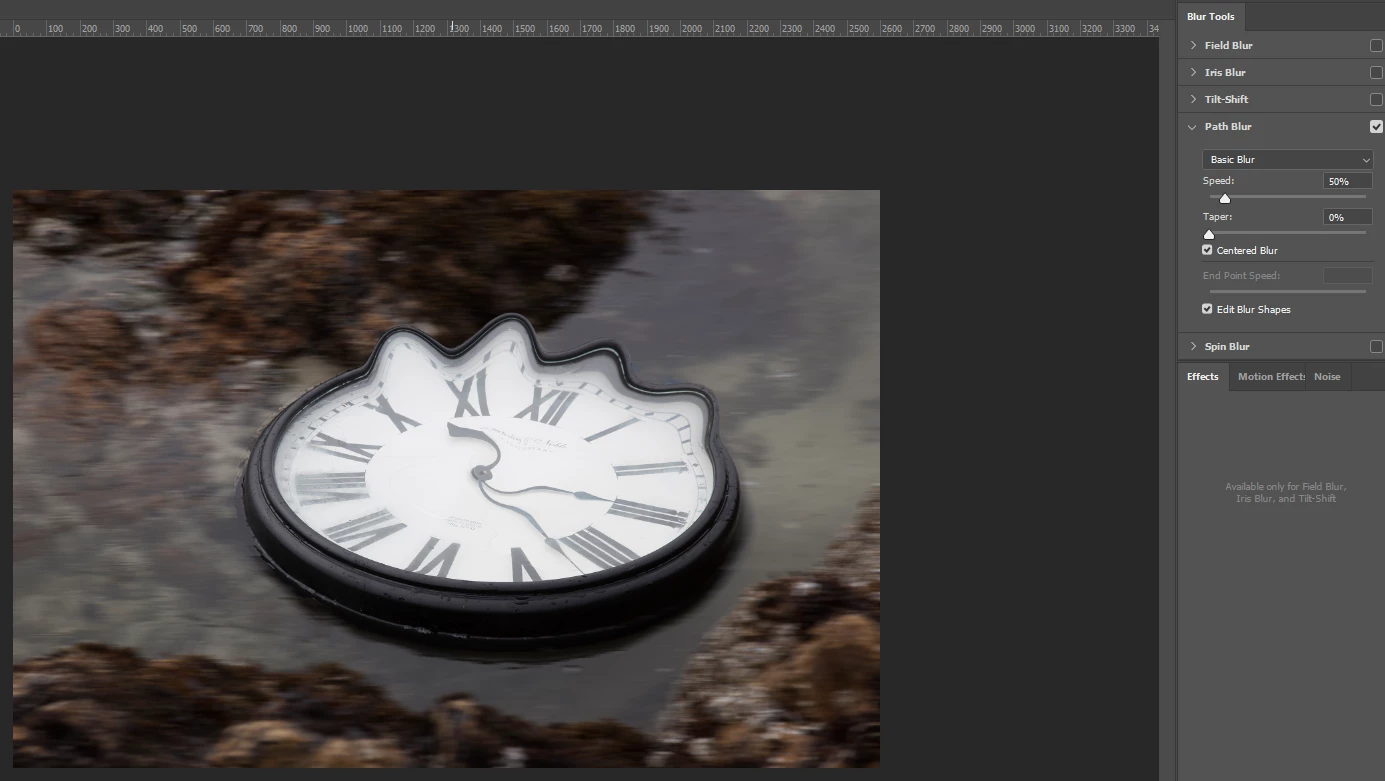
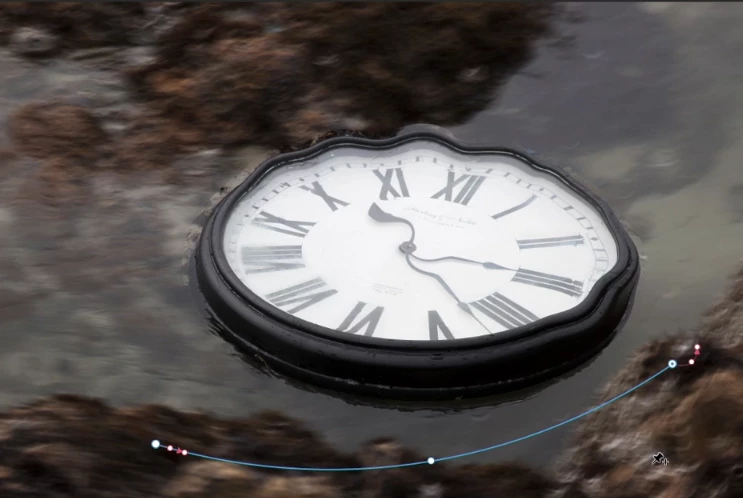
New to Photoshop.  I am following a tutorial where it says to use Path Blur, and it says a path will automatically come up.  However, no path is coming up and when I click to drop the pin, the image blurs but there is no path coming up.  I am attaching a screenshot of the tutorial I am following, a guide I found that says the path should come up automatically as well as my own screen.  Can anyone help me?
    Correct answer danw18348986

    I finally got it to work.  Here is how I did it.

    First step. click VIEW/SHOW/turn on PIXEL GRID

    Second step. With an image in PS, FILTER/BLUR GALLERY/PATH BLUR

    Third step. go back to VIEW/SHOW/ and now EDIT PINS will be available to turn on !!!

    Your path will now be visible 

    8 replies

    Trevor.Dennis
    Community Expert
    Community Expert
    October 8, 2023

    Seeing as this old thread has been woken up...


    Jusus Rameriz did a nice video earlier this year, on using path blur to create an impresssion speed.  I had not used it much before seeing the video, but I use it heaps now.  No other YouTube channel improves my Photoshop ability as much as The Photoshop Traing Channel, and close behind, Colin Smith's PhotoshopCafe 

    Participant
    December 9, 2022

    View -> Show -> Edit Pins

    danw18348986Correct answer
    Participant
    September 24, 2022

    I finally got it to work.  Here is how I did it.

    First step. click VIEW/SHOW/turn on PIXEL GRID

    Second step. With an image in PS, FILTER/BLUR GALLERY/PATH BLUR

    Third step. go back to VIEW/SHOW/ and now EDIT PINS will be available to turn on !!!

    Your path will now be visible 

    Participant
    June 26, 2022

    path blur photoshop arrow not showing

    erickv333
    Participant
    August 20, 2019

    This had me totally foxed as well until i checked View/Show/Edit Pins. Then i finally could see the edit path. Had a frustrating 15 minutes not understanding why they weren't visible.

    Participant
    October 6, 2021

    THANK YOU so much! This solved my infuriating issue. 

    Participant
    February 10, 2019

    i'm having the same problem

    Trudna Zaba
    Participant
    July 22, 2019

    I was having the same problem when I was using samrt filter Path Blur, path didn't show up.

    Try with ctrl+H (it is shortcut for hide guides). I used that shortcut to hide my guides and later when I wanted to use Path Blur filter I was having that problem I remebered that I pressed ctrl+h so I did it again (this time to show hiden guides) and both guides and Path for Path Blur filter showed up.

    leethestrange86
    Known Participant
    June 18, 2018

    I just tried it on a different image and it's working fine now.

    I did close the application and retry several times before posting, but I apologise for wasting your time.

    mglush
    Community Expert
    Community Expert
    September 25, 2023

    Asking a question is never a waste of time. Thanks for sharing the fix and for sharing the tutorial with the community~

    Michelle

    Barb Binder
    Community Expert
    Community Expert
    June 18, 2018

    Can you share the link to the tutorial? And what is the timestamp in the tutorial where this instruction appears?

    ~Barb

    ~Barb at Rocky Mountain Training
    leethestrange86
    Known Participant
    June 18, 2018

    Hi Barb,

    The link is 011 Using Liquify to reshape an object - YouTube  and the time stamp is around 5:00.

    Thank you!

    Lee

    melissapiccone
    Community Expert
    Community Expert
    June 18, 2018

    Try clicking to create a path if you don't see one. Your cursor should look like a thumb tack. You need to click 2 end points to create a path. Mine comes up automatically, but I can draw a new one...

    Melissa Piccone | Adobe Trainer | Online Courses Author | Fine Artist