


Inspiring
Oct 31, 2026 1:19 PM UTC
Answered

Old photo curvy edge fix

Hello,

I am scanning my old negatives from the '70s and the images have curvy edges.

How can I fix this? I tried using AI, but it ruined the whole picture.

As a novice, I would be grateful for a step-by-step explanation.

For example, the right side and bottom are curvy:
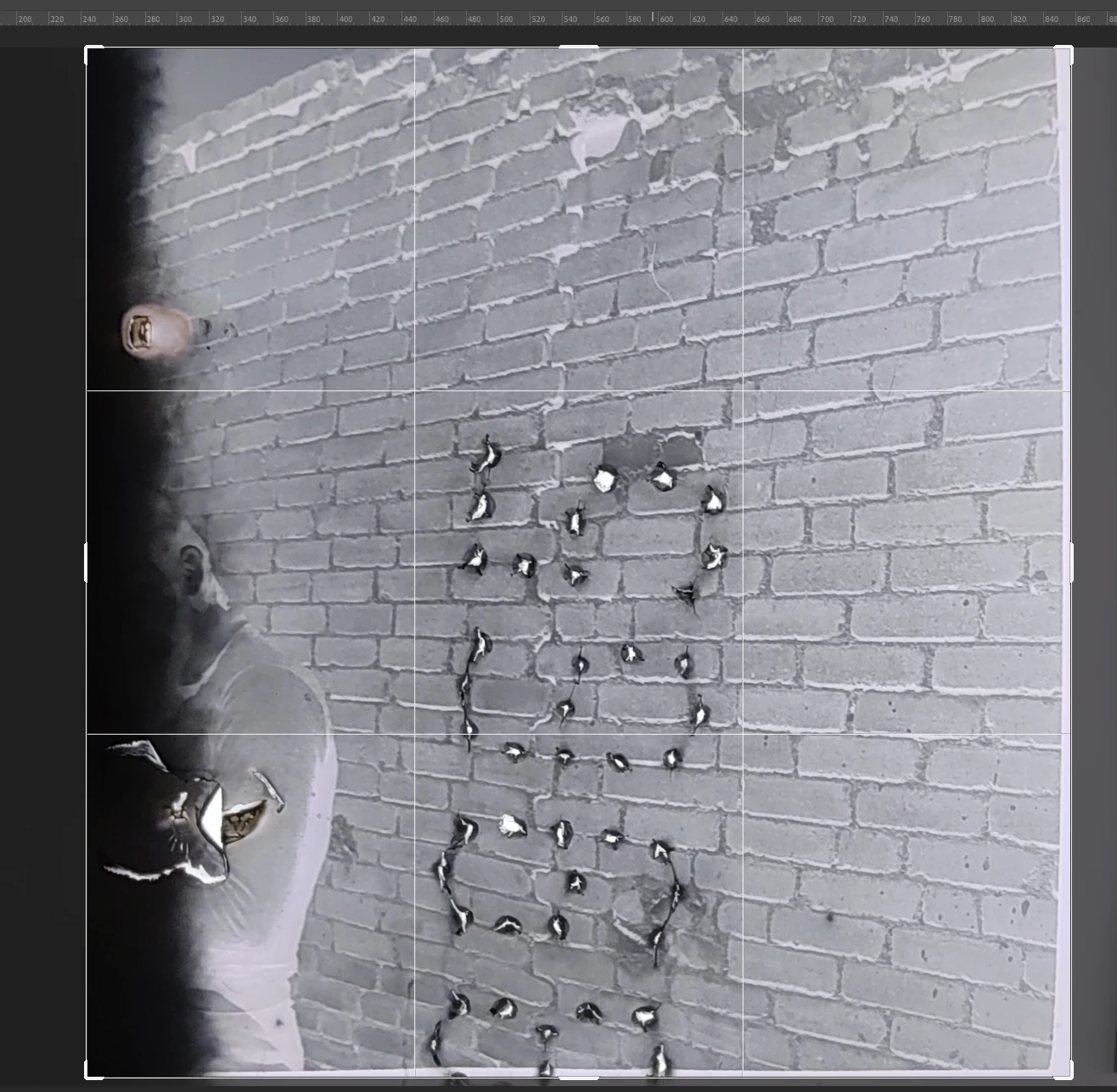


    CORCTON34033231
    CORCTON34033231Correct answer
    Community Expert
    Oct 31, 2026 6:17 PM UTC

    Thanks for clarifying - that helps. First, on step 3: that step does not straighten the bow, it simply crops it away. You move the Crop boundary just inside the curved edge, so the bowed strip and the white area outside it are removed. You lose a thin strip, but the remaining edge is straight. If you want to keep that strip and actually unbend the edge instead, try Warp on a copy of the scan: 1. Select the layer in the Layers panel. 2. Select Edit > Free Transform, or press Ctrl + T (Windows) or Command + T (macOS). 3. Select the Switch Between Free Transform And Warp Modes button in the Options bar. 4. Drag the control point on the bowed right or bottom edge until it lines up with the rest of the edge. 5. Press Enter (Windows) or Return (macOS) to commit. Guide: https://helpx.adobe.com/photoshop/desktop/crop-resize-transform/resize-adjust-resolution/transform-images-shapes-and-paths.html Please try the Warp step on a copy first, as it will stretch the picture near that edge a little. Let me know if the bow is in the middle of the edge or at a corner, and I can suggest which handle to drag.

    4 replies

    CORCTON34033231
    Community Expert
    CORCTON34033231Community ExpertCorrect answer
    Community Expert
    Oct 31, 2026 6:17 PM UTC

    Thanks for clarifying - that helps. First, on step 3: that step does not straighten the bow, it simply crops it away. You move the Crop boundary just inside the curved edge, so the bowed strip and the white area outside it are removed. You lose a thin strip, but the remaining edge is straight. If you want to keep that strip and actually unbend the edge instead, try Warp on a copy of the scan: 1. Select the layer in the Layers panel. 2. Select Edit > Free Transform, or press Ctrl + T (Windows) or Command + T (macOS). 3. Select the Switch Between Free Transform And Warp Modes button in the Options bar. 4. Drag the control point on the bowed right or bottom edge until it lines up with the rest of the edge. 5. Press Enter (Windows) or Return (macOS) to commit. Guide: https://helpx.adobe.com/photoshop/desktop/crop-resize-transform/resize-adjust-resolution/transform-images-shapes-and-paths.html Please try the Warp step on a copy first, as it will stretch the picture near that edge a little. Let me know if the bow is in the middle of the edge or at a corner, and I can suggest which handle to drag.

    Translate
    Inspiring
    Oct 31, 2026 8:20 PM UTC

    Thank you so much for your help.

    Yes, exactly – this is what I am looking for.

    Translate
    CORCTON34033231
    Community Expert
    Community Expert
    Oct 31, 2026 2:59 PM UTC

    Hi, good news — you do not need AI for this. Try the Crop tools first, step by step:


    1. Straighten the tilt: Select the Crop tool, then in the Options bar select Straighten and drag a line along an edge that should be straight. Press Enter (Windows) or Return (macOS). See: https://helpx.adobe.com/photoshop/desktop/crop-resize-transform/crop-straighten/straighten-tilted-photos.html


    2. Fix a skewed rectangle: Hold down the Crop tool and select Perspective Crop. Draw a marquee around the photo, drag its corners to match the photo's edges, then press Enter (Windows) or Return (macOS). See: https://helpx.adobe.com/photoshop/desktop/crop-resize-transform/crop-straighten/transform-perspective-while-cropping.html


    3. If a small bow is still left at the right side or bottom, drag the Crop boundary just inside that curved edge and press Enter, so the bow is cropped out rather than filled in.


    Work on a copy of your scan, and do the straightening before any retouching. Let us know how the Perspective Crop step looks on your scan!

    Translate
    Inspiring
    Oct 31, 2026 4:45 PM UTC

    Thank you so much for your help.

    1 Straightening is not the solution. I would like to fix the curved edge, not straighten it. In the shared image, the white on the right side is not part of the image. You can see that the top and bottom right do not match the middle because it is curved. The negative is not flat and I have to fix it in Photoshop.

    2 Awesome, Thank you. I used “Camera raw filter...” which give the same result, but your is much quicker.

    3 I do not understand.


    Translate
