
ArtBreck
Participant
December 30, 2023
Answered

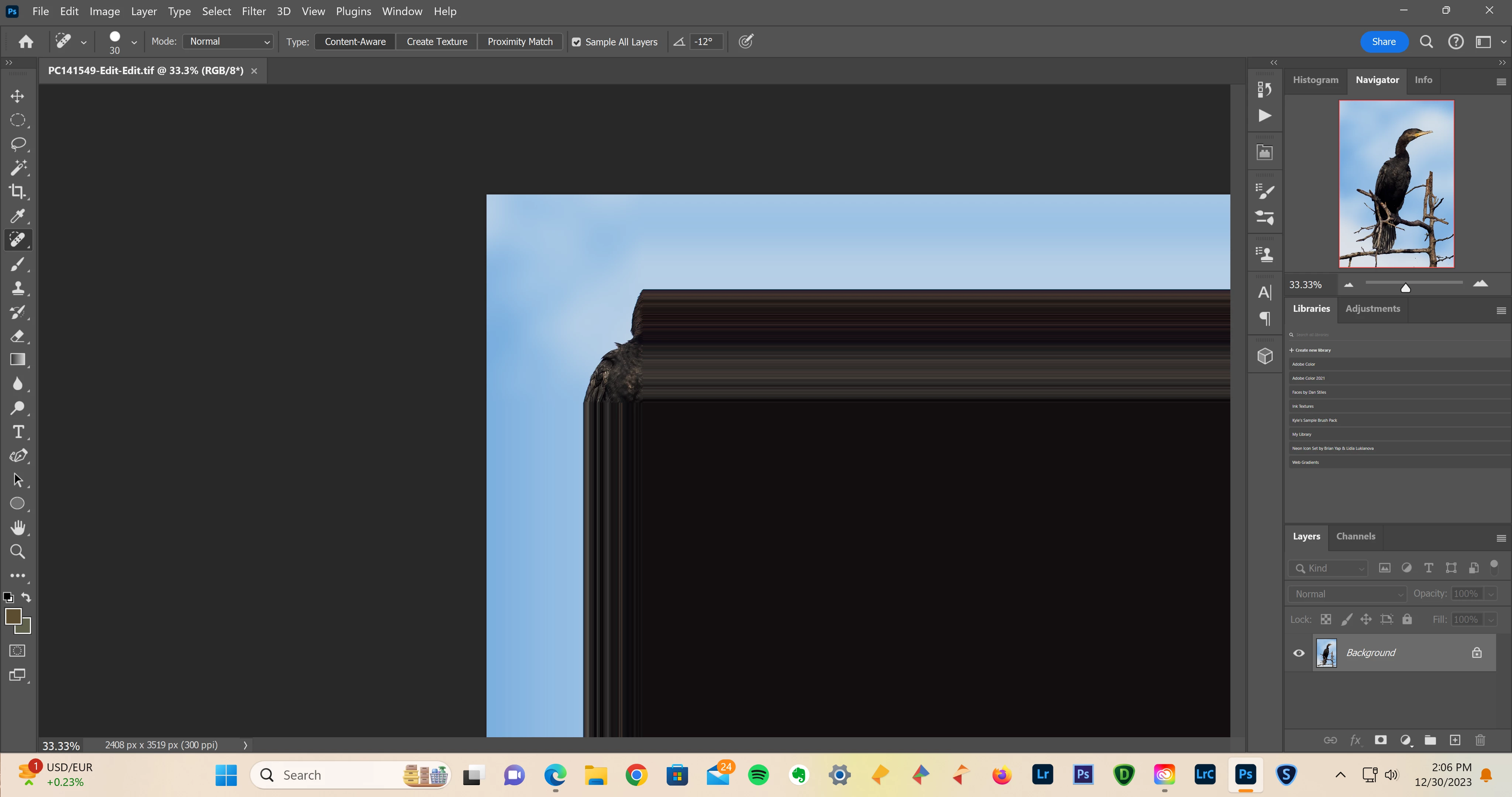
Only 1/4 of image looks normal when image opened in Photoshop 2024(25.3.1)

  • December 30, 2023
  • 3 replies
  • 213 views

Platform: Windows 11

Machine: PC with 2023-12 Cumulative Update for Windows 11 Version 22H2 for x64-based Systems (KB5033375), Processor: Intel(R) Core(TM) i7-9700F CPU @ 3.00GHz 3.00 GHz, 16 gb installed ram.

ISSUE: Sometime in the last month images are distorted when opened in Photoshop 2024(25.3.1). The image will look ok in the upper left quadrant of the picture. The lower half looks like someone took a comb and scraped all the lower half pixels into vertical lines. Sometimes the right half is the same with horizontal lines. 

I tried disabling the graphics processor. No help. I uninstalle Photoshop and reinstalled the latest version with Creative Cloud. No help. 

Screenshot:
 

This topic has been closed for replies.
Correct answer ArtBreck

I made some adjustments in the performance area of "Settings" in Windows. I don't know which one helped but now Photoshop is working again. Sorry to be so unscientific. I should have restarted the program after each change so I would know which one helped. I actually did not think any of the changes would help since they seemed unrelated to the problem. 

3 replies

mglush
Community Expert
Community Expert
January 3, 2024

We are just glad that you are up and running again!

Michelle

ArtBreck
ArtBreckAuthorCorrect answer
Participant
January 2, 2024

I made some adjustments in the performance area of "Settings" in Windows. I don't know which one helped but now Photoshop is working again. Sorry to be so unscientific. I should have restarted the program after each change so I would know which one helped. I actually did not think any of the changes would help since they seemed unrelated to the problem. 

mglush
Community Expert
Community Expert
December 31, 2023

Hi!

What version of Photoshop are you using? Have you done any troubleshooting already? Did this start after an upgrade?


Something we can try to start off with is check to see if it is a GPU issue. Go to preferences and select Performance. In the Performance tab, uncheck Use Graphics Processor, and click ok. Restart Photoshop. If it fixes the problem then the issue is you GP card. If not, and the issue still persists, then you can turn your GP back on.

Here is a help doc that will give you some information on troubleshooting: https://helpx.adobe.com/photoshop/kb/troubleshoot-gpu-graphics-card.html

Let us know if that works or if the problem still persists?

Michelle