


Participant
February 14, 2020
Answered

Only white screen shown when start Photoshop 2020

  • February 14, 2020
  • 5 replies
  • 11005 views

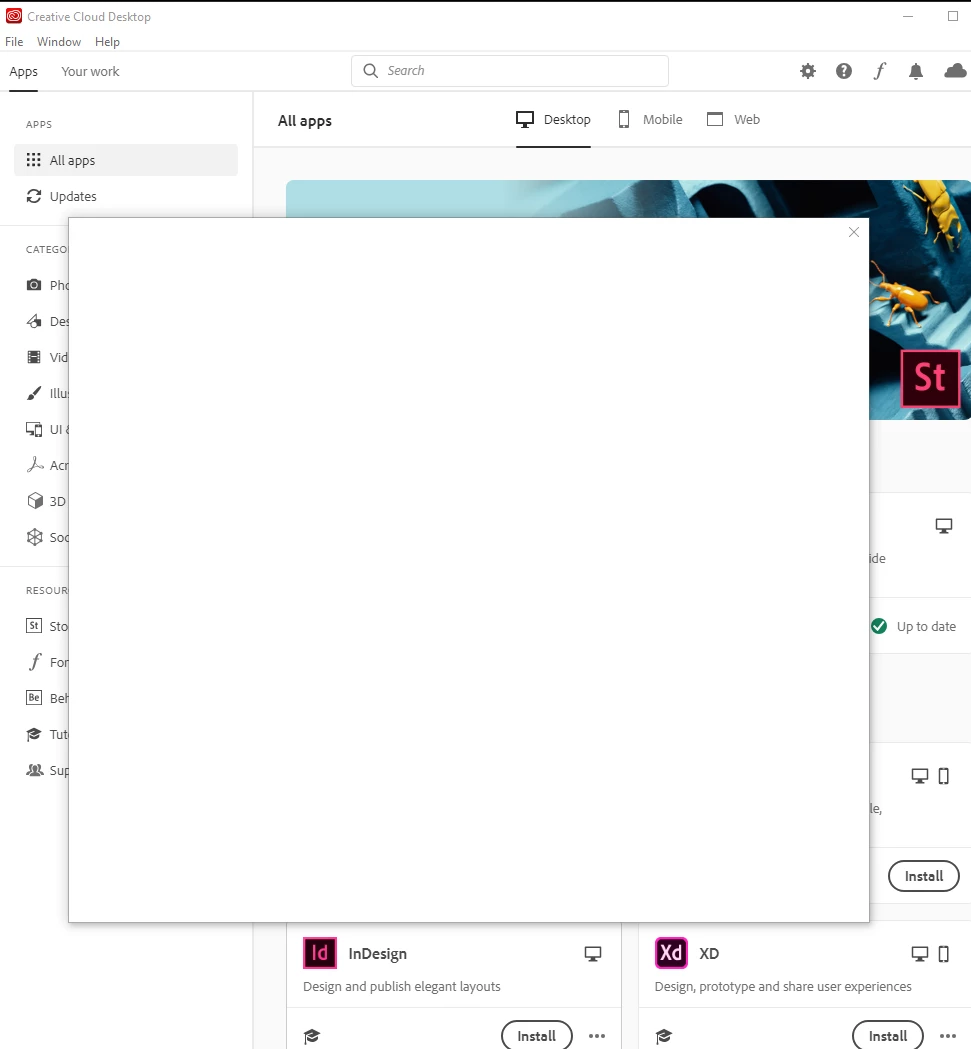
When I start all Adobe programmes including Photoshop, Premiere Pro, Illustrator from my office computer, it has not been working at all, which had worked well for a couple of weeks. It shows only white screen without anything as shown in below screenshot: 
 

I tried my best to find out the solution, by (1) uninstall all current Adobe product including the Illustrator, (2) install them again, (3) Press and hold "Alt," "Control" and "Shift" at the same time as the program launched, and delete all current settings (4) press print screen to capture (5) uninstall current products and install old version and upgrade it..... all measures I tried, but no vail. 


I desperately need to work Photoshop and other Adobe programmes on my working computer in the officer.  


Thank you for your support. 

Correct answer defaulto0c72c26d9i7

HELLO! - This could be a silly fix. I was also getting this white pop-up, which wouldn't let me use photoshop, and if I closed the pop-up, then photoshop would also shut down. 


I sign-out from creative cloud, sign back in, and open photoshop through adobe cloud, instead of the desktop short-cut, and boom it worked. 


Doubt it helps, but it worked for me! - so maybe (?) 

5 replies

defaulto0c72c26d9i7Correct answer
Participant
October 1, 2021

HELLO! - This could be a silly fix. I was also getting this white pop-up, which wouldn't let me use photoshop, and if I closed the pop-up, then photoshop would also shut down. 


I sign-out from creative cloud, sign back in, and open photoshop through adobe cloud, instead of the desktop short-cut, and boom it worked. 


Doubt it helps, but it worked for me! - so maybe (?) 

Participant
June 7, 2025

Thank you this actually helped. I opened creative cloud and saw that I was signed out which was probably what was causing the pop-up. So I didn't need to sign out and sign back in. I also made sure to open photoshop from creative cloud as you said. 

Participant
July 4, 2021

my solution that worked for me:

Delete certificates (the correct ones needed)

adobe uninstaller (adobe has seperate app for this, but I didn't really need it just to make sure though)

Updated win10 to latest

go to profile account of your adobe on the web

delete every device at the bottom until all devices are no longer activated

Reinstall creative cloud

Reinstall Photoshop from it

Along those lines it worked for me.  I am so happy, happy as Michaelangelo

Ravi.Shankar
Adobe Employee
Adobe Employee
May 16, 2020

This is an Activation issue, if you have seen that dialog box that shows Activation limit reached and asks you to sign out of one device which you no longer use, this white box is that same pop up for some reason it does not load properly.

Please try this :

  • Please sign out of the Creative cloud application and exit it
  • Go to Account.adobe.com/profile 
  • On your left hand you will see a bunch of options, choose Active Sessions from the list
  • Deactivate all sessions, once deactivated log out of the account.adobe.com web page
  • Restart your computer and then Launch Creative cloud and log in with your registered email.
  • Try launching the applications and confirm if that helped.
Participant
June 9, 2020

did not work..

Participant
May 13, 2020

I'm having the same problem -- any fix or workarounds? Just installed from Creative Cloud and it launches with a plain white screen. Closing the screen briefly shows Photoshop launch and immediately closes.

Participant
May 4, 2020

Did you fix it? I have a same problem.