
bartonlew
Legend
April 24, 2022
Answered

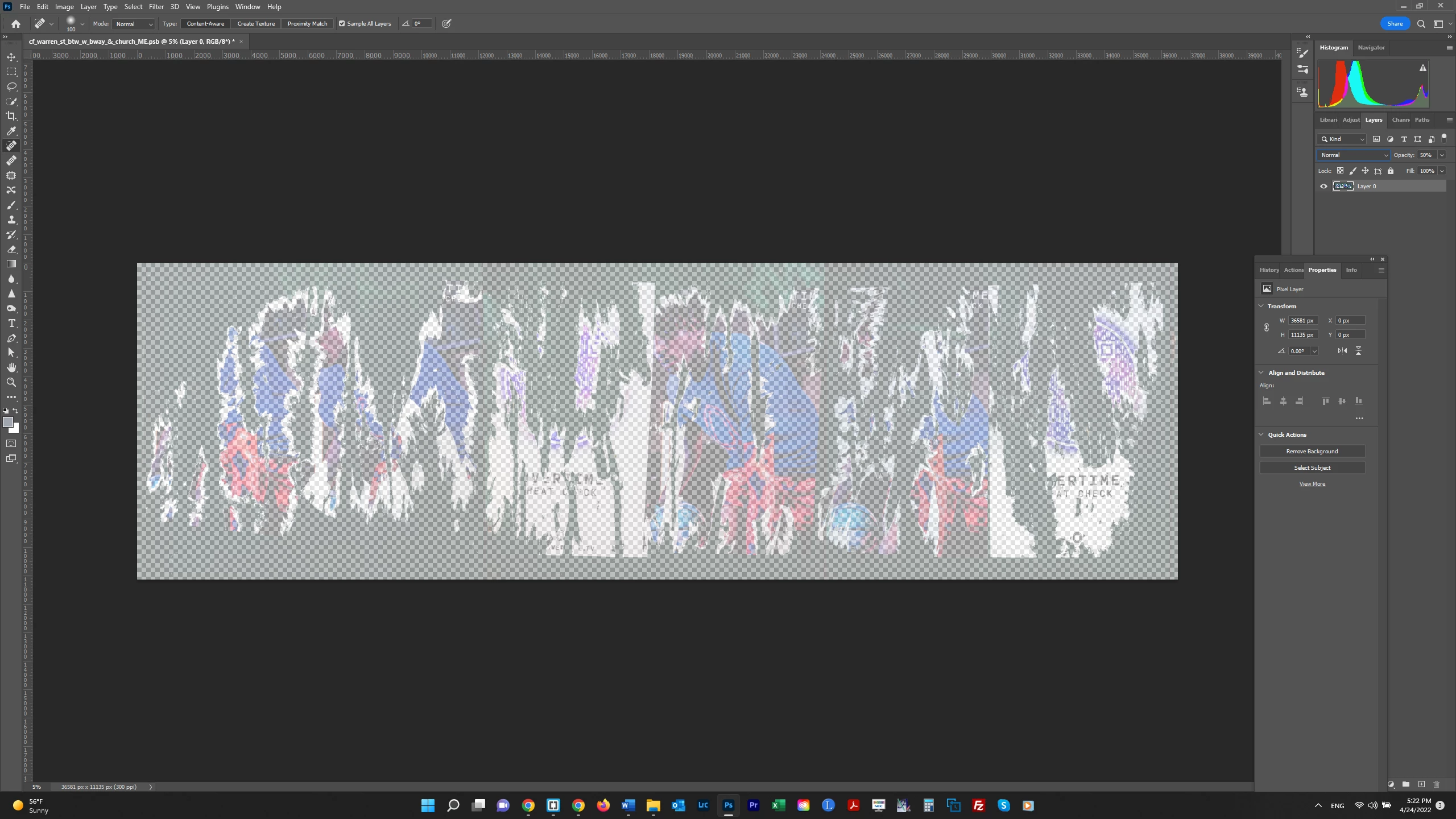
opacity showing checkerboard

  • April 24, 2022
  • 2 replies
  • 946 views

Hi, I want to apply 50% to my image.  I flattened the image and unchcked the background icon, and moved the Opacity slider to 50%.  But this made the image show as checkerboard.  Why is this?  Thanks.


This topic has been closed for replies.
Correct answer jane-e


@bartonlew wrote:

I flattened the image and unchcked the background icon, and moved the Opacity slider to 50%.


When you dropped the opacity to 50% , your image was no longer flat. It's now a regular layer with partial transparency and you are seeing the transparency grid. This is normal.


If you flatten it again, you will lock in the new opacity, but you won't be able to get back the higher opacity if you change your mind. Make a copy of your image first.


Jane


2 replies

jane-e
Community Expert
jane-eCommunity ExpertCorrect answer
Community Expert
April 24, 2022


@bartonlew wrote:

I flattened the image and unchcked the background icon, and moved the Opacity slider to 50%.


When you dropped the opacity to 50% , your image was no longer flat. It's now a regular layer with partial transparency and you are seeing the transparency grid. This is normal.


If you flatten it again, you will lock in the new opacity, but you won't be able to get back the higher opacity if you change your mind. Make a copy of your image first.


Jane


bartonlew
bartonlewAuthor
Legend
April 24, 2022

Thanks.  So there's no way to have opacity on on image without going through this procedure (and resaving it each time you change the opacity)?

jane-e
Community Expert
Community Expert
April 24, 2022

@bartonlew 

You don't have to flatten the image at all — the checkerboard transparency grid does not print. A second option is to keep the image as a regular layer so you can keep adjusting the opacity and add a white layer underneath to hide the grid.


I would probably keep the image at 100% > make it a Smart Object > adjust the opacity of the SO.


Part of your approach depends on what your goals are.


Another option is that you can change the appearance of the transparency grid in Edit > Preferences > Transparency & Gamut. This will affect all documents.


Jane


TheDigitalDog
Inspiring
April 24, 2022

First, try disabling GPU in the Preferences (Performance tab). Any better?
If not, go to Preferences > Technology Previews... and check "Disable Native Canvas" - then restart Photoshop. Better?
If not, recalibrate and build a new ICC display profile, the old one might be corrupted.
If you are using software/hardware for this task, be sure the software is set to build a matrix not LUT profile, Version 2 not Version 4 profile.
If turning OFF GPU works, it's a GPU bug and you need to contact the manufacturer or find out if there's an updated driver for it. On the Mac, that's part of the OS update(s) so if this is the latest OS version, you may need to roll back a release.
Also see: https://helpx.adobe.com/photoshop/kb/acr-gpu-faq.html

Author “Color Management for Photographers" & "Photoshop CC Color Management/pluralsight"
