
Participating Frequently
May 1, 2025
Question

Opacity slider issue

  • May 1, 2025
  • 1 reply
  • 126 views

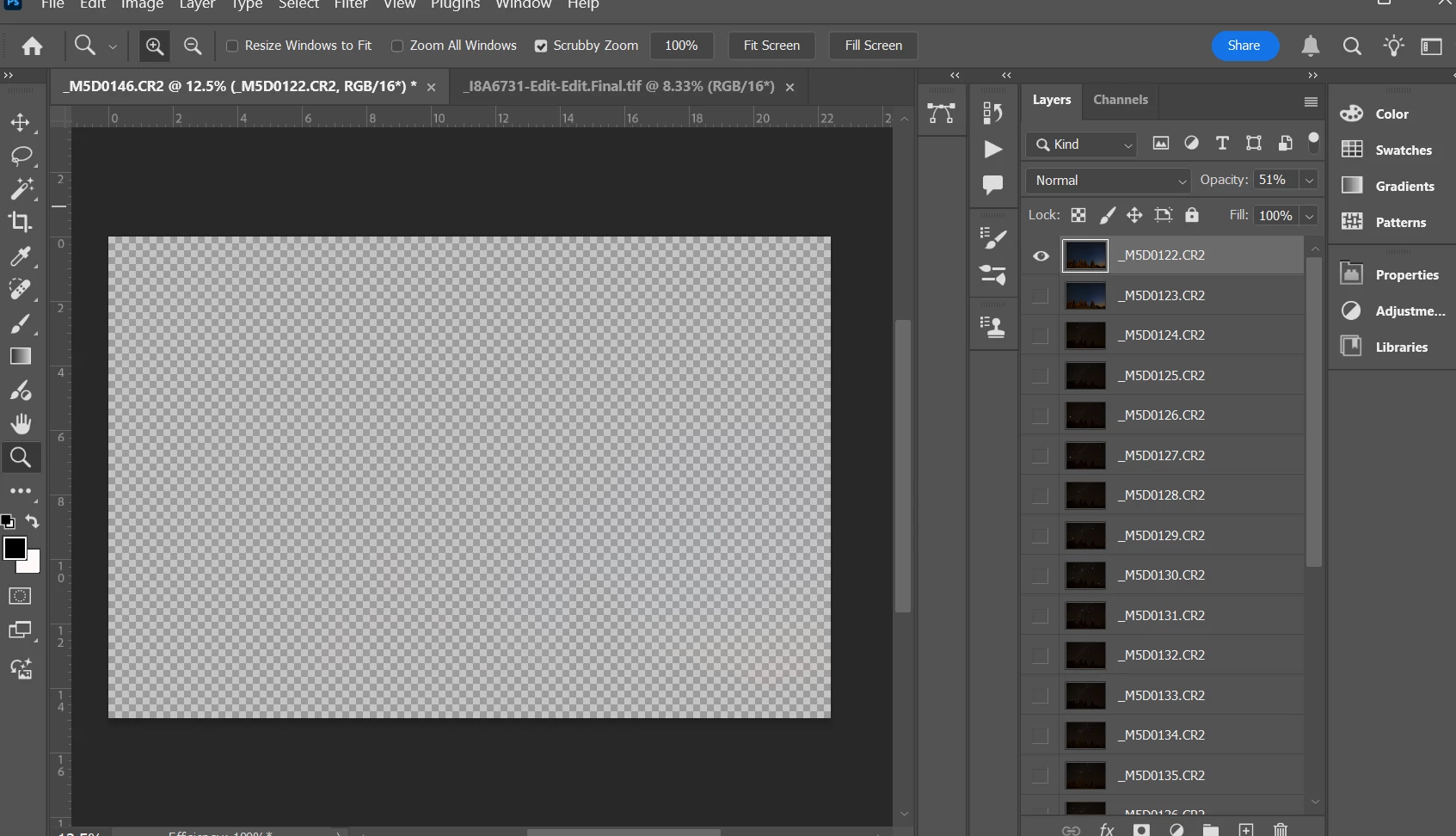
I have downloaded 25 images from LR in layers and am adjusting opacity on each image. When I get to the last image as soon as I reduce opacity the image is transparent. Take it back to 100% and the image is back. I have done this process a number of times without issue so I am not able to understand what is ahppening here. Can you help please.
1 reply

AxelMatt
Community Expert
Community Expert
May 1, 2025

First try to reset the preferences of Photoshop using the steps described here:

https://helpx.adobe.com/photoshop/using/preferences.html#reset-preferences

It's recommended to backup your settings before resetting the preferences.

See here:  https://helpx.adobe.com/photoshop/using/preferences.html#backup-photoshop-preferences


If this doesn't help try to disable the option to "Use Graphics Procesor" from Photoshop by going to Preferences, then Performance. Once done, quit & relaunch Photoshop to check if that helps.

If it helps, you can check out the steps suggested here:   https://helpx.adobe.com/photoshop/kb/troubleshoot-gpu-graphics-card.html

Take a look especially point 7 in the "Troubleshoot GPU and Graphics driver" section.


Is your system up-to-date? Do you have installed all recent updates and patches for the operating system and the device drivers, especially the graphic driver. If you have a NVidia graphic card installed, make sure that you are using the recent Studio version of the driver, not the Game Ready version.


My System: Intel i7-8700K - 64GB RAM - NVidia Geforce RTX 3060 - Windows 11 Pro 25H2 -- LR-Classic 15 - Photoshop 27 - Nik Collection 8 - PureRAW 6 - Topaz Photo AI