Participating Frequently
February 5, 2020
Answered

Overwrite a jpg create a copy instead

  • February 5, 2020
  • 16 replies
  • 10406 views

I have just updated to PS 2020 after long time with PS CC 2018. I'm on macOS Catalina. 
I have a problem in overwriting files: when I try to save an image that already exists, Photoshop asks me if I want to overwrite the file. 

Even if I confirm, it always decides to save a "namefile_copy.jpg" of it, so I find myself with two files and I have to manually erase the old one and rename the new one without the "copy", is there something to prevent the creation of a new file? I want to overwrite my existing jpg.
Thank you! 

This topic has been closed for replies.
Correct answer daniels53766830

Hi there. I found/created a fast workaround that works perfectly for me and probably for everyone else.

I used the actions-panel to solve this problem, because there is an underestimated backdoor:
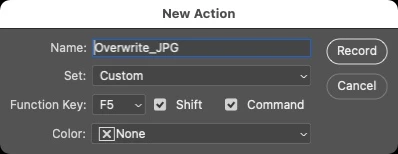
The moment you create a new action (BEFORE you start recording it), you can set a keyboard-shortcut for the action.


So what ever you will record will be "launched" by simply using the given shortcut.

I recorded the following:
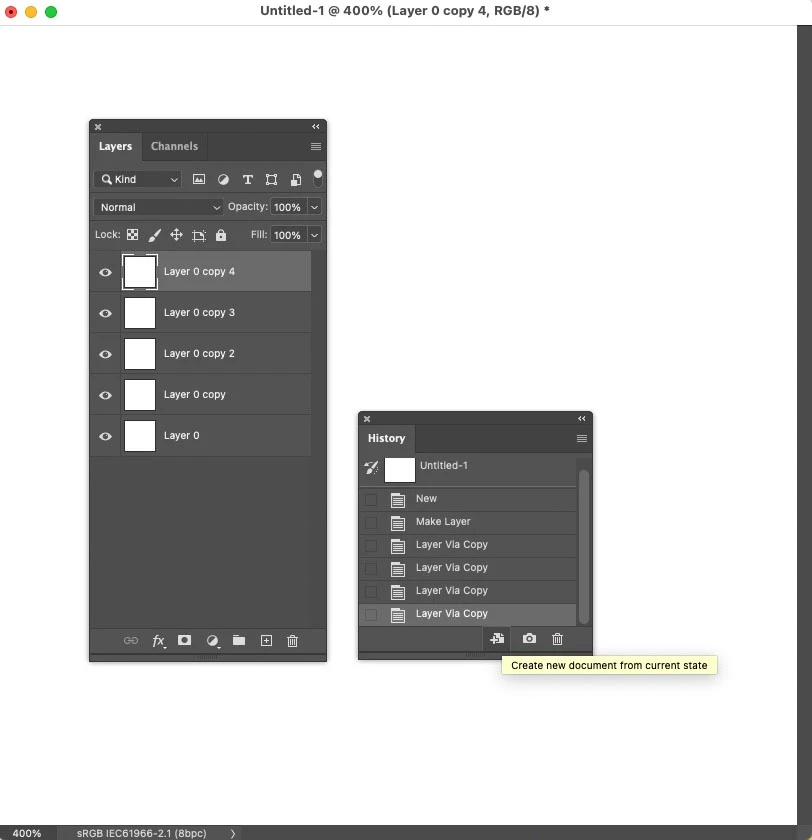
• "create new document from current state" in the history panel

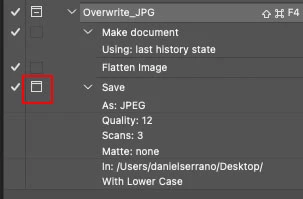
• then: Layer-> Flatten Image (most important step, as only flattend images will overwrite existing JPGs)

• then: File->Save-As (all JPG options you are chosing are not important)

• stop recording the action.

• in the recorded action click on the folder icon next to the SAVE action. This ensures that the save-as-window will pop up where you can just click on the JPG you want to overwrite and define the quality.  

And as it's a flattend file, it will overwrite the existing JPG. 


I was used to press CMD-SHIFT-S for saving as JPG (but it didn't overwrite).

Now its CMD-SHIFT-F5 that saves and overwrites the JPGs.

I will use this as long as Adobe doesn't fix the problem.

Hope it helps you too.


16 replies

Participant
November 4, 2020

OMG This is doing my head in! I have the same issue and its drving me bananans! 

Participant
October 29, 2020

Can i know if this have been solve? I also need to know how to overwrite existing jpeg file instead of creating a copy of it.. Please guide me if there is a solution for this issue. Thank you.

Participant
April 22, 2020

This has been a huge headache for me. I've been working on a series of very similar Google ads with two versions of each ad and there have been a lot of changes. Not being able to overwrite the file each time has added a ton of time and annoyance. I will try thunderboltmanhattan's solution, but Please fix this Adobe!

Participating Frequently
March 22, 2020

Hey glossyjuice, I've been having the same problem. It seems to be a Photoshop/Catalina glitch. I found this workaround for JPGs, PNGs, SVGs, and GIF files: 


File > Export > Export As will actually overwrite the file in question, not create a copy like the glitchy Save As command. It's more time consuming, but maybe not as time consuming as having to navigate to the saved file, deleting the old one, and renaming the copy. Hope this helps! 

davidg9502748
Participating Frequently
February 4, 2021

This solution doesn't work if there are spaces in the file name. Export tends to replace a space with an underscore, so the file name may not always be exactly the same as the file you selected to overwrite. I did try this method, and that's how I discovered the problem. With critical deadlines and files that need to remain exactly the same, it will still require deleting the old file and changing file names.

JJMack
Community Expert
Community Expert
February 5, 2020

If You have added a layer and did not then  flatted if you use save Photoshop will switch to save as  to give you the opportunity to save your layers. If you select file type jpeg and click save Photoshop will see that the file exist and ask if you want to replace the file I believe.  Before using save flatten the layered document I believe then when you the use save photoshop will overwrite the jpeg file that you opened into Photoshop.


Note: I use windows operation may be different on a Mac.

JJMack
Participating Frequently
February 5, 2020

Yes, that's what I do: I don't flatten my layers - save as - jpg and I have the message "file already exists. Do you want to replace it?"
I click replace but instead of replacing it, photoshop save a copy "namefile_copy.jpg" 
I will try to flatten the image but it should work even with layers, I guess (or it should not ask if I want to replace my file then) 

JJMack
Community Expert
Community Expert
February 5, 2020

As I wrote I use windows when I reply to overwrit  Photoshop overwites the Jpg file  it does not create a new file FileName_copy.jpg

JJMack
Participating Frequently
February 5, 2020

I've checked and they said it works flattening the image, but it's a step further. If photoshop asks if I really want to replace a file, it should replace it without creating a copy.