Participant
May 13, 2021
Answered

P: Photoshop 22.4 - Missing Save as formats from the menu

  • May 13, 2021
  • 107 replies
  • 448800 views

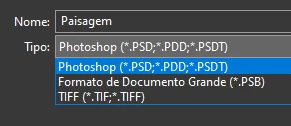
I just updated to the mentioned version and the formats dropdown list only shows 3 formats: Photoshop (*.PSD;*.PDD;*.PSDT), *.PSB and TIFF (*.TIF;*.TIFF).

This topic has been closed for replies.
Correct answer Noelle Shamroukh

Hi All,


We appreciate your feedback on the recent “Save a Copy” change. To address your concerns, we have created two new options in Photoshop 22.4.2 that will enable both revert to the legacy “Save As” workflow and/or omit the addended “copy” when saving as a copy. These options can be found in the File Saving Options section under Preferences > File Handling.


To quickly summarize, you will now have the option to revert to the legacy “Save As” workflow (from before recent changes) on both macOS and Windows. Enabling this preference will make both the “Save As” and “Save a Copy” commands operate within the same “Save As” dialog box with all its previous options, including the “as a copy” checkbox. The only difference between the two commands will be whether the checkbox is automatically selected (when using “Save a Copy”). Additionally, you will now have the option to not append copy when saving a copy. On macOS, if you enable the legacy workflow, the option to not append copy will be forced ‘on’ due to the changes made in macOS 10.15 and later. On Windows, the two preferences will operate independently.


We hope these preference options will help ease some of the frustration you encountered using the new “Save a Copy” command.


Please note, reverting to the legacy “Save As” workflow may increase the risk of overwriting file names and lost work. A new dialog will pop-up warning customers of this risk when selecting either one of these preferences on macOS. On Windows, the legacy “Save As” operates in a manner that is safe, so a warning dialog will only pop-up when selecting the option to not append copy to the file name.


For more details on each preference and how they differ by platform, please see our updated new feature summary page.


Thanks, 

Noelle

107 replies

Participant
October 29, 2021

So what is the solution to this problem?  i am reading all kinds of comments.  Exactly how do i save my file as a JPG???


Nancy OShea
Community Expert
Community Expert
October 29, 2021

File > Save a copy....


Nancy O'Shea— Product User & Community Expert
lindseyc91911857
Participant
October 27, 2021

Since we can't "Save As" to JPEG how are you they going to fix the image processor to be able to save as a copy for mutiple images. And what file formats will work for the "Save As" option? 

Mohit Goyal
Community Manager
Community Manager
October 27, 2021

Hi there,


We're sorry for the trouble. You can turn off the new save as workflow and return to legacy save as workflow by going to Photoshop > Preferences > File handling and check Enable legacy Save as and Do not append a copy to file name restart Photoshop.


Hope it helps. 


Thanks,

Mohit

Participant
October 19, 2021

D Fosse
Community Expert
Community Expert
October 19, 2021

File formats that don't support all the current properties of the file have now been moved to Save A Copy (because that's what it is). The original full file will still be open for editing after Save A Copy.


You can revert to the old Save As behavior in Preferences > File Handling.

Participant
October 19, 2021

I'm currently having the same issue. Except "Save a Copy" does not have an option for PNG either

Participant
September 30, 2021

Could you please change it back.... WHY would you cange something like that... it works the old way... now I have to delete the 'copy' from every file I save. I just went back to an old version of Photoshop to save the old way... Please read this and change it back. it takes forever to save the new way.


You need to ask program questions in the forum for the program you are using
To ask in the forum for your program please start at Adobe Support Community
Moving from Using the Community (which is about the forums) to the correct forum... Mod


John Waller
Community Expert
Community Expert
September 30, 2021
quote

WHY would you cange something like that ... Please read this and change it back.


TL;DR: update to the current version Photoshop 22.5.1 and enable Legacy Save As in Preferences.


Seems you're either running the outdated version 22.4 or you don't have Legacy Save As enabled in Preferences.


Apple changed their operating system functionality when Big Sur was released so Adobe changed Save As to suit. Not everyone liked Adobe's new Save As solution so Adobe offered an alternative in 22.4.2 in June 2021.


Full details here: https://petapixel.com/2021/05/18/photoshops-save-as-function-has-changed-on-mac-heres-why/


We're now up to version 22.5.1. So update your version of Photoshop, enable Legacy Save As and you'll get the old behaviour back.


See: https://community.adobe.com/t5/photoshop-ecosystem-discussions/photoshop-22-4-2-is-now-available/td-p/12089797

Participant
September 21, 2021

Adobe's latest "we know better than you" fiasco is the revision to the Save As function. Their arrogance in the assumption that they know what we need better than we do is once again making me consider dumping my account and switching to a new platform.

I do a large amount of image restoration, and the images are often sent to me as high resolution scans (typically 2400) from clients who are hoping to print the restoration. I realize there are more efficient formats than the .jpg most people send me. But you have to understand that many of these people are locked into a frame of mind that won't allow them to understand what to do with anything EXCEPT a .jpg file. Many of them even specify that the image must be returned as. jpg.

So, imagine the fun of trying to use the time honored Save As to output your file, only to find the traditional .jpg is not available. What's more, when you use the Export command, it automatically assumes that the .jpg will be used for email or web use, and automatically outputs the new file with a resolution of 96.

Yes, I have figured out a workaround to the process. Your brilliant innovation of a feature that worked perfectly well has added to my process rather than reducing my workflow.

So here's my idea: QUIT FIXING STUFF THAT ISN'T BROKEN! You want to make us happy? Add new features that actually work, don't require you to be online, and don't reinvent the wheel!

Nancy OShea
Community Expert
Community Expert
September 21, 2021

Hi @PhilB1965,

Are you using the Legacy preference settings in PS 22.4.2?


FYI, Apple created many problems for software makers when they released Big Sur last year.  Apple & Microsoft are releasing 2 new operating systems in a few weeks:  Monterey & Win11.  So stay tuned for more updates...


Hope that helps.


Nancy O'Shea— Product User & Community Expert
Participant
July 29, 2021

Long time user here... I'll be the first to admit that I'm not the best user of Photoshop, but I use it in my print shop to process client files. Now, I often need to send flattened PDF proofs to clients while retaining my original working files. For me, this has always involved going to 'Save As..' and unselecting layers in the dialogues.


But with newer versions, I keep running into an issue where I go through this process, and continue to work on the master file. But when I go to save my layered PSD as the same filename.psd, I end up with a flattened, single layered file.


What is the utility in having a layered program create unlayered files automatically, especially when I can do that manually through the flatten action? Especially when this has only been an issue in my workflow for the past year? (I am not sure which version initiated the change, as I'm just noticing it with a project in the last two months.)

TheDigitalDog
Inspiring
July 29, 2021

Save (and various Save As iterations) changed a few times recently, this may help:

https://helpx.adobe.com/photoshop/using/saving-images.html

Author “Color Management for Photographers" & "Photoshop CC Color Management/pluralsight"
Known Participant
July 29, 2021

Another dister feature from Adobe thanks a lot you seen to mess around with every update and belive you are making the package better. This seems to be the way of adobe now we are all subscription based whats wrong withn you guys dont you use the software as a proffesional can anyone send me a link to complain about this stuff!!!!!

Derek Cross
Community Expert
Community Expert
July 29, 2021

This is a user-to-user support forum, you are not addressing Adobe on here.

You can change back to the previous way of saving in Photoshop preferences if you prefer.

Known Participant
July 28, 2021

Adobe, please return save behaviour to the way it used to be. If I try to workaround this ridiculus change by rebinding save a copy to ctrl+shift+s then it automatically appends "copy" to my filename which I then have to delete. This is severely crippling my workflow of being able to quickly save a .tga of a game texture I'm working on, something that needs to be done often to be able to preview the texture in a game engine. The only way to work quickly now is to make my own macro or something and re-train my muscle memory to use keybind I assign to a macro. There should at least be an option to revert to the way things were in preferences.


TheDigitalDog
Inspiring
July 28, 2021
Author “Color Management for Photographers" & "Photoshop CC Color Management/pluralsight"
Participant
July 27, 2021

The latest photoshops and this one 22.4.3 doesn't have JPG as an option in the "save as" like others used to. it only gives you, psd, large document, PDF or TIFF. So we are still looking for an answer on this question since the "save as" is NOT the answer. If anyone knows, appreciated. Because yes, the ONLY way to save the JPG is going to "Export as" now and it automatically saves as rgb even if you uncheck "rgb" like the original post says....

Participant
July 27, 2021

OK! I just figured it out, so basically the new "save as" only gives those 4 options, but to the right of the "format" area dropdown menu, there is a "save a copy" button, when you click this, then it gives you all the "older" extensions, jpg included so you can save as a CMYK JPG.

Derek Cross
Community Expert
Community Expert
July 27, 2021

You can change back to the previous way of saving in Photoshop preferences if you prefer.

Known Participant
July 26, 2021

Windows 10, PS CC 2021 Desktop version.  Is there a way of returning to the old "save as" behavior?  Now when I "save as" I have to close present document and open the one I just saved because the name of the present document does not change to the new name I just saved it as.

Thanks

Ged_Traynor
Community Expert
Community Expert
July 26, 2021

Hi

You can do that in the preferences with version 22.4.3

Known Participant
July 27, 2021

Thanks I have updated to 22.4.2.3 checked the boxes as advised above but the "save as" dialog bog comes up with the "save as a copy" box checked by default.  Is there something else that could be overriding the above twoo prefs.

Chris