mlavdh
Participant
Dec 4, 2015 6:38 AM UTC
Answered

Paint bucket tool is missing after recent update Photoshop CC
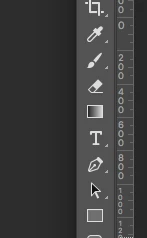
After the new update i can not find the fill bucket icon under the gradient icon anymore is the bucket relocated somewhere else. Or is this some sort of bug / error?

This topic is closed to new replies. Start a new post to keep the conversation going.
Jeff Arola
Jeff ArolaCorrect answer
Community Expert
Dec 4, 2015 6:43 AM UTC

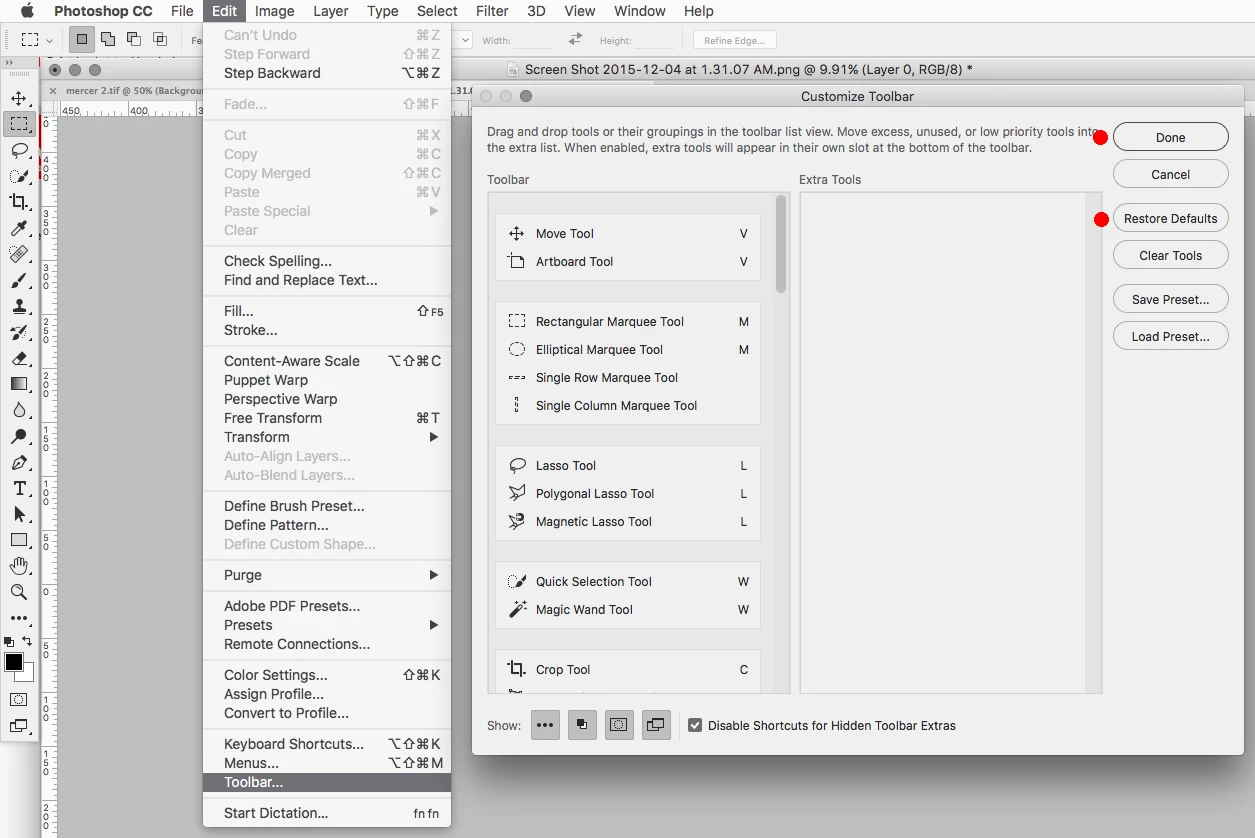
Go to Edit>Toolbar, click Restore Defaults and Done.

See if that gets things back to normal.

33 replies

JThan
Participant
May 26, 2026 10:58 PM UTC

Thank you!

Translate
Participant
Mar 30, 2022 9:25 AM UTC

window> workspace> essentials(default ). 
Its probably just in some other workspace.

Translate
THansen51
Participant
Sep 22, 2021 11:31 PM UTC

Like many issues with Software, I did not realize I also had Illustrator open and the windows were not presenting clearly.  Once I closed Illustrator, the Photoshop menu was visible, complete with Paint Bucket. 

Translate
Participant
Jun 13, 2020 11:36 PM UTC

I have a new PS 2020 and there is no fill tool. I did the steps above and still nothing. I am a beginner so maybe missing something g, but there is no bucket icon even after resetting defaults.

Translate
rogsonl
Known Participant
Jan 4, 2021 5:36 PM UTC

I had the exact same problem.

1. Edit>ToolBar You get


go down the left and right move bars until you find the Gradient tool on the left and the paint bucket tool on the right.

Move the paint bucket to the Gradient tool and both will appear. Problem solved.

I was helped by the hints provided before by this thread.

Translate
Participant
Apr 7, 2020 7:06 PM UTC

OMG, thank you!!

Translate
Inspiring
Mar 1, 2018 3:38 PM UTC

I get the same error spontaneously after my workspace completely disappeared.  It was not a matter of long pressing or ALT-clicking the tool but going to Edit > Toolbar... (as mentioned above) but instead of resetting the toolbar, I moved the paint bucket took back to its rightful place.  See visual below.

Edit > Toolbar...

Move to toolbar

Good luck ya'll.

Translate
sagem8608751
Participant
May 19, 2018 11:24 PM UTC

I have no Edit - Tools menu, no traingle and no 3 dots at the bottom . I cannot find the paint bucket anywhere, very fusted. Adobe stop moving things!

Translate
Inspiring
Jun 21, 2018 3:35 PM UTC

sagem8608751​

What version of PHotoshop do you have sagem?  You dont have a "Toolbar..." option at the bottom of your "Edit" menu?

Translate
Condre369
Participant
Apr 24, 2017 7:48 AM UTC

Heh. R_Kelly showed you where your bucket is.

Translate
goforthjtj
Participant
Apr 10, 2016 2:10 AM UTC

R_Kelly, I'm missing my Paintbucket, as well, and I don't even show the Toolbar option under Edit:

Translate
Jeff Arola
Community Expert
Community Expert
Apr 10, 2016 2:43 AM UTC

I don't think your missing the Paint Bucket Tool.

Just left click and hold on the Gradient Tool in the toolbox to get to the Paint Bucket Tool.

Photoshop tool galleries

Translate
Participant
Jan 11, 2017 1:02 PM UTC

Thanks a lot!

Translate
Inspiring
Dec 12, 2015 5:38 PM UTC

Not to belabor the point, but why was it changed like that?  I haven't touched the toolbar settings since the latest version was installed, so apparently it installs this way.  Freaking WHY??

Translate
Participant
Dec 7, 2017 6:52 PM UTC

If you used the bucket tool Adobe has saved you from yourself by hiding it.  Future users will never know about it.  It's so 1990's and when you work at Adobe and were born in the 1990's removing things is a way of advancing ones career. 

Translate
Participant
Feb 28, 2018 4:43 AM UTC

Easy there, buddy, We get that you've got the whole pretentious graphic design complex going on, but us plebs might still want to use the tool for simple tasks. I wanted to use the paint bucket to fill in half shapes for a pedigree chart for my bio class, but I guess that's too 1990s of me. Thank God Adobe saved me from this egregious crime against electronic arts.

Translate
Jeff Arola
Community Expert
Jeff ArolaCommunity ExpertCorrect answer
Community Expert
Dec 4, 2015 6:43 AM UTC

Go to Edit>Toolbar, click Restore Defaults and Done.

See if that gets things back to normal.

Translate
mlavdh
mlavdhAuthor
Participant
Dec 4, 2015 7:05 AM UTC

Just that easy!

Thanks

Translate